AI-Powered Animated Subtitle
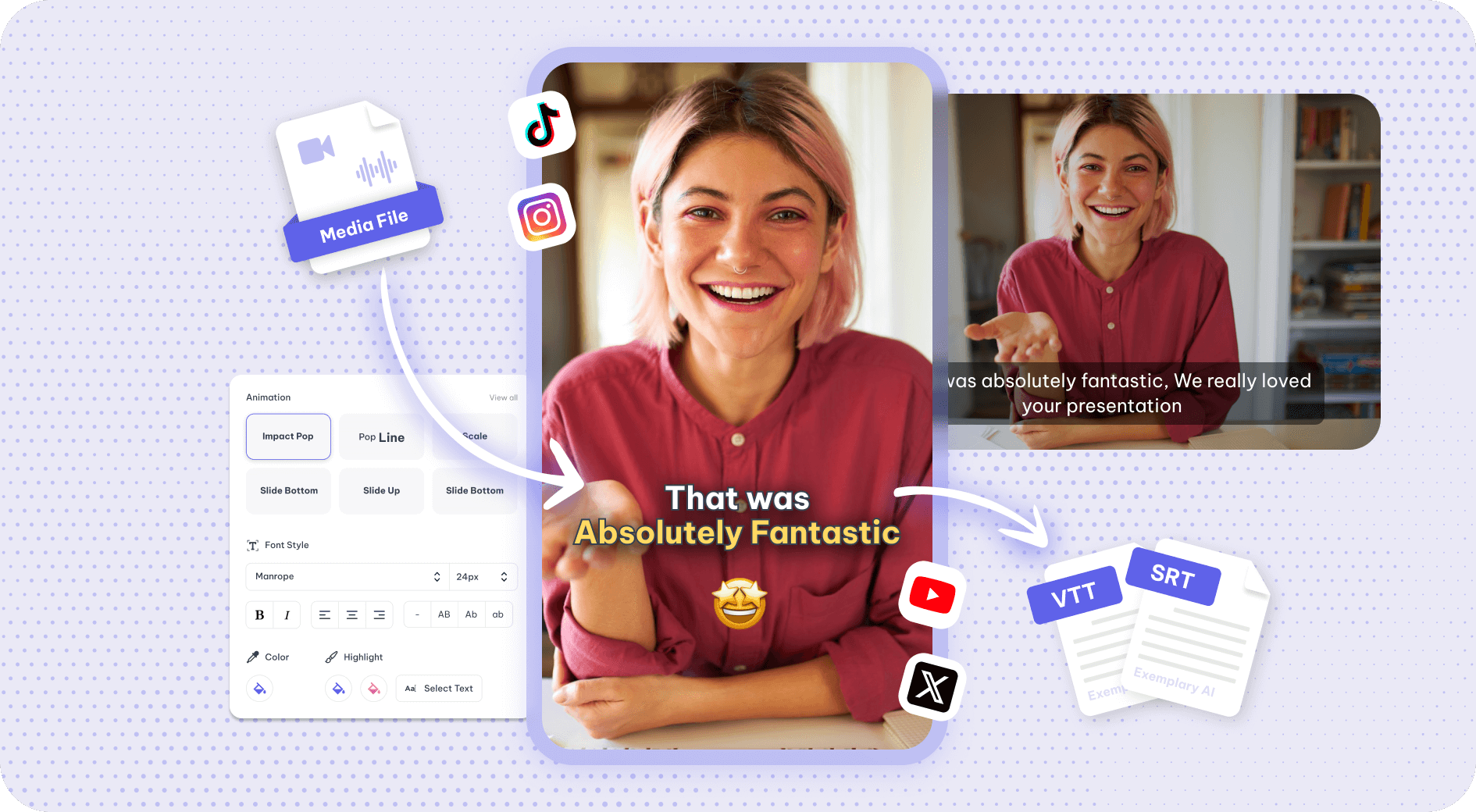
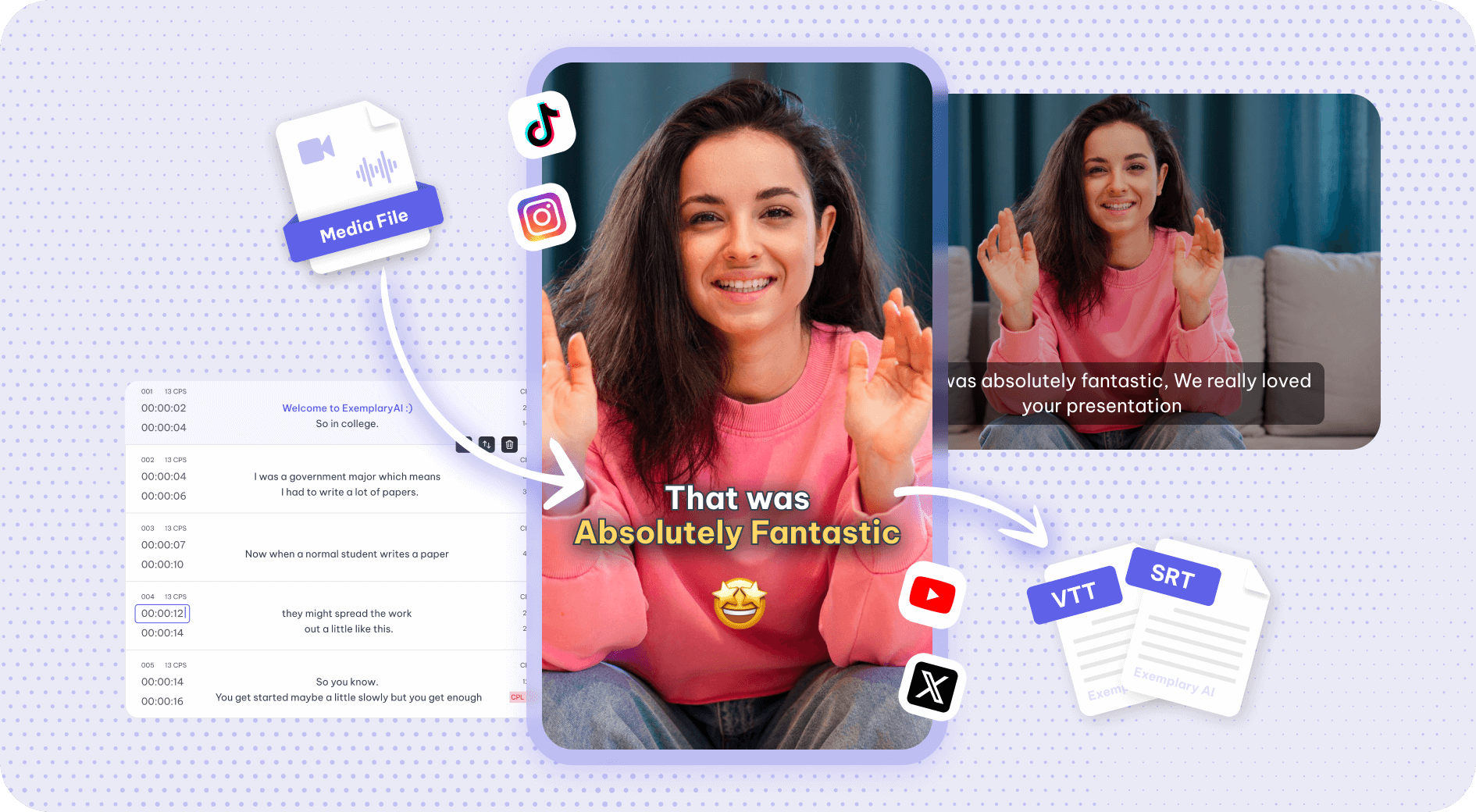
Looking out for creative ways to boost your video quality and engagement? Animated subtitles bring life to your videos and grab attention. Add trendy animated subtitles, emojis and highlight words in just one click. Stand out with dynamic visuals on all social media platforms. Boost viewership with AI.
Why Use Exemplary AI's Animated Subtitles?
Exemplary AI is your all-in-one content generation platform, from repurposing your long podcast into short clips to adding subtitles to your clips & audiogram and generating various content formats. Create engaging content with Exemplary AI.
Instant Subtitles with AI
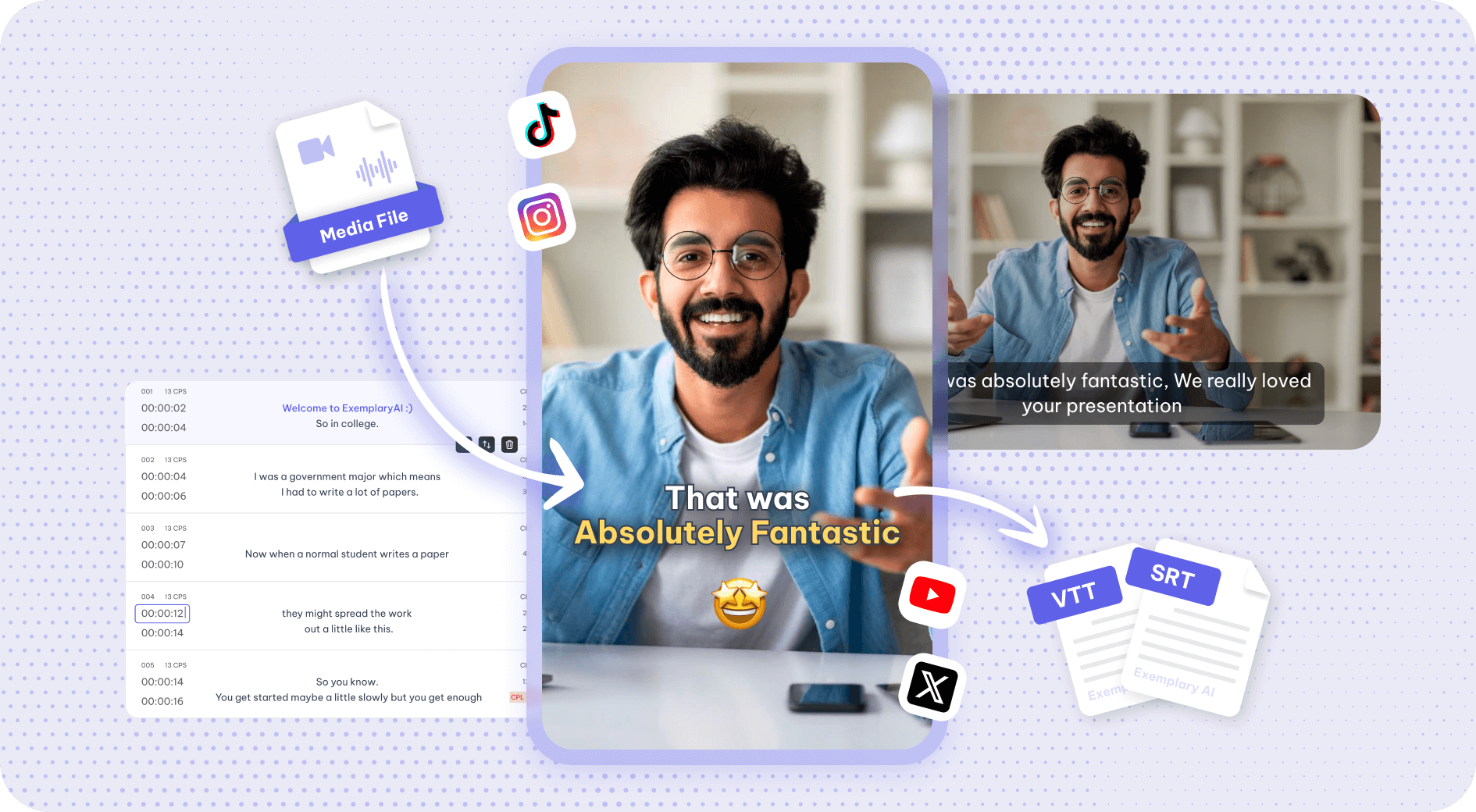
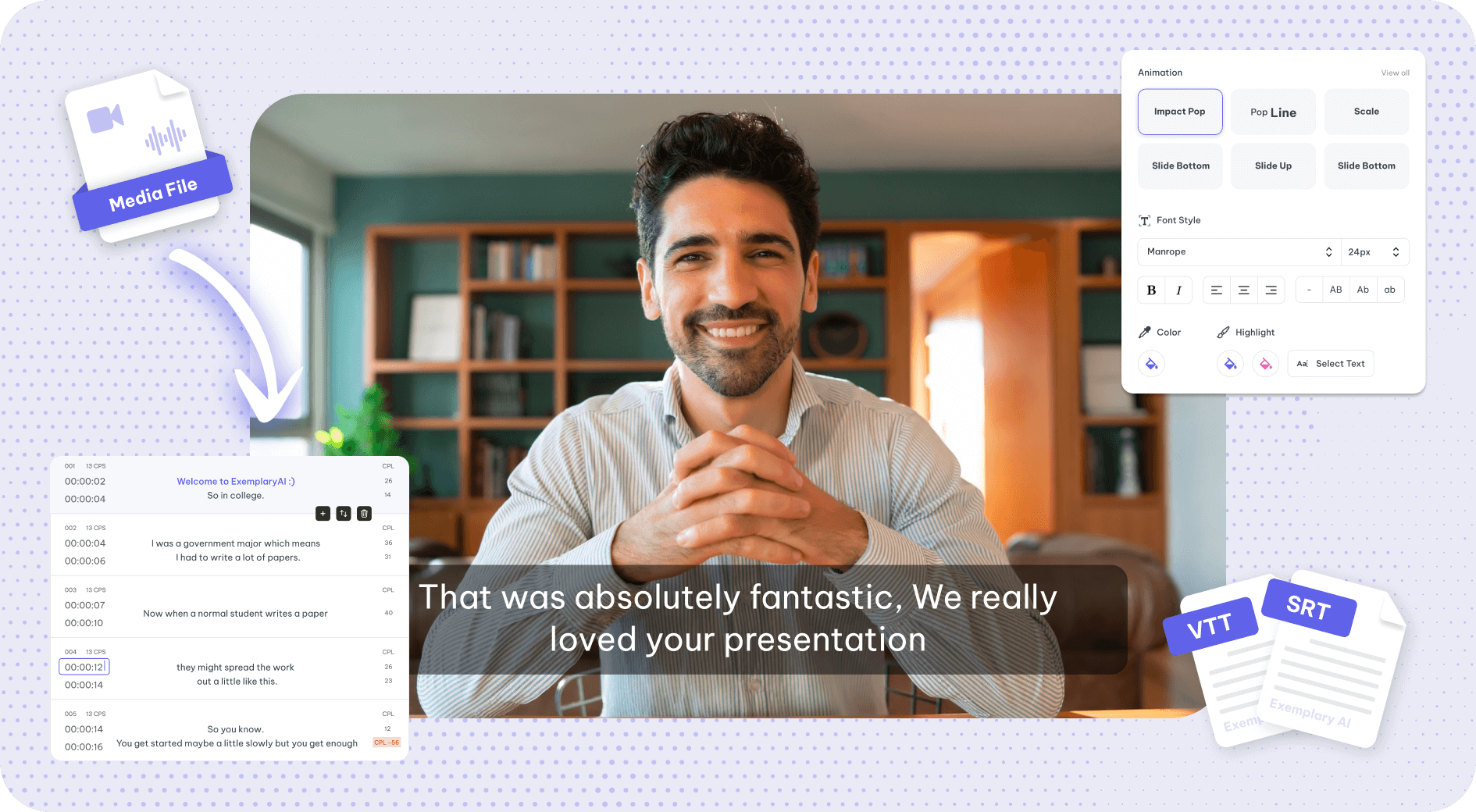
Transform your videos effortlessly with Instant Subtitles powered by AI. Create captivating captions. Customize your subtitles with a user-friendly editor, ensuring your message shines in every video.
Advanced Subtitle Editor
Unleash your creativity with the Advanced Subtitle Editor. Craft and tailor your subtitles effortlessly, making your storytelling truly unique. Express yourself ensuring your narrative stands out with precision and flair.
Caption Animation and Emojis
Elevate your videos with animated captions and Auto-Emojis that make your narrative visually compelling and irresistibly engaging. Bring your subtitles to life and captivate your audience by highlighting words in the captions, dynamic movement, and style.
How it works:

Upload Your Video File
Start with “Create Project”, select “AI Captions” and upload the video that needs captions, or paste a YouTube, TikTok, Vimeo or X link.
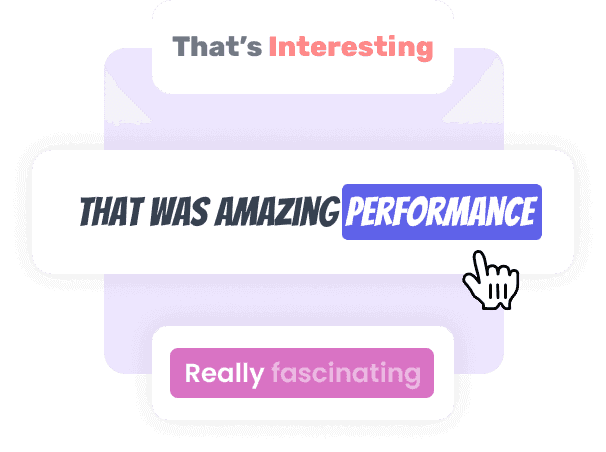
Edit and personalize Subtitles
Once processed, use AI tools to personalize your captions for your video with animation styles, emojis, word highlights, color, and fonts.
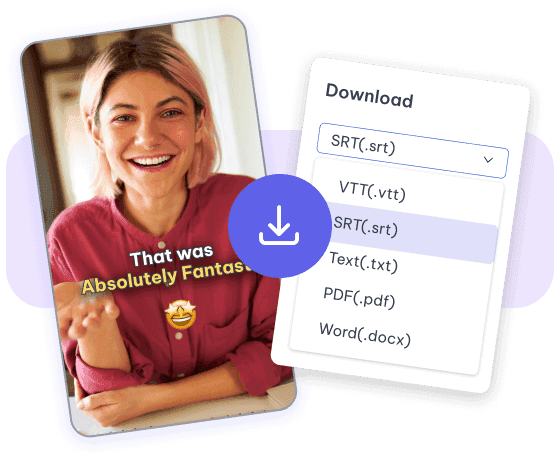
Export and Download
Once satisfied, download the video as an MP4 (H.264) file with the captions burned in, or copy a share link to it.
See it in action
Tools that work on the same file
You have already uploaded it. These run on the same transcript, so there is nothing to redo.
Auto subtitle generator
Automatic subtitle generator: AI transcribes your video into timed subtitles you can edit,…
Video caption generator
Generate AI captions from your video's speech; fix any word or timing, style them and burn them…

Subtitle translator
Get your subtitles translated in just a few clicks.
Subtitle editor
Refine your video subtitle to perfection with Subtitle Editor.
Animated subtitles is one part of one workspace
Animated subtitles is one door into the same workspace. Whatever you came here to make, the rest is already available from the file you just uploaded.
Upload once
The same recording feeds every tool on the site. Nothing needs uploading twice to get a second format out of it.
Caption and translate
Burned-in captions or subtitle files, in the spoken language or translated with the timings kept intact.
Repurpose without re-editing
Clips, chapters, show notes, blog drafts and social posts all come off the one transcript.
Common questions
What are animated subtitles?
Can I customize the animations in the subtitles?
How does the AI ensure the accuracy of the subtitles?
Can I use animated subtitles for different video formats?
Is there a limit to the length of videos I can upload for animated subtitles?
Discover more Subtitles & Captions
- Auto subtitle generator
- Video caption generator
- Subtitle translator
- Subtitle editor
- Burn subtitles into video
- SRT generator
- SRT to VTT converter
- Caption styles
- Add subtitles in DaVinci Resolve
- Add subtitles in Premiere Pro
- Add subtitles in Final Cut Pro
- Add subtitles in Canva
- Captions vs subtitles
- TXT to SRT converter
- SRT to TXT converter
- Add subtitles to Video
- Add subtitles to TikTok Video
- Add subtitles to Instagram Reels
- Tamil Subtitle Generator
- Hindi Subtitle Generator
- Arabic Subtitle Generator
- German Subtitle Generator
- Chinese Subtitle Generator
- Indonesian Subtitle Generator
- Persian Subtitle Generator
- Hebrew Subtitle Generator
- Thai Subtitle Generator
- Greek Subtitle Generator
- Malay Subtitle Generator
- Bengali Subtitle Generator
- Tagalog Subtitle Generator
- Urdu Subtitle Generator
- Zulu Subtitle Generator
- Albanian Subtitle Generator
- Uzbek Subtitle Generator
- Mongolian Subtitle Generator
- Nepali Subtitle Generator
- Sinhala Subtitle Generator
- Pashto Subtitle Generator
- Amharic Subtitle Generator
- Tigrinya Subtitle Generator
- Somali Subtitle Generator
- Yoruba Subtitle Generator
- Hausa Subtitle Generator
- Igbo Subtitle Generator
- Samoan Subtitle Generator
One upload. Every format you need.
Drop in a recording and work from the transcript — clips, captions, chapters, show notes and posts all come from the same file.