How to Add Subtitles in CapCut (Mobile, Desktop, Web)
Add subtitles in CapCut with Auto captions on mobile, desktop and web, fix wrong words, get past the 99% freeze, and know when you need an SRT tool instead.

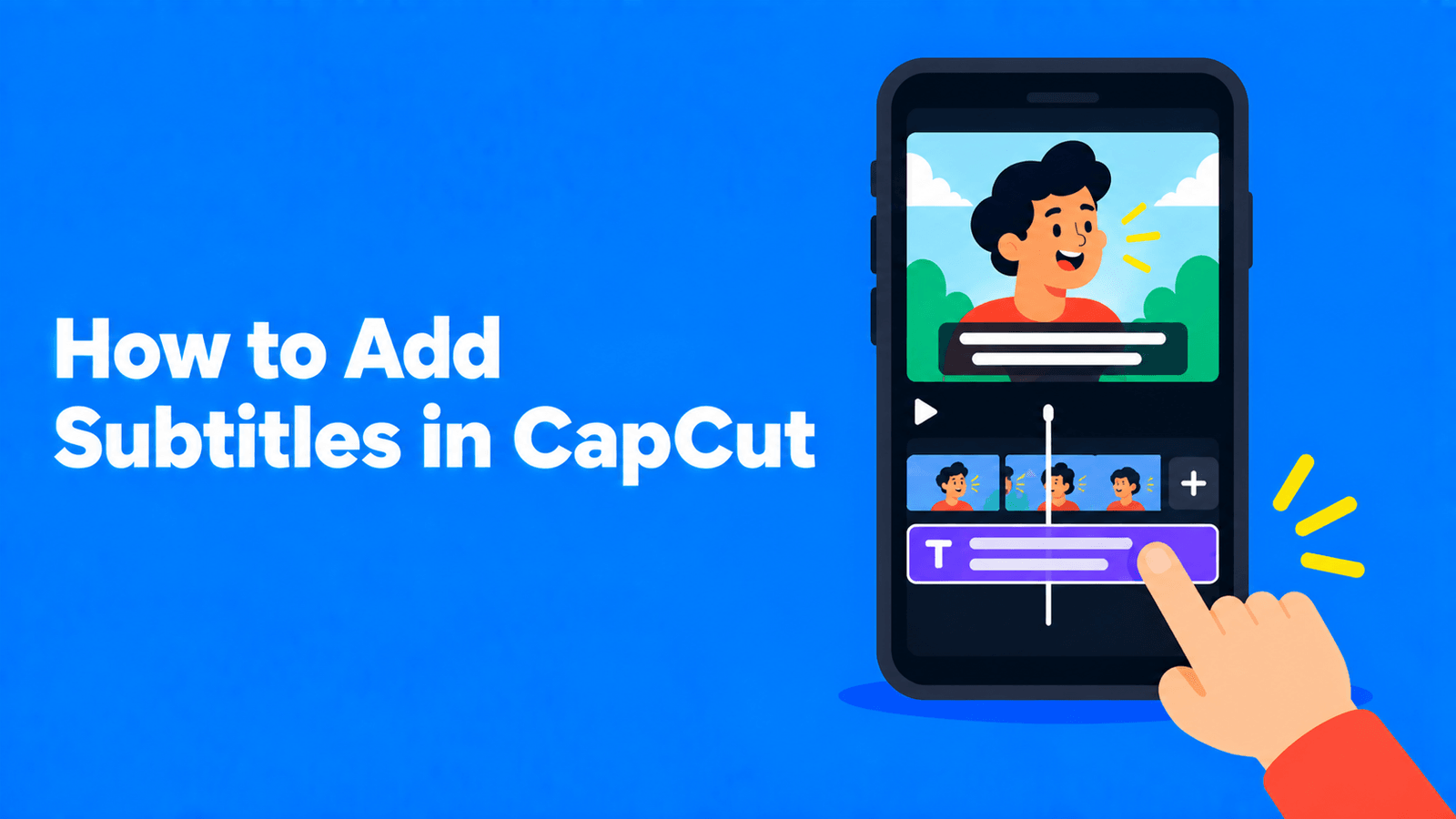
To add subtitles in CapCut, use Auto captions. Add your video to a project, open Captions (called Text in some versions), choose Auto captions, pick the spoken language, and tap or click Generate. CapCut transcribes the speech into timed captions on the timeline; you then correct the words, choose a style and export (CapCut Help). The feature is in the mobile app, the desktop app and CapCut Online. Steps for each are below, plus how to fix wrong captions, what to do when recognition gets stuck, and when you'll need a different tool.
Based on CapCut's help center articles dated January to March 2026 (the latest available to us in September 2026). CapCut's own help pages name the menus differently ("Text" in some, "Captions" in others), so follow whichever your version shows.
On the CapCut mobile app (iPhone and Android)
- Start a new project and import your video.
- Tap Captions in the bottom menu (in some versions, Text).
- Tap Auto captions, confirm the language and audio source, then tap Generate.
- Wait while CapCut processes the audio. The captions appear as a track on the timeline.
- Tap any caption, then Edit captions, to correct the text.
- Style the captions, then tap Export.
On CapCut desktop (Windows and Mac)
- Open your project.
- In the toolbar, click Captions (or Text), then Auto captions.
- Choose the audio source and the language, then click Generate (some versions say Recognize).
- Double-click a caption block on the timeline, or right-click and choose Edit captions, to fix the text.
- Use the Style tab so all captions look the same, then export.
On CapCut Online (in a browser)
- Upload the video and drag it onto the timeline.
- Click Captions (or Text) in the left panel, then Auto captions.
- Choose the language and click Generate.
- Click a subtitle block, then Edit captions in the right-hand panel, to correct it. CapCut saves edits as you type.
CapCut says web recognition works best in Chrome or Edge with clear audio, and recommends keeping videos to about 15 minutes on the web version (CapCut Help).
Fixing wrong captions
CapCut notes that auto captions can misinterpret words because of background noise, accents, fast speech or low audio quality (CapCut Help). Its suggested fixes:
- Edit line by line. Open Edit captions and retype any wrong words.
- Split long captions. Move the playhead to a natural pause and split the caption block (the scissors icon, or Ctrl+B / Cmd+B on desktop). Shorter captions are easier to read and to correct.
- Regenerate with cleaner audio. If there are many errors, delete the captions, mute the music and sound effects so only the voice is audible, and run Auto captions again.
- Preview with sound before you export, to check the timing matches the speech.
On top of CapCut's advice, proofread names, brand terms and numbers, which speech recognition gets wrong most often.
Styling the captions
Once the captions are on the timeline, select the caption track and change the font, size, colour, outline and animation, or apply a caption template. Keep them readable on a phone: a bold sans-serif font, an outline or background box, and one or two short lines at a time. For the word-by-word highlighted look many creators use, see how to make Alex Hormozi-style captions.
Watch for the Pro icon. CapCut marks any feature or material that needs a subscription with a Pro icon. If your project uses a Pro caption template or effect, you'll need to remove it before you can export without a subscription (CapCut Help).
If recognition gets stuck at 99%
CapCut's help center has a page for exactly this (CapCut Help). The short version:
- Wait a few minutes. On mobile, CapCut suggests up to 2 to 5 minutes; on desktop, 3 to 10. Don't close the app or refresh the page, which can cancel the job.
- Check your connection. The mobile app and the web version use cloud recognition.
- Restart the app if it's still stuck after about 5 minutes. The captions often appear when you reopen the project.
- Split long videos. CapCut says videos over 15 minutes often time out on mobile and suggests splitting them into segments of 10 minutes or less.
- Clean up the audio. Background music and overlapping voices can stall recognition.
Getting an SRT file out of CapCut
If you need the subtitles as a separate file, for YouTube for example, CapCut's feature page says it can export a standalone SRT on desktop and online (CapCut). Its help center is more cautious: SRT export "may only be available on Desktop or Web, depending on your region and app version" (CapCut Help). If you can't find an SRT option, see how to make an SRT file for other ways to get one.
When CapCut isn't the right tool
CapCut is good for short social videos you're already editing in CapCut. Other tools fit better when:
- The video is long. CapCut's own guidance is to split videos over 15 minutes on mobile and keep web videos to about 15 minutes.
- You need several languages or a subtitle file for every video.
- You want to burn an existing SRT file into a video. HandBrake and FFmpeg do this for free; see how to burn subtitles into a video.
Disclosure: Exemplary AI is our product. Its auto subtitle generator transcribes videos up to your plan's length limit (30 minutes on the Free plan) in any of 99 languages, lets you correct the text and timings, and exports SRT, VTT or TXT files, or an MP4 with the subtitles burned in. It can also translate subtitles into other languages.
FAQ
Is auto captions free in CapCut?
CapCut advertises its auto caption generator as free. Some caption templates, effects and other materials are Pro-only; CapCut marks them with a Pro icon, and you need to remove them to export without a subscription.
Why are my CapCut captions wrong?
Speech recognition struggles with background music, noise, accents, fast speech and overlapping voices. Mute other audio tracks and regenerate, then correct the rest with Edit captions.
Where is Auto captions in CapCut?
Under Captions or Text, depending on your version and device. The option itself is called Auto captions.
Can CapCut translate captions?
CapCut's feature pages say it can translate generated captions into other languages. Check the translated text with a fluent speaker before you publish.
How do I add subtitles to a video that's longer than 15 minutes?
Split it into shorter parts in CapCut, as CapCut suggests, or use a desktop tool or subtitle generator that handles long files and exports an SRT.