Best AI Caption Generators for Video
Compare AI caption generators for transcript correction, styling and subtitle delivery, with clear free-plan and export qualifications.

AI caption generators turn spoken audio into timed on-screen text. That is a different job from writing a social post caption or a video description. If you need a title and post copy, start with a writing workflow; if you need viewers to follow speech with the sound off, compare transcription, timing and video export.
This selection spans clean browser exports, highly styled shorts and editable subtitle files. Recommendations are based on vendor documentation and the type of deliverable, without claiming that one recognition engine was measured as most accurate.
Compare the options
| Tool | Start here when you need | Free or paid qualification |
|---|---|---|
| Clipchamp | Simple automatic captions | Free; premium assets gated |
| Submagic | Animated short-video captions | Check trial and paid plan |
| VEED | Captions during collaborative video editing | Watermarked free video |
| Happy Scribe | Subtitle files and human-service options | Limited AI trial; paid services |
| Subtitle Edit | Detailed cue and file repair | Free app; engine costs vary |
What to compare
Separate recognition from presentation. First get the words right, then choose timing and visual style. A bold preset can hide weak sentence breaks in the editor and make them more obvious during playback.
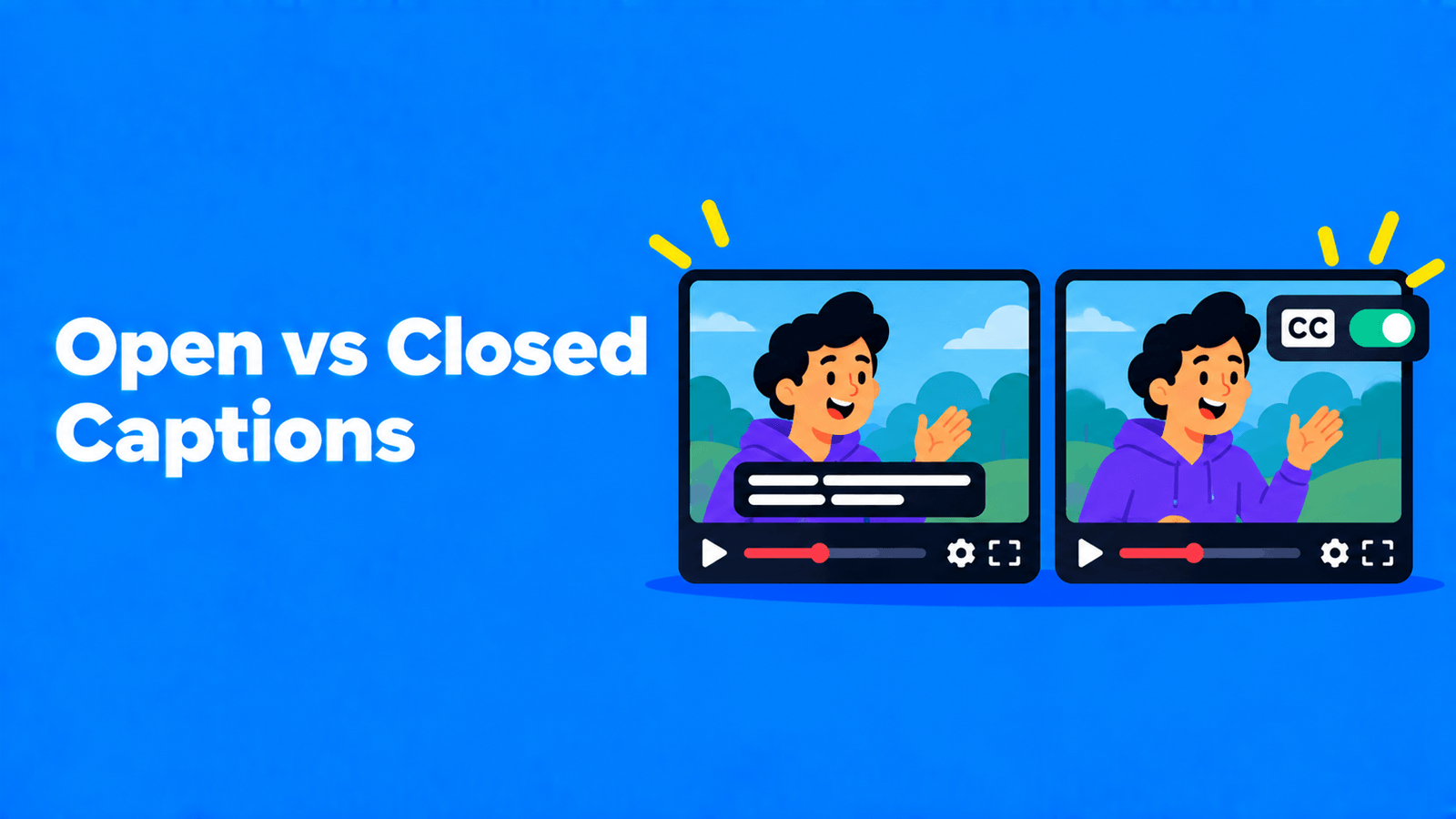
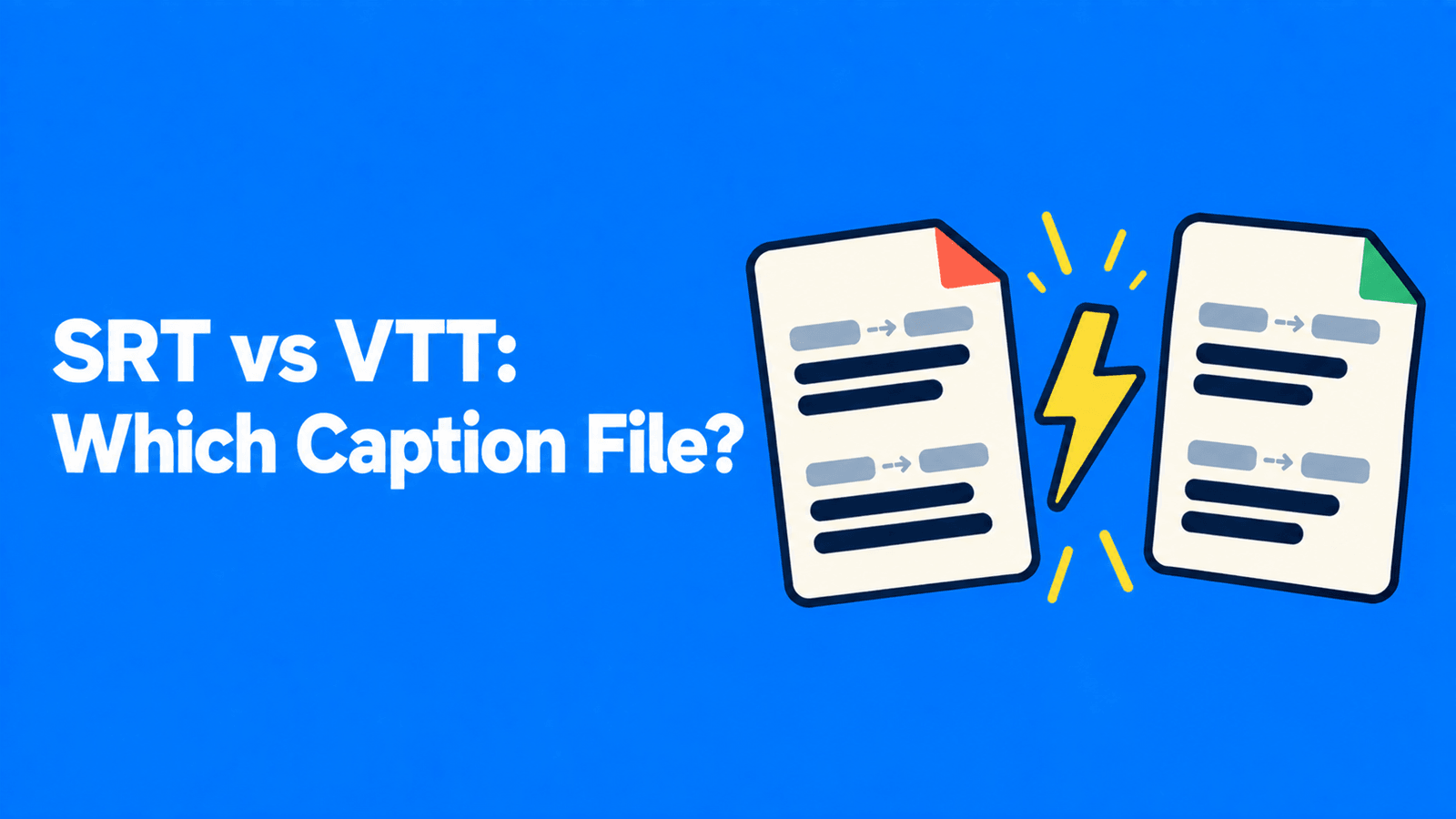
Match output to the destination. Selectable captions and burned-in video serve different needs. Keep the timed text file whenever you plan to publish the recording on more than one platform.
Inspect language and plan scope. A tool’s language headline may describe translation rather than speech recognition, and a free transcript may not include an unbranded video. Compare the specific operation you will use.
The shortlist
Clipchamp: simple automatic captions
Free video editing and watermark-free export, with automatic captions and downloadable SRT subtitles. Vendor documentation
Choose this for a straightforward video that needs corrected text and a clean export rather than a complex short-form style. Its browser workflow is a good place to assess how much manual correction the recording needs. Preserve the SRT so the final visual style does not become the only copy of the words and timings.
Submagic: animated short-video captions
Animated captions and short-video editing; the documented plans gate allowances and caption translation. Vendor documentation
Put Submagic on the shortlist when visual emphasis is part of the creative brief. Review the transcript before adding animated stress to a word; emphasis can change what the speaker appears to be arguing. Check the paid tier’s duration and translation permissions against your clips rather than buying solely for a template you saw in a demo.
VEED: captions during collaborative video editing
Browser video editing and subtitles; free exported video includes a VEED watermark. Vendor documentation
For a larger browser project, keeping subtitles near the rest of the edit may simplify handoff. Evaluate that benefit alongside the branded free-export restriction. Ask reviewers to flag meaning-changing transcription errors separately from style preferences so the first revision fixes content, and the second revision settles the presentation.
Happy Scribe: subtitle files and human-service options
AI subtitles and transcription with paid human-service options; free AI access is limited. Vendor documentation
Happy Scribe is worth evaluating when you need structured subtitle work and a possible paid human review route. Order the service that matches the task: automatic recognition, subtitle correction and human translation are not interchangeable promises. Keep the original source file available so a reviewer can resolve uncertain words rather than guessing from adjacent text.
Subtitle Edit: detailed cue and file repair
Open-source subtitle editing with Whisper speech recognition and several translation-engine options. Vendor documentation
Use this when a first-pass transcript is available but the timings or format need attention. Subtitle editing remains useful even if recognition happened in another app. Work through the cue list with the video visible, especially around pauses and speaker changes. An open-source editor can complement a hosted generator without requiring the two products to be competitors.
A practical evaluation workflow
Create captions from the final spoken edit, not from a draft that still contains cuts. Fix names, numbers and missing negations first. Then divide text into readable chunks, place it clear of important action and check the start and end of each cue. Listen once with captions visible and watch once with the sound muted.
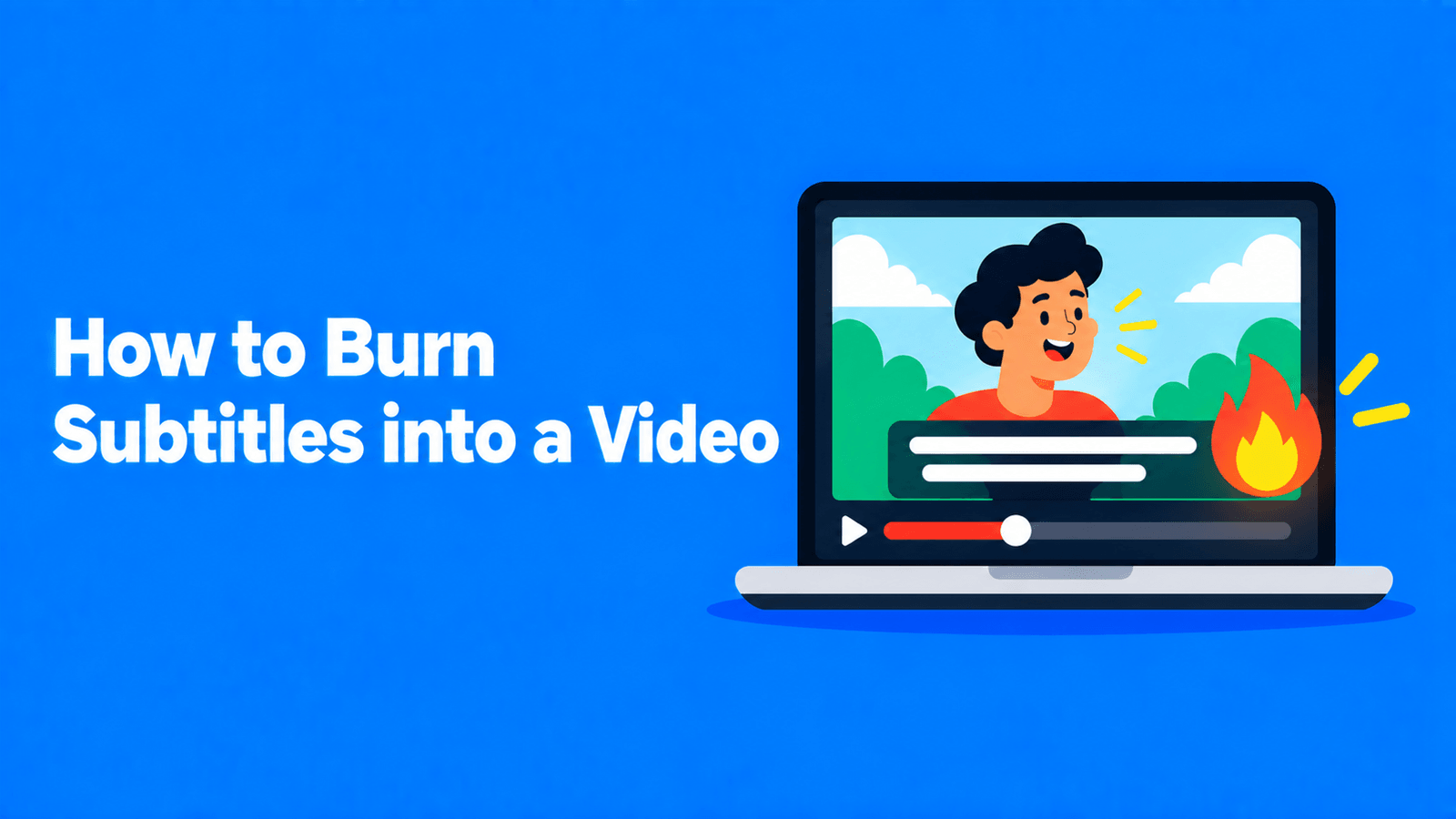
Deliver a captioned master and a separate subtitle file when your distribution needs both. A simple subtitle burn-in guide and open-versus-closed comparison help decide which version goes where.
FAQ
Can AI captions replace manual checking?
Use automatic captions as a draft. Names, accents, overlapping speakers and technical language deserve review, and correct words still need usable timing. Avoid presenting a vendor accuracy percentage as a result for your own recording. Check a representative export before relying on the generator for a batch.
Is an AI caption generator the same as a subtitle translator?
No. Recognition writes down the language being spoken; translation produces another language. A tool may support both, sometimes on different plans. Complete source-language correction before translation so an early recognition mistake does not spread into every subtitle version.
Which option to choose
Start with the simplest output you need: Clipchamp for basic video captions, Submagic for styled shorts, Happy Scribe for subtitle-service workflows and Subtitle Edit for fine control. If the recording also needs repurposed clips and text content, evaluate Exemplary AI, then check pricing for the relevant export terms. Clear text remains the objective regardless of which style wins the design discussion.