Best Screen Recorders for Mac: Free and Paid Options
Choose a Mac screen recorder for local capture, tutorials or link sharing, and verify microphone, application audio and export access.

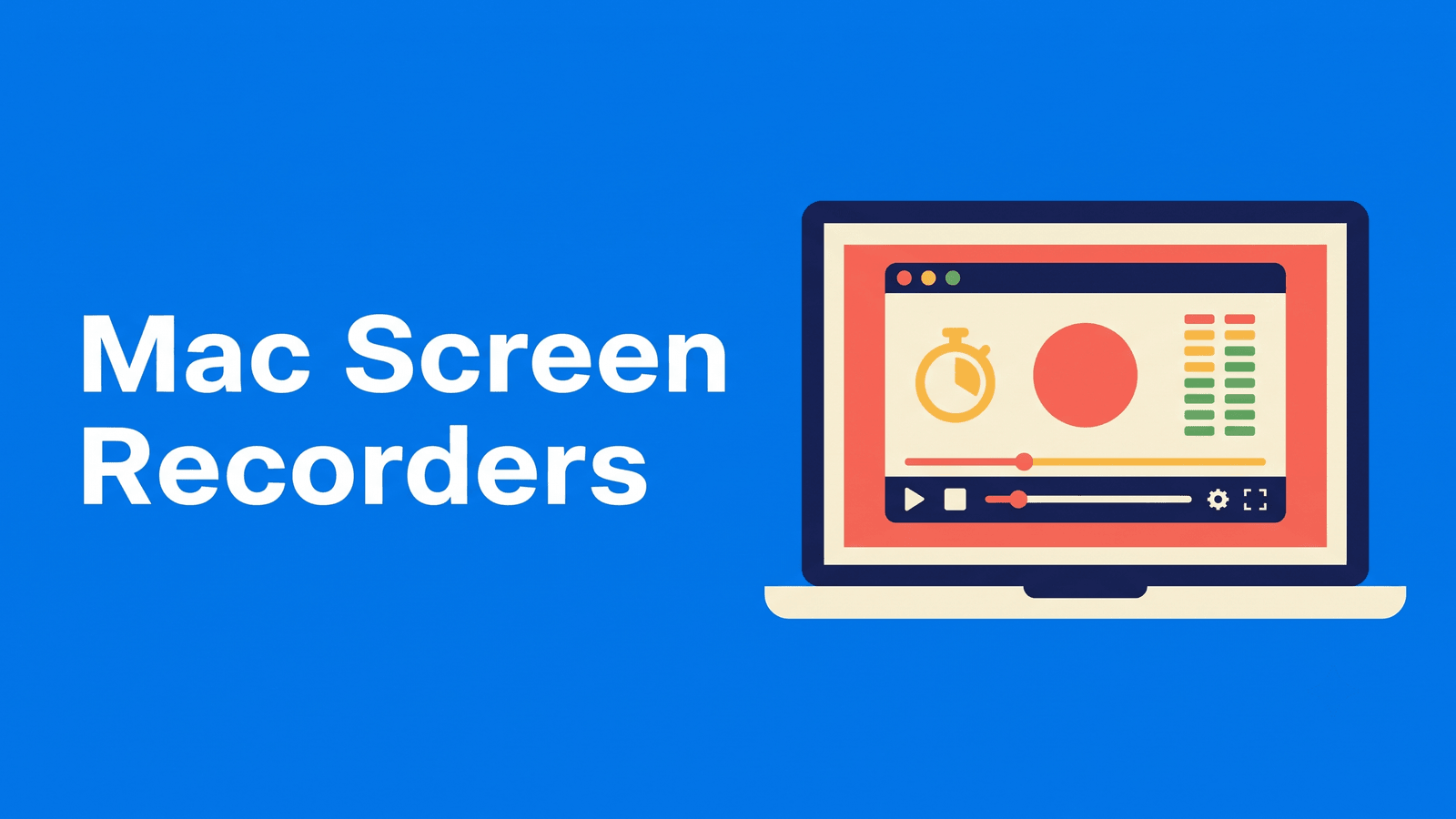
A Mac screen recorder should capture the information that makes a demonstration useful: the right part of the screen, readable cursor movement and the audio the viewer needs. A beautifully framed video is still incomplete if the microphone or application sound was never recorded. Start by testing those sources on your actual macOS version.
This comparison separates included capture, configurable free recording, polished tutorial editing and quick link sharing. It does not claim a measured frame-rate winner or a universal audio rule across every Mac and operating-system version.
Compare the options
| Tool | Start here when you need | Free or paid qualification |
|---|---|---|
| Screenshot / QuickTime | Included Mac capture | Included with macOS |
| OBS Studio | Free control over screen and audio sources | Free desktop software |
| Screen Studio | Polished product demonstrations | Paid tool; verify licence |
| Loom | Quick explanations shared by link | Free recording/library caps |
| Descript | Recording followed by transcript editing | Free exports watermarked |
What to compare
Identify the audio sources. Microphone, application sound and a remote speaker are different sources. Check each one explicitly. Software permissions and macOS version can change the capture route, so a preview without playback is not enough.
Choose local files or hosted sharing. A support response may need a link; a course may need a downloadable master and editable source. Compare download access and library limits as well as recording controls.
Evaluate finishing effort. A quick recording and a polished product tutorial need different tools. Automatic zooms are useful when they improve readability, but a simple capture may be enough for an internal explanation.
The shortlist
Screenshot / QuickTime: included Mac capture
Apple’s built-in screen capture tools record a screen region and optional microphone audio. Vendor documentation
Apple’s built-in tools are the first option to inspect for a basic screen or region recording with microphone audio. Apple’s current help includes operating-system-dependent controls, so verify the actual audio options on your Mac rather than repeating a blanket rule about all versions. Record a short sample, play it back and confirm the destination file. This is a useful baseline before buying additional presentation features.
OBS Studio: free control over screen and audio sources
Free open-source recording with configurable scenes, audio and screen sources. Vendor documentation
OBS suits users willing to configure a local recording setup. Its macOS audio guide documents native desktop or application audio paths on supported macOS and OBS versions. Check the version requirements instead of following an old audio-driver tutorial automatically. Name the sources clearly and confirm that the exported file contains both narration and the application sound you intended to demonstrate.
Screen Studio: polished product demonstrations
A Mac recorder that automatically creates editable zooms from recording clicks. Vendor documentation
Screen Studio is a paid Mac recorder whose documented workflow adds editable zooms based on recording clicks. Evaluate it when a polished tutorial would otherwise take substantial manual finishing. Use a demonstration with small interface text and several cursor movements. Decide whether the automatic camera motion makes that interface easier to follow, then check the current licence and export terms before building a recurring production process around it.
Loom: quick explanations shared by link
Link-sharing screen recording with a limited Starter tier; advanced editing is paid. Vendor documentation
Choose a hosted sharing workflow for support replies or asynchronous team explanations where a link is the intended output. Loom’s Starter limits and paid advanced features matter when those explanations accumulate in a library. Verify download access if you also need a local master. A convenient viewing link and a reusable production file are distinct deliverables, so confirm both rather than assuming one includes the other.
Descript: recording followed by transcript editing
Transcript-based audio/video editing, captions and AI tools; watermark-free video export requires a paid plan. Vendor documentation
Descript is a candidate when a demonstration will be edited through its spoken explanation afterward. Its desktop recorder documentation describes the capture workflow. Check the audio source choices in the actual recorder, then review the transcript against the interface action before making cuts. Removing a spoken sentence can leave an unexplained screen change, and clean video export has its own paid-plan qualification.
A practical evaluation workflow
Prepare a short sample with a mouse click, a small text field, your narration and an audible application event. Record the intended screen region and immediately play the exported file. Confirm readability, cursor visibility and every required audio source. If one is missing, fix capture before filming the complete walkthrough.
For a public tutorial, hide unrelated notifications and prepare the necessary account state beforehand. Keep the original capture so you can restore a step removed during editing. Add captions only after the spoken explanation and screen action agree. Our social video editing guide covers the next content stage, and subtitle-file comparison helps when you deliver a separate caption track.
FAQ
What is the best free screen recorder for Mac?
Start with the included Screenshot or QuickTime route for basic capture. Choose OBS when you need more configurable sources and can manage the setup. The relevant decision is whether the saved file contains the picture and sound your task requires. Free software does not remove the need to configure permissions and test playback.
Why is application audio missing from my recording?
The recorder may be capturing the microphone without the application source, or the required operating-system permission and version path may differ from the instructions you followed. Check the current documentation for your recorder and macOS release, then test each source separately. Raising microphone volume will not repair an application track that was never captured.
Which option to choose
Use native capture for a straightforward local file, OBS for configurable free recording, Screen Studio for tutorial finishing, Loom for hosted explanations and Descript for transcript-led editing. For transcripts, summaries and content from an authorized finished recording, evaluate Exemplary AI and its plan limits. Start with a verified capture before choosing the repurposing stage.