How to Clip Twitch Streams for TikTok
Clip Twitch streams for TikTok: share a portrait clip straight from Twitch, or download the VOD and cut longer vertical clips. Limits and rights explained.

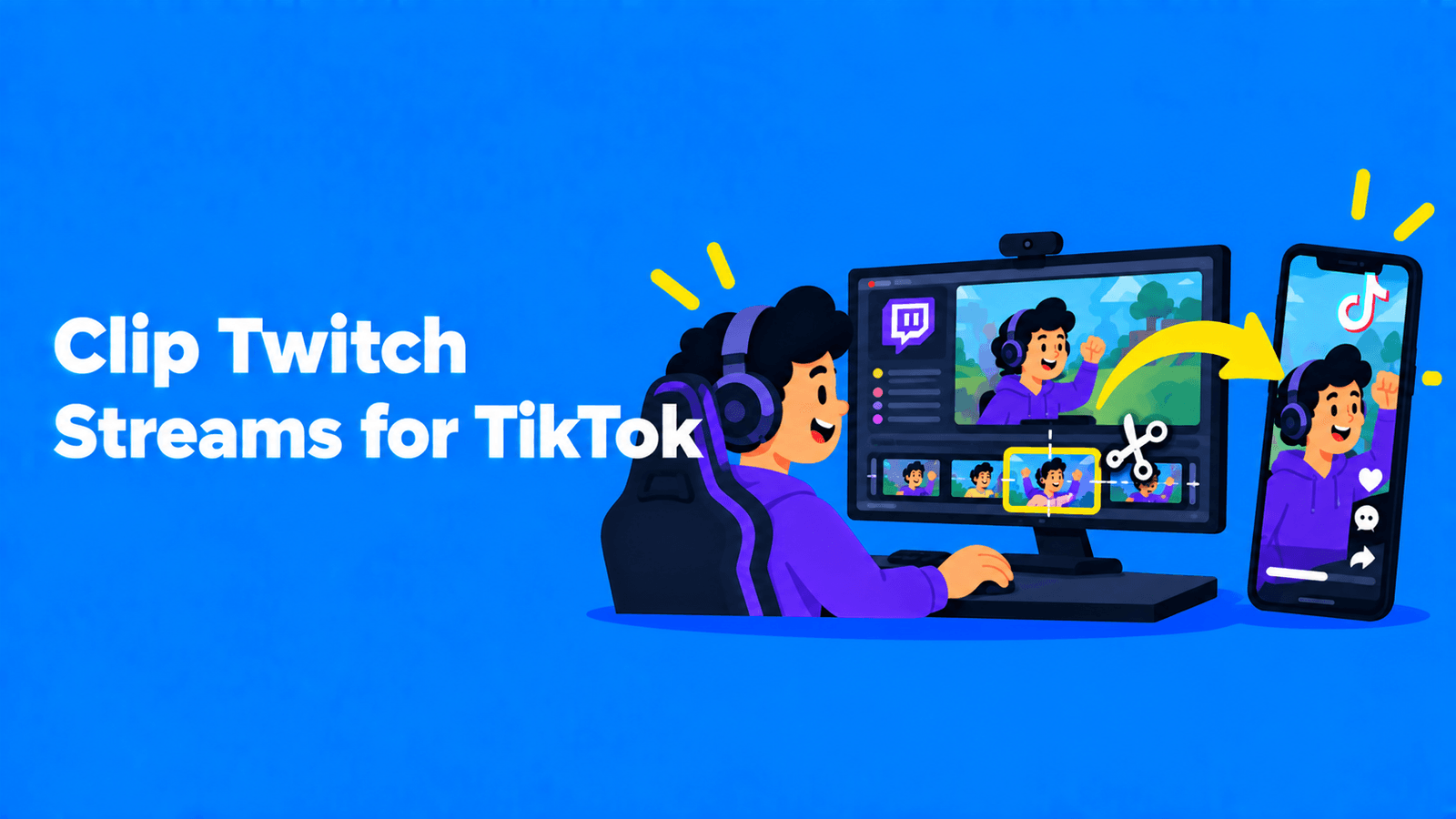
The quickest way to get a Twitch moment onto TikTok is Twitch's own Clip Creator. Click the clip icon on a live stream or past broadcast, set the length (up to 60 seconds), check the portrait crop Twitch suggests, publish the clip, then choose Share > TikTok to post it straight to your TikTok account (Twitch Help). Every clip gets a portrait version automatically, cropped to keep your cam and gameplay in frame. For moments longer than 60 seconds, or for heavier editing, download the past broadcast (VOD) before Twitch deletes it and cut vertical clips yourself. Post clips of someone else's stream only when the streamer allows it.
Steps checked against Twitch Help on September 30, 2026. Twitch updates its clip tools often, so check the linked pages if a button has moved.
Pick your method
| Method | Best for | Main limit |
|---|---|---|
| Twitch Clip Creator, then share to TikTok | Fast posts of single moments from your own channel | 60 seconds per clip |
| Download the clip, upload it to TikTok yourself | Adding your own text, captions or edits first | Still 60 seconds of source |
| Download the VOD and edit | Longer moments, several moments in one video, custom layouts | Manual work, and VODs expire |
| Stream in dual format | Getting a native vertical version of the whole stream | Needs a supported streaming setup |
Method 1: Make a portrait clip on Twitch and post it to TikTok
- Open the Clip Creator. Click the clip icon on a live stream or past broadcast. On mobile, you may need to tap the video first to see it. The creator opens as a movable overlay, so you can keep watching while you clip (Twitch Help).
- Set the length. Drag the slider under the player. A clip can be up to 60 seconds long.
- Check the portrait crop. Twitch suggests a crop that keeps your cam and gameplay in frame. Accept it, adjust it or dismiss it. If Twitch can't find a cam or gameplay area, as can happen with IRL or music streams, it starts from a centred crop.
- Add captions if they're offered. The Add Captions option only appears if the streamer has turned on captions in Clip Settings.
- Title and publish. Give the clip a title and click Publish. Twitch asks for both so that fewer clips get made by accident.
- Share to TikTok. Select Share next to the clip and pick TikTok. Twitch pre-fills the title and description, and you can replace that text. When a clip is posted to TikTok, the streamer's channel name is added as a hashtag, and it can't be removed.
Twitch also lets you post clips directly to YouTube Shorts, Instagram and Snapchat, and share links to X, Facebook and Reddit (Twitch Help).
Set your portrait layout once
In Creator Dashboard > Content > Clips, click the scissors icon on any clip, then Edit Layout. You can choose between two portrait layouts:
- Stacked splits the frame into two boxes, usually face cam on one and gameplay on the other. You can drag the dividing line to resize them.
- Full uses one box.
Twitch remembers the last layout you used for all future clips of your channel, whether you or your viewers make them (Twitch Help). If your portrait clips show up as landscape with black bars, editing one clip's layout fixes it for future clips. Portrait editing isn't available in the mobile app yet.
Clip hands-free while you stream
During your own live stream you can say "Twitch, Clip That" out loud. Twitch creates the clip and notifies you, and it appears in your Clips Manager ready to edit or share (Twitch Help). Twitch is also testing Auto Clips, which picks engaging moments and publishes captioned clips formatted for vertical viewing. It's an invite-only alpha for English-language channels with VODs and clips enabled (Twitch Help).
Method 2: Download the clip and upload it yourself
Downloading makes sense when you want to add a hook line, your own captions or a different cut before posting.
- Open your Clips Manager and find the clip.
- Use Download and pick the portrait version. You can download landscape or portrait versions of clips of your channel and of clips you created (Twitch Help).
- If there's no portrait download, Twitch hasn't made one yet for that clip. Edit the clip, choose Edit Layout, make an adjustment, save, and wait about a minute for it to render.
- Edit in your usual app, then upload to TikTok like any other video. Check TikTok's upload screen for its current length and file limits.
Method 3: Cut longer clips from the VOD
A 60-second cap rules out a lot of good stream moments, such as a full boss fight, a story or a long chat interaction. For those, work from the past broadcast.
Make sure the VOD exists
Turn on Store Past Broadcasts before you go live. It can only be switched on from the Creator Dashboard on the web, so if you stream from your phone, set it there first. Twitch Support can't recover a stream that wasn't saved (Twitch Help).
Past broadcasts don't last forever:
| Account | How long past broadcasts are kept |
|---|---|
| Partners, Twitch Turbo and Prime users | 60 days |
| Affiliates | 14 days |
| Everyone else | 7 days |
Source: Twitch Help. If you stream in dual format, the vertical version of the VOD expires 7 days after the stream, and the horizontal version stays for the rest of your retention period.
Mark, download and cut
- Mark moments live. Type
/markerin chat, with an optional description after it, or use the Add Stream Marker quick action. Markers show up on the Highlighter timeline later (Twitch Help). - Trim in the Highlighter (optional). In Video Producer, click Highlight on the broadcast and keep only the segments you want. Highlights and uploads share a 100-hour storage limit.
- Download. In Video Producer, open the three-dot menu next to the video and click Download. Long videos can take a while to start. If part of the VOD was muted by Twitch's Audio Recognition system, the download stays muted (Twitch Help).
- Reframe to 9:16. Recreate Twitch's Stacked layout by putting the face cam in the top box and gameplay in the bottom. Or crop to gameplay only for moments where your reaction doesn't matter. Our guide to converting horizontal video to vertical covers the crop choices.
- Add captions. Captions keep your commentary readable for anyone watching with the sound off. See how to add captions to TikTok.
Exemplary AI (our product) can do steps 4 and 5 for you, with one catch: it can't import Twitch links. Link import supports YouTube, TikTok, Vimeo and X only, so download the VOD or clip first and upload the file (MP4, MOV, MKV or WEBM). AI Clips then suggests standalone clips from any video of 10 minutes or more, reframes them to 9:16 with Fill, Fit or Split layouts, and adds animated captions you can edit. The free plan takes files up to 30 minutes and 500 MB, so trim a long VOD first or see pricing for longer uploads.
Stream in dual format for vertical-native clips
Dual format streaming sends a horizontal and a full-screen vertical version of your stream to Twitch at the same time, and it's available to all streamers (Twitch Help). The most common setup is OBS with the Aitum Vertical plugin. Twitch also documents Meld, Streamlabs, Streamrun and XSplit.
For TikTok clipping, the useful part is this: clips from dual format streams are available in both vertical and horizontal versions and don't expire. You design the vertical layout yourself instead of relying on a crop. Twitch's vertical canvas is 1080 × 1920 (9:16), and Twitch advises keeping important visuals in the centre safe zone because its own interface sits over the mobile view.
Rules and rights before you post
- Your channel, your settings. You decide whether clips can be made at all, and you can limit clipping to followers (including by follow duration) or subscribers. You can also delete clips and time out or ban people who make them (Twitch Help).
- Someone else's stream needs their OK. Twitch lets you post another channel's clips directly to your TikTok only if that streamer has turned the setting on. For anything else, such as a downloaded VOD or a re-edit, ask the streamer first and keep their answer in writing.
- Music is a separate question. Don't assume music that played on stream is cleared for TikTok. Mute it or swap in a sound you're allowed to use.
- There's no channel name overlay. Twitch removed the old channel-name overlay from clips. It adds your channel name as a hashtag when clips are posted to TikTok, Instagram or Snapchat instead (Twitch Help). If you want your handle on screen, add it in your editor.
Make the clip work on TikTok
A good Twitch moment doesn't always make a good TikTok. A few habits help:
- Cut the warm-up. Start the clip as close to the reaction or the play as you can while it still makes sense.
- Add one line of context on screen for viewers who don't know you or the game.
- Name the stream in the caption so people can find the full broadcast.
- Post when your TikTok viewers are active. See the best time to post on TikTok and how to get more views on TikTok.
FAQ
How long can a Twitch clip be?
Up to 60 seconds in the Clip Creator (Twitch Help). Twitch's developer documentation gives a range of 5 to 60 seconds, with 30 seconds as the default when a clip is made through the API (Twitch Developers). For anything longer, download the VOD and cut it yourself.
How do I make a Twitch clip vertical?
Every new clip gets a portrait version with a suggested crop. To change it, open the clip in your Clips Manager, click the scissors icon and choose Edit Layout, then pick Stacked or Full.
Can I post someone else's Twitch clip to TikTok?
Only through Twitch's share menu if the streamer has enabled it, or with the streamer's permission. Viewers only see the direct TikTok option when the streamer has turned that setting on (Twitch Help).
How long do Twitch VODs last?
60 days for Partners, Twitch Turbo and Prime users, 14 days for Affiliates and 7 days for everyone else. Highlights and uploads are kept indefinitely, within a 100-hour storage limit (Twitch Help).
Can I make a highlight reel from my stream instead?
Yes. Twitch's Highlighter joins segments of a past broadcast into one video. See how to make a highlight reel.