How to Get the Transcript of a YouTube Video
Open the description and click Show transcript, on desktop or in the app. Why the button is sometimes missing, and how to get a file for your own videos.

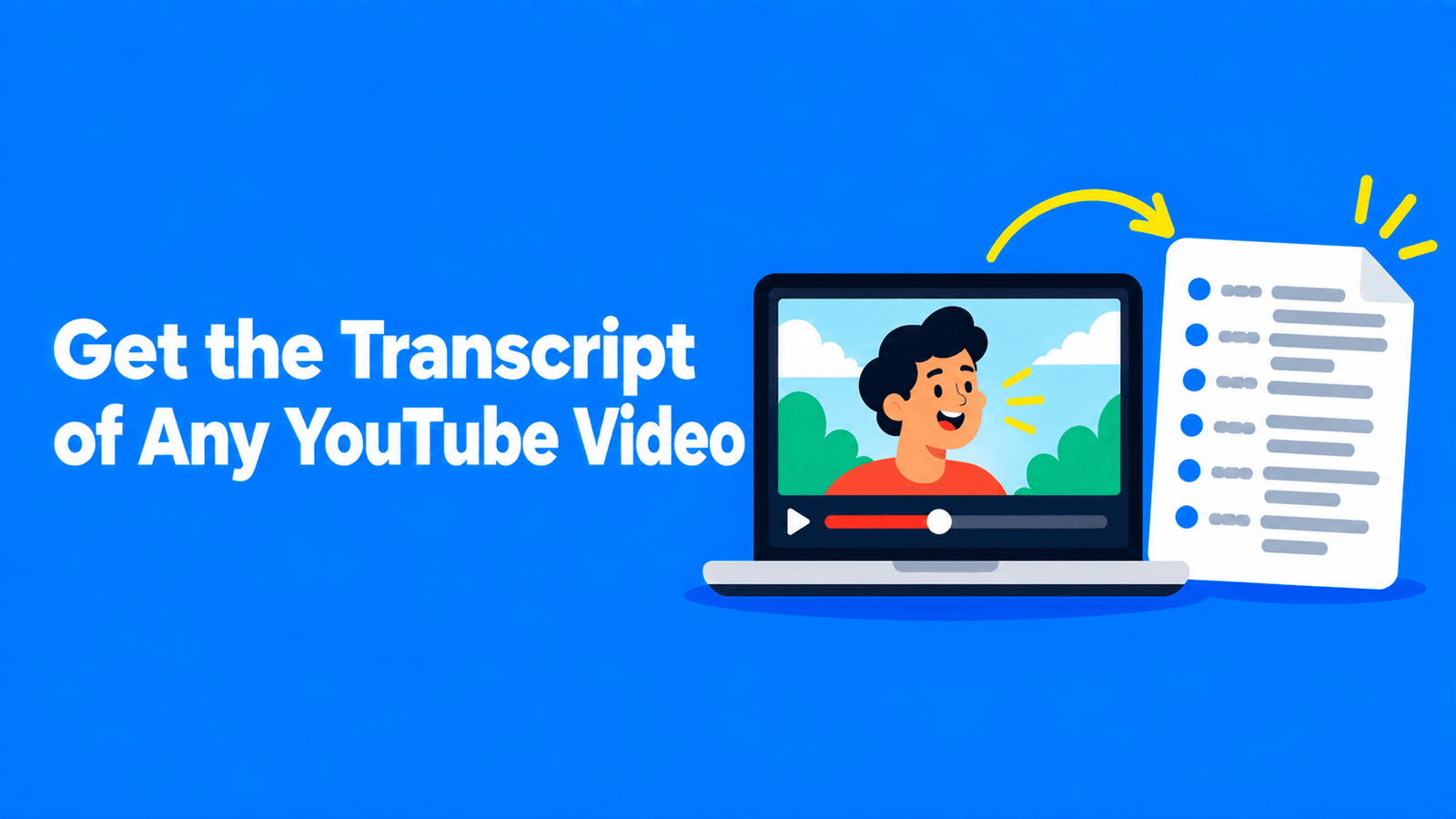
To get the transcript of a YouTube video, open the video, expand the description and click Show transcript. The transcript scrolls along as the video plays, and you can click any line to jump to that point (YouTube Help). From there you can select the text and copy it. The option only appears when the video has captions, either uploaded by the creator or generated automatically by YouTube. If there's no Show transcript button, the video has no captions, and you'll need to transcribe it yourself.
Checked against YouTube's help pages and API documentation on September 30, 2026.
On a computer
- Open the video on youtube.com.
- Click the description under the video to expand it.
- In the description, click Show transcript.
- The transcript opens with a timestamp on each line. Click a line to jump there.
- To copy it, select from the first line to the last and copy.
YouTube notes that the transcript panel can also help you find the video's chapters and other information, such as people and places mentioned in the video (YouTube Help).
On iPhone or Android
- Open the video in the YouTube app.
- Tap the description under the video.
- Tap Show transcript.
- Tap any line in the transcript to jump to that moment.
Selecting a long transcript on a phone is fiddly. If you need the whole text, open the video in a desktop browser, or use a transcription tool that exports a file.
Why there's no "Show transcript" button
The transcript is built from the video's captions, so it's missing when there aren't any. That happens when:
- The creator didn't add captions and YouTube didn't generate them. YouTube may skip automatic captions if the language isn't supported, the video is too long, the audio is poor, there's a long silence at the start, or several people talk over each other (YouTube Help).
- The captions are still processing. YouTube says automatic captions may not be ready right after upload, and processing time depends on how complex the audio is.
- The creator removed the captions. Creators can delete caption tracks in YouTube Studio (YouTube Help).
In any of these cases, see how to transcribe a YouTube video for free for ways to make a transcript yourself.
Getting a transcript file for your own video
For videos on your channel, you can download the captions as a file with timings, which is more useful than copied text if you want to edit it or reuse it as subtitles.
- In YouTube Studio, select Subtitles in the left menu.
- Click the video, then click Edit next to the language you want.
- Click Options, then Download subtitles.
YouTube's help page suggests editing the downloaded file in a plain-text editor such as TextEdit or Notepad if you need to change timings, then uploading it again.
What about the YouTube API?
Developers sometimes try to fetch transcripts with the YouTube Data API. Its caption download method "requires the user to have permission to edit the video" (YouTube Data API), so it works for your own channel, not for other people's videos. It can return the track as SRT, VTT, SBV, SCC or TTML.
What to do with the transcript
- Summarize it. Paste it into ChatGPT with a prompt. We have three ready-made prompts in how to summarize a YouTube video with ChatGPT.
- Quote it accurately. Keep the timestamps so readers can check the quote in context, and credit the channel.
- Turn it into chapters. If it's your video, the timestamps help you write chapter markers for the description. See how to add YouTube timestamps and chapters.
- Make captions in another language. Start from a corrected transcript, then translate it. See how to translate a YouTube video to English.
A transcript of someone else's video is still their content. Quoting a line with credit is normal; republishing the whole transcript as your own article isn't.
When the transcript isn't good enough
Automatic transcripts don't label who is speaking, and they often get names and jargon wrong. If you need a clean version, you have two options: correct the text by hand against the video, or run the audio through a transcription tool that gives you an editor and export formats.
Disclosure: Exemplary AI is our product. On the YouTube transcription page you paste a video link, get a transcript you can correct, and download it as DOCX, TXT, SRT or VTT. It covers 99 languages, including some that aren't on YouTube's automatic-caption list, such as Catalan, Croatian, Urdu and Welsh, and there's a free plan. Only transcribe videos you have the right to use.
FAQ
How do I get the transcript of a YouTube video?
Expand the video's description and click or tap Show transcript. It works on the website and in the app, for any video that has captions.
Can I download a YouTube transcript?
YouTube doesn't have a download button for viewers. You can copy the text from the transcript panel. For your own videos, YouTube Studio lets you download the caption track as a file.
How do I get a transcript without timestamps?
Copy the transcript into a text editor or spreadsheet and delete the timestamp lines, or use a transcription tool that exports plain text.
Why is the YouTube transcript wrong?
Most transcripts come from automatic captions, which YouTube says can misrepresent speech because of accents, dialects, mispronunciations or background noise (YouTube Help). Only the channel that owns the video can correct them.
Can I get the transcript of a YouTube Short?
The same rule applies: if the Short has captions and its description shows Show transcript, you can open it. If there's no transcript, the Short has no captions.