How to Make an SRT File (Free, Step by Step)
The SRT format explained, then four free ways to make one: by hand in Notepad or TextEdit, with YouTube Studio, with Whisper, or with a subtitle generator.

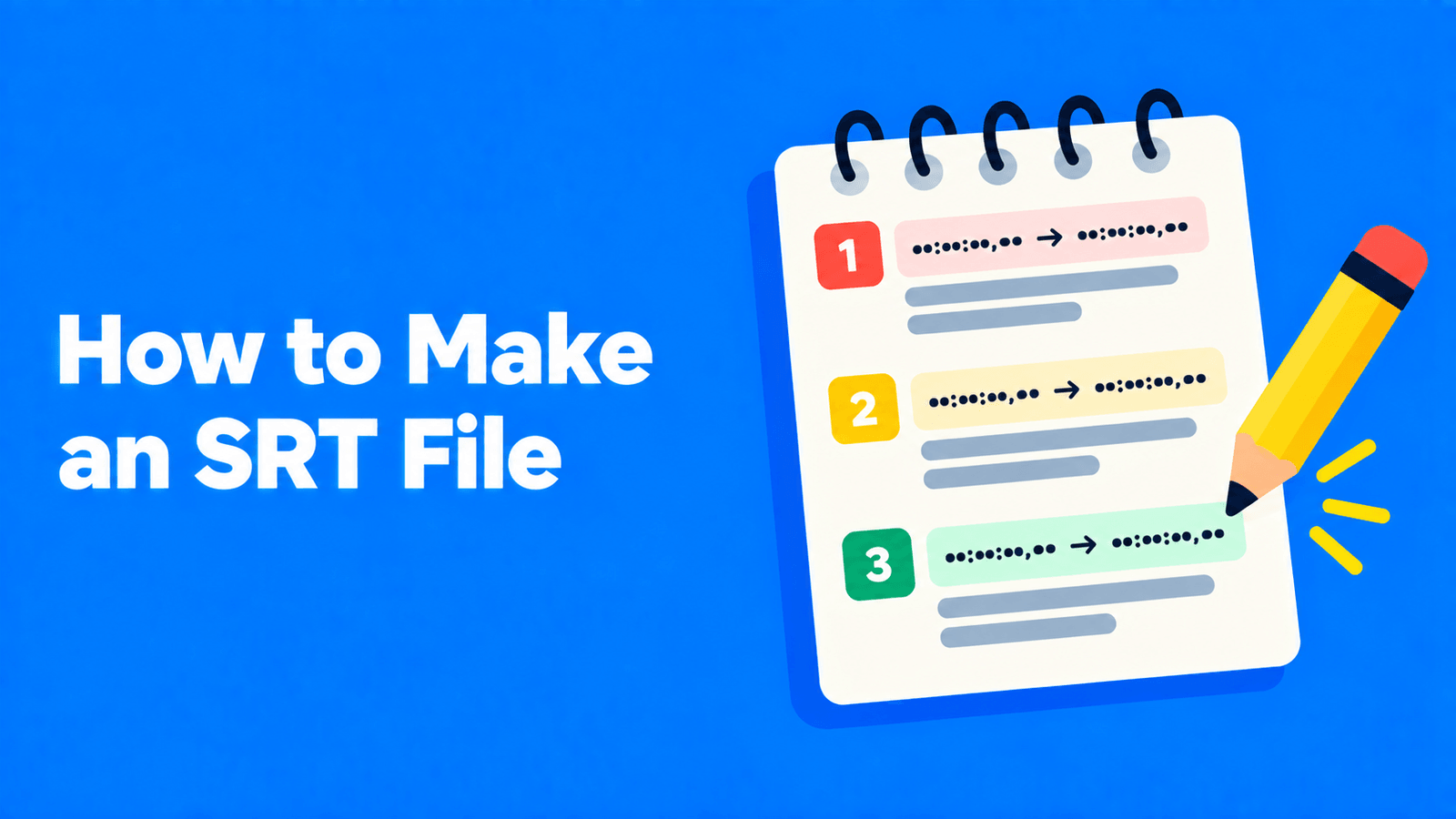
An SRT file is a plain-text file of numbered captions. Each caption has four parts: a number, a start and end time in the form 00:00:04,160 --> 00:00:06,770, one or two lines of text, and a blank line before the next caption. To make one, type your captions in that format in Notepad or TextEdit, save the file with a .srt extension in UTF-8, and check it plays with your video. For anything longer than a minute or two, generate the timings automatically instead (with YouTube Studio, Whisper or a subtitle tool) and then correct the text. Both routes are below.
Checked against YouTube's help pages, the Whisper repository and Netflix's subtitle style guides on September 30, 2026.
What an SRT file looks like
Here's the example YouTube gives in its list of supported caption files (YouTube Help):
11200:00:00,599 --> 00:00:04,1603>> ALICE: Hi, my name is Alice Miller and this is John Brown4 52600:00:04,160 --> 00:00:06,7707>> JOHN: and we're the owners of Miller Bakery.8 931000:00:06,770 --> 00:00:10,88011>> ALICE: Today we'll be teaching you how to make12our famous chocolate chip cookies!13 1441500:00:10,880 --> 00:00:16,70016[intro music]The rules:
- A number on its own line, counting up from 1.
- The timing line: start time, a space,
-->, a space, end time. Times are hours:minutes:seconds,milliseconds, with a comma before the milliseconds (not a period). - The caption text, one or two lines.
- A blank line to end the caption.
YouTube accepts only basic SRT files: "No style info (markup) is recognized. The file must be in plain UTF-8" (YouTube Help). If you need positioning or styling, look at WebVTT instead; the differences are in SRT vs VTT.
Method 1: Write an SRT file by hand
This is fine for a short clip, a few captions for a social post, or fixing an existing file.
On Windows (Notepad)
- Open Notepad and type your captions in the format above.
- Choose File > Save as.
- Name the file, for example
captions.srt, and set the encoding to UTF-8. - Save. If Windows saved it as
captions.srt.txt, rename it so it ends in.srt.
On a Mac (TextEdit)
- Open TextEdit and choose Format > Make Plain Text, so the file has no formatting (Apple Support).
- Type your captions.
- Save the file with a name ending in
.srt. If TextEdit asks which extension to use, choose.srt.
To make sure TextEdit uses UTF-8, set the plain text encoding in TextEdit > Settings > Open and Save (Apple Support).
Getting the times right: play the video in a player that shows the current time to the millisecond, or at least the second, pause at the start and end of each line, and note the times. That's slow, which is why the methods below are better for anything long.
Method 2: Let YouTube time it (for your own videos)
If the video is on your YouTube channel, YouTube can do the timing.
If you have no transcript, start from YouTube's automatic captions. In YouTube Studio, select Subtitles, click the video, click Edit next to the language, correct the text, then click Options > Download subtitles (YouTube Help). Automatic captions need a supported language and clear audio, and YouTube warns they can misrepresent speech, so read them through before downloading (YouTube Help).
If you already have a script or transcript, use Auto-sync. In Subtitles, select the video, click Add language, then under Subtitles click Add and choose Auto-sync. Paste the text or upload a transcript file, and YouTube sets the timings. It has to be in the language spoken in the video, and YouTube doesn't recommend it for videos over an hour or with poor audio (YouTube Help). Download the finished track the same way as above.
Method 3: Generate it with Whisper (free, on your computer)
OpenAI's open-source Whisper model writes SRT files directly. With Python and ffmpeg installed:
1pip install -U openai-whisper2whisper video.mp4 --model turbo --output_format srtWhisper writes video.srt in the current folder. Add --language Spanish (or another language) to skip auto-detection, and use a smaller model such as small if your computer doesn't have a graphics card with about 6 GB of memory, which the repository lists for turbo. Long captions can be split with --word_timestamps True --max_line_width 42. More in our guide to OpenAI Whisper.
Method 4: Use a subtitle generator
Web tools transcribe the video, split the text into timed captions, and let you fix words and timings in an editor before you download the SRT. That's the quickest route if you don't want to install anything.
Disclosure: Exemplary AI is our product. With the auto subtitle generator you upload a video or paste a YouTube, TikTok, Vimeo or X link, and it transcribes it in any of 99 languages. In the subtitle editor you correct the words and drag each caption's start and end to fix the timing, then download SRT, VTT or TXT. There's a free plan.
Other tools that do this are covered in our guide to generating subtitles.
Make the captions readable
A valid SRT isn't necessarily a good one. Netflix's subtitle style guides are a useful, public benchmark. For English, they set:
| Rule | Netflix English guideline |
|---|---|
| Characters per line | 42 (Netflix) |
| Lines per caption | Maximum two; keep to one line unless the text exceeds 42 characters |
| Reading speed | Up to 20 characters per second for adult programs, 17 for children's |
| Duration of one caption | At least 5/6 of a second, at most 7 seconds (Netflix) |
Social clips often use shorter, bigger captions than this, but the reading-speed limit is still a good check: if a caption flashes by before you can read it, split it or trim the words.
Check your file before you upload it
Most broken SRT files have one of these problems:
- A period instead of a comma before the milliseconds (
00:00:04.160). That's WebVTT style, not SRT. - A missing blank line between captions, so two captions run together.
- The wrong encoding, which turns accented letters into symbols. Save as UTF-8.
- A hidden
.txtextension, so the file is reallycaptions.srt.txt. - Overlapping times, where a caption starts before the previous one ends.
- Numbers out of order after you delete or insert captions. Renumber them.
Then test it: open the video in a player that can load a subtitle file, load the SRT, and watch it through.
Upload it to YouTube
- In YouTube Studio, select Subtitles and click the video.
- Click Add language and choose the language.
- Under Subtitles, click Add, then Upload file.
- Choose With timing, click Continue, and select your
.srtfile. - Click Save.
If you'd rather have the captions permanently on the video, for example for TikTok or Instagram, see how to burn subtitles into a video.
FAQ
How do I create an SRT file for free?
Type it by hand in Notepad or TextEdit and save it as UTF-8 with a .srt extension, or generate one for free with YouTube Studio (for your own videos) or Whisper (on your computer).
What is the format of an SRT file?
Numbered captions, each with a timing line in the form 00:00:00,599 --> 00:00:04,160, one or two lines of text, and a blank line after it.
Can I convert a transcript to an SRT file?
Yes. A transcript has no timings, so something has to add them. YouTube's Auto-sync does this for your own videos, and subtitle tools do it when they transcribe.
Why won't my SRT file upload to YouTube?
Check that it's plain UTF-8 text, uses commas before the milliseconds, has a blank line between captions, and doesn't rely on styling markup, which YouTube doesn't recognize in SRT files.
Can I open an SRT file in Word?
You can, but save it back as plain text. Word's own formats will break it. A plain-text editor is safer.