TikTok Smart Split: How It Works (2026)
TikTok's Smart Split cuts videos over a minute into captioned vertical clips. How to use it, what to check if it's missing, and the best alternatives.

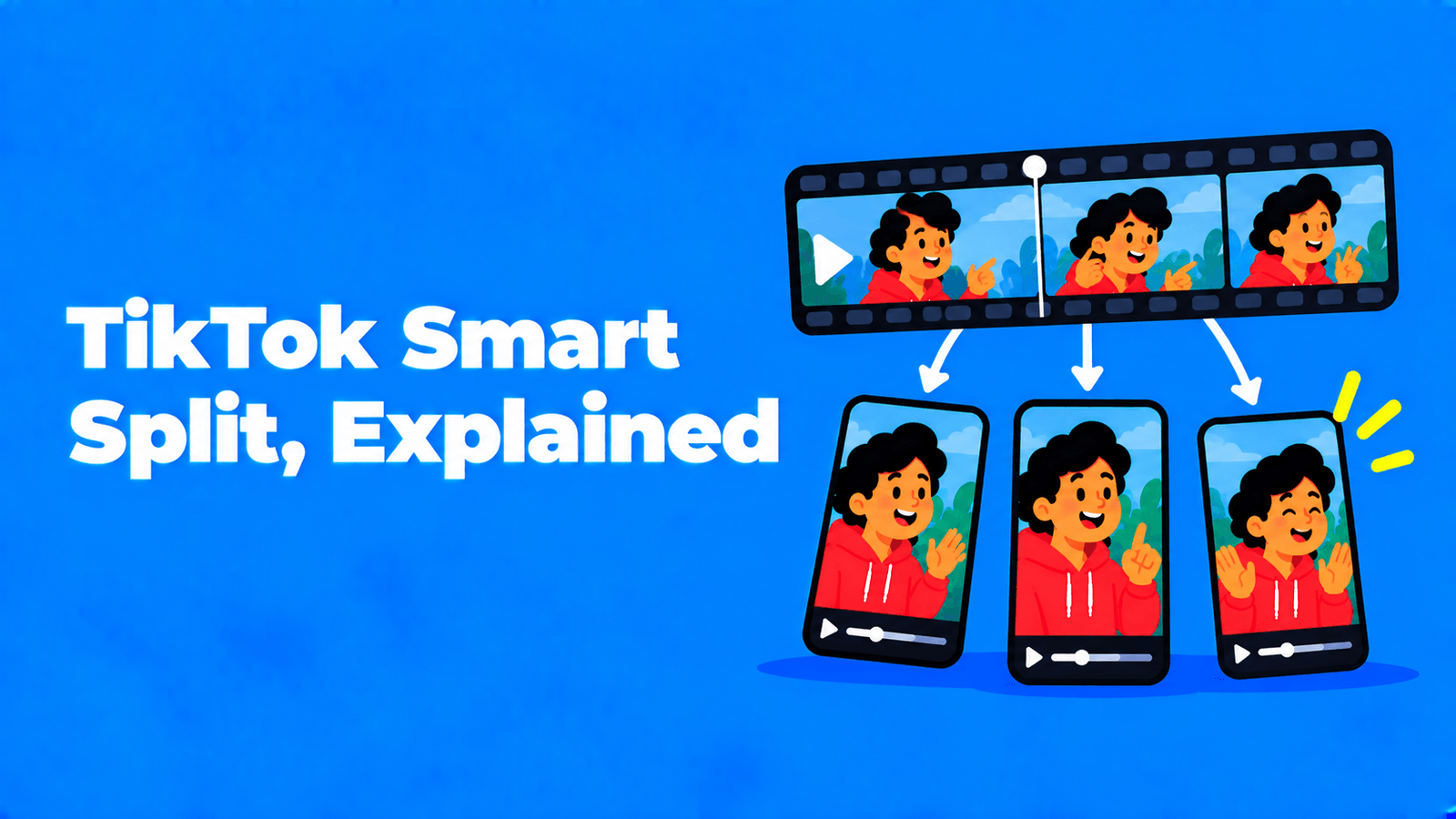
Smart Split is TikTok's built-in AI tool that turns one longer video into several short clips. You upload a video over one minute long and choose the part you want to use. Smart Split finds natural breaks and cuts that part into clips, reframes them to vertical, adds captions and transcribes them. You can then post any of the clips to your TikTok account. TikTok announced it on October 28, 2025 as part of a set of AI creation tools, and said it was rolling out gradually (Social Media Today, reporting TikTok's newsroom announcement).
What Smart Split does
According to TikTok's announcement, Smart Split will "automatically clip, reframe, caption and transcribe your longer content into multiple shorter clips." In practice, that's four jobs in one pass:
- Clip: finds natural breaks and segments in the part of the video you select.
- Choose a length: picks a clip length automatically, or you set a specific length.
- Reframe: turns horizontal footage into vertical clips.
- Caption: adds captions, with a choice of caption formatting.
It's the same job that standalone AI clipping tools do, built into the app where the clips will be posted.
How to use Smart Split
TikTok described the flow like this. Menu names may vary by app version and region, because the feature was released gradually.
- Upload a video longer than one minute in TikTok's creation tools.
- Select the parts you want to turn into shorter clips.
- Pick a clip length, or let Smart Split choose one based on your selection.
- Choose a caption style and keep the vertical reframe.
- Review the clips Smart Split creates.
- Post the ones you want straight to your TikTok account.
Tip: select a section that has a clear start and finish, such as one question and its answer, one story or one tip. AI clipping works best when the source has natural breaks to find.
Smart Split not showing? What to check
TikTok hasn't published a detailed eligibility list for Smart Split in the sources we could access, so these are the checks the announcement supports:
- Your video is too short. Smart Split needs a video over one minute.
- It hasn't reached your account yet. TikTok said it was "rolling out", so not every account got it at the same time.
- Your app is out of date. New creation tools only appear in recent versions. Update TikTok from the App Store or Google Play and check again.
If none of that helps, use one of the alternatives below while you wait. The steps are the same: select, cut, reframe, caption.
Where Smart Split falls short
Smart Split is designed for posting to TikTok, and that shapes its limits:
- One destination. Its end point is your TikTok account. If you also post to YouTube Shorts and Instagram Reels, you'll want clip files you control and can upload anywhere.
- Limited editing. It gives you caption formatting and length choices. For brand fonts, B-roll, zooms or a custom layout, you'll finish the clip in an editor anyway.
- One upload at a time. It starts from a video you upload to TikTok. If your source is a webinar, a podcast recording or a YouTube video, you first have to get that file into TikTok.
Smart Split alternatives
| Tool | What it does | Best for |
|---|---|---|
| TikTok Smart Split | Cuts, reframes, captions and transcribes inside TikTok | Quick clips you'll only post on TikTok |
| CapCut | Manual editing with auto captions, templates, keyframes and chroma key (App Store) | Hand-edited clips with effects |
| OpusClip | AI clipping (ClipAnything), reframing, captions, AI B-roll and clip scheduling (OpusClip Help) | Batches of clips from long videos |
| Exemplary AI (our product) | Suggests clips from long videos, reframes to vertical around the speaker, adds animated captions, and exports clips plus SRT or VTT subtitles | Podcasts, webinars and interviews you publish on several platforms |
With Exemplary AI you can edit a clip by editing its transcript, which is faster than scrubbing a timeline for talking-head content. Try it with the TikTok clip maker. For a broader list, see our OpusClip alternatives guide.
Getting better clips, whichever tool you use
- Start on the point. Cut the warm-up. The first two seconds decide whether people keep watching; see how to get more views on TikTok.
- Keep one idea per clip. A clip that needs the previous clip to make sense won't travel.
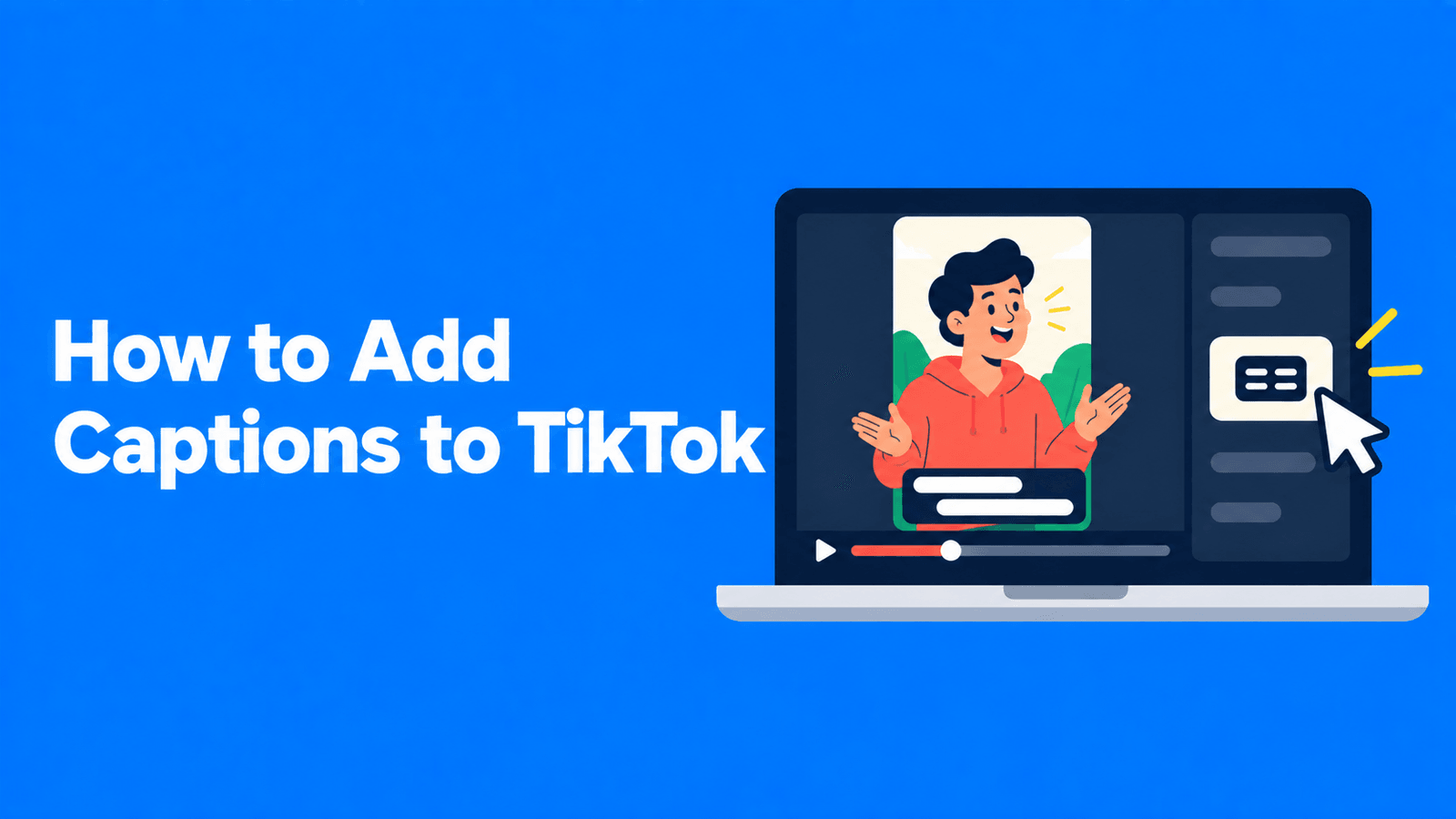
- Check the captions. Automatic captions trip on names, jargon and accents. Fix them before you post. Our guide on how to add captions to TikTok covers editing them.
- Post when your viewers are active. See the best time to post on TikTok.
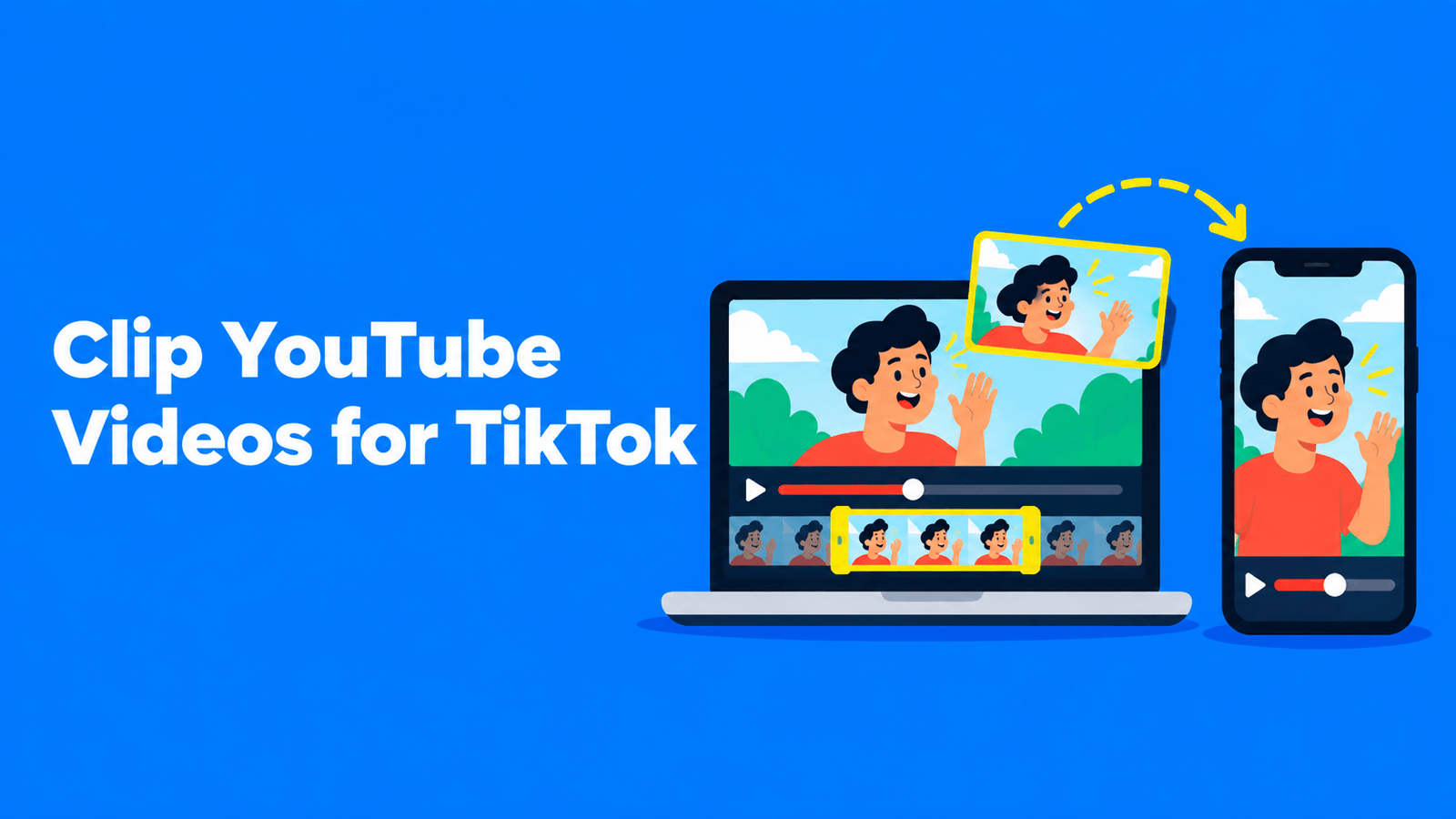
For the whole workflow from a long YouTube video to TikTok, see how to clip YouTube videos for TikTok.
FAQ
What is TikTok Smart Split?
An AI tool in TikTok's creation tools that splits a video longer than one minute into shorter clips. It reframes them to vertical, adds captions and transcribes them. TikTok announced it on October 28, 2025.
Is Smart Split free?
TikTok's announcement presented it as a creation tool inside the app and didn't mention a price or a subscription.
How long does a video need to be for Smart Split?
Over one minute. You then select which part of it to turn into clips.
Why don't I have Smart Split?
It was released gradually, so it may not have reached your account yet. Also check that your video is longer than one minute and that your TikTok app is up to date.
Can I use Smart Split clips on YouTube Shorts or Reels?
Smart Split is built to post clips to TikTok. If you want the same clips on other platforms, a standalone clipping tool that exports video files is the simpler route.