How to Transcribe a Zoom Meeting (2026)
Transcribe Zoom calls with cloud recording transcripts, live meeting transcripts, or a free local recording you upload. Steps checked September 2026.

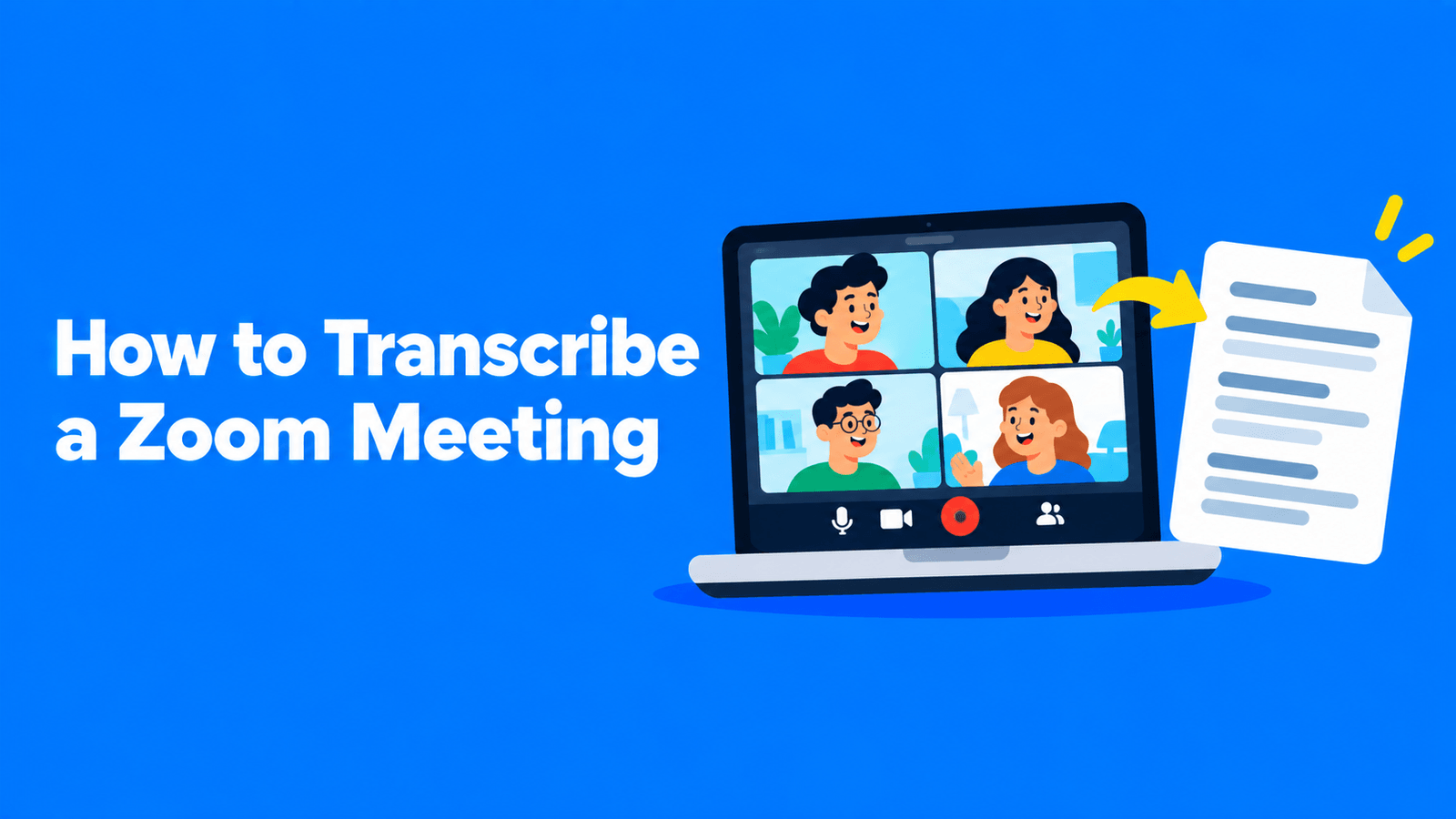
To transcribe a Zoom meeting, you have three routes. On a paid Zoom plan (Pro, Business, Education or Enterprise), turn on Create audio transcript, record the meeting to the cloud, and Zoom adds a transcript file to the recording once it has processed (Zoom Support). You can also turn on Meeting transcript to get live text you can save during the call (Zoom Support). On the free Basic plan, record to your computer and upload the MP4 or M4A file to a transcription tool, because Zoom doesn't transcribe computer recordings (Zoom Support).
One thing changed in 2026: live captions can no longer be saved. Zoom now keeps captions for accessibility during the call only, and transcripts are the record you keep (Zoom Support).
Steps and plan requirements checked against Zoom Support on September 30, 2026. Zoom renames menus often, so check the linked pages if a button has moved.
Which method fits your Zoom plan
| Method | Zoom plan | When you get the text | File you keep |
|---|---|---|---|
| Cloud recording + audio transcript | Pro, Business, Education or Enterprise | After the recording processes | VTT |
| Meeting transcript | Pro, Business or Enterprise, turned on by the host or admin | Live, during the meeting | TXT saved during the call; VTT afterwards if your admin allows it |
| Computer recording + a transcription tool | Any plan, including Basic (free) | After you upload the file | Whatever the tool exports |
| AI Companion meeting summary | Licensed user on Zoom Workplace Pro or higher | After the meeting | A summary, with an optional transcript |
Sources: audio transcription, meeting transcripts, computer recording, meeting summary.
Method 1: Cloud recording with an audio transcript
This is the most complete option on a paid plan: you get the video, the audio and a transcript you can edit, all in one place.
Turn on the transcript setting
- Sign in to the Zoom web portal and open Settings.
- Select the Recording tab and check that Cloud recording is on.
- Under Advanced cloud recording settings, tick Create audio transcript and select Save.
If the setting is greyed out, your account or group admin has locked it and needs to change it for you (Zoom Support).
Record the meeting to the cloud
- Start the meeting as the host.
- In the meeting toolbar, select More, then Record, then Record to the Cloud.
- To finish, select Record > Stop recording, or end the meeting.
Only hosts and co-hosts can start a cloud recording. Make a participant co-host if someone else needs to record (Zoom Support).
Find, edit and download the transcript
Zoom says cloud recordings "generally take about 2 times the duration recorded to process, but occasionally may take up to 24 hours" (Zoom Support). The transcript can take a little longer than the recording. Then:
- In the web portal, open Recordings & Transcripts and the Cloud recordings tab.
- Select the meeting's name, then the recording's thumbnail. The transcript plays alongside the video, on the right.
- To fix a line, hover over it and select the pencil icon. Speakers Zoom can't identify appear as "Unknown Speaker", and you can rename them the same way.
The transcript is saved as a VTT file next to the recording, so you can download it and open it in any text editor (Zoom Support).
Languages: transcripts are generated in English by default. To regenerate one in another language, hover over the audio transcript file, select Change Language, and choose from English, Spanish, French, German, Italian, Chinese (Simplified), Russian, Ukrainian, Japanese, Korean, Vietnamese, Dutch, Portuguese, Arabic, Polish, Romanian, Swedish, Turkish or Danish (Zoom Support). Zoom's settings page still says audio transcription "only supports English", so if you don't see Change Language, ask your admin.
Method 2: A live meeting transcript
Meeting transcripts give you text while the call is still running. A host or admin has to turn them on; they aren't on by default (Zoom Support).
Turn it on
In the Zoom web portal, go to Settings > Meeting > In Meeting (Advanced) and switch on Meeting transcript. This needs a Pro, Business or Enterprise account. The same section has the options that decide what happens to the text (Zoom Support):
- Automatically generate transcripts for all meetings, or only meetings that have a summary.
- Allow saving of transcripts to computer by, with choices such as the host only, hosts and co-hosts, participants who aren't guests, or all participants.
- Allow hosts to view and manage transcripts after the meeting, which lets hosts view, delete and download them as a VTT file.
- Delete transcripts after a specified number of days.
Start and save it in the meeting
- As the host, select More > Transcript. The transcript starts and opens in a panel on the right.
- Participants can't start it themselves, but they can request it. The host then sees Decline or Start transcription.
- To keep a copy, select Save transcript at the bottom of the panel. Zoom saves a .TXT file to the Zoom folder in your Documents folder (Zoom Support).
What happened to saved captions? Zoom used to let you save closed captions as a text file. That stopped in May 2026: "users can no longer save or download closed captions," and Zoom tells organizations to turn on meeting transcripts instead (Zoom Support).
Method 3: On a free account, record to your computer and upload the file
Computer (local) recording works on the Basic (free) plan and above, from the Zoom desktop app for Windows, macOS or Linux (Zoom Support).
- Start the meeting as the host and select Record in the toolbar.
- If Zoom asks, choose Record on this Computer.
- When the meeting ends, Zoom converts the recording and opens the folder. You get an MP4 video file and an M4A audio-only file.
Zoom lists audio transcription as a feature computer recordings don't support, so the next step happens outside Zoom: upload the M4A (smaller) or the MP4 to a transcription tool.
Exemplary AI, our product, is one option. It accepts MP4 and M4A uploads, transcribes them in 99 languages with speaker labels, and exports the transcript as DOCX, TXT, SRT or VTT. See Zoom recording transcription for the steps. The free plan takes files up to 30 minutes long, so longer meetings need a paid plan (pricing). For a fair look at the alternatives, including Otter, Fireflies and Notta, see our transcription software comparison and Otter.ai alternatives.
Method 4: Let an AI notetaker take the notes
If you want notes more than a verbatim transcript, an AI assistant can join the call for you.
Zoom AI Companion. Licensed users on Zoom Workplace Pro or higher can use Meeting Summary. On desktop, the host hovers over the AI icon in the top-right corner, ticks Meeting summary and selects Start Zoom AI. Ticking Generate transcript first keeps a transcript as well. Signed-in participants get the summary by email if the host shares it. Zoom notes that AI features "may not be available for select industry verticals and select regional customers" (Zoom Support).
A notetaker bot. Third-party notetakers join as a named participant, record, and send the transcript afterwards. Exemplary AI's meeting notetaker works this way: paste the meeting link (or schedule a time) and a bot named "Your name — Exemplary AI Notetaker" joins your Zoom, Google Meet, Teams or Webex call. It records up to two hours per meeting and files the recording in your workspace, transcribed, with a summary and key takeaways. If your meeting uses a waiting room, the host has to admit the bot.
Tell people you're recording
Zoom "will always notify meeting participants that a meeting is being recorded": people in the app see a recording consent disclaimer, and phone participants hear an audio prompt (Zoom Support). That notice isn't the same as consent. Recording and transcription laws differ by country and state, so say at the start of the call that you're recording and transcribing, especially with people outside your company.
Tips for a cleaner transcript
- One voice at a time. Crosstalk garbles lines and confuses speaker labels.
- Headsets over laptop mics. Echo from open speakers ends up in the transcript as repeated or broken words.
- Name the speakers right away. Rename "Unknown Speaker" entries while you still remember who said what.
- Check names and numbers. Product names, people's names and figures are where speech recognition slips most, and they're the parts people act on.
What to do with the transcript
A transcript is raw material. Turn it into a follow-up with our guide to writing a meeting follow-up email with AI, or into captions for a recorded session with how to make an SRT file. If your team is also on Microsoft's platform, see how to transcribe a Teams meeting.
FAQ
Can I transcribe a Zoom meeting for free?
Yes, but not inside Zoom. Zoom's own transcripts need a paid plan. On the free Basic plan, record the meeting to your computer, which gives you MP4 and M4A files, then upload one to a transcription tool that has a free plan.
Why don't I see an audio transcript for my recording?
Check four things: your plan is Pro, Business, Education or Enterprise; Create audio transcript was on before you recorded; the recording went to the cloud, not your computer; and processing has finished, which can take up to 24 hours.
Can I still save Zoom captions as a transcript?
No. Since May 2026 Zoom's live captions can't be saved or downloaded. Turn on Meeting transcript instead and use Save transcript during the call.
What format are Zoom transcripts in?
Cloud recording transcripts are VTT files, which open in any text editor. A meeting transcript saved during the call is a .TXT file, and hosts can download meeting transcripts as VTT afterwards if their admin allows it.
Can a participant transcribe a Zoom meeting without the host?
Not with Zoom's tools. Participants can request a meeting transcript, but the host decides, and only hosts and co-hosts can start a cloud recording.