YouTube React Live: How It Works and How to Opt Out
YouTube's React live test lets creators react live to your stream. Who can use it, who earns what, and how to switch it off before you go live.

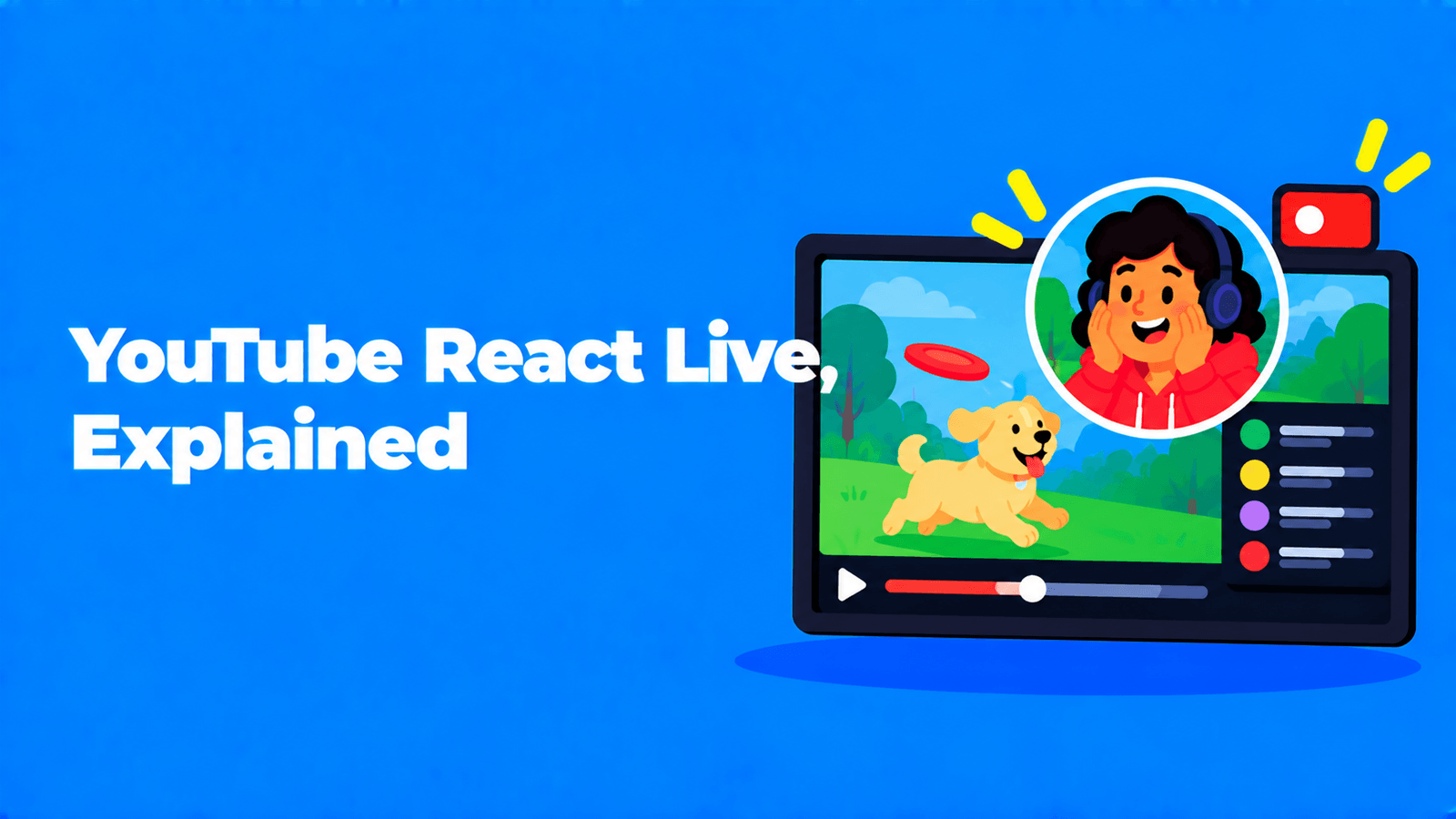
YouTube's "React live" button lets a creator go live with a reaction on top of someone else's live stream, straight from the YouTube mobile app. It's part of a feature called Watch With, which YouTube started testing with more streamers on September 3, 2026 (YouTube Help Community). Eligible live streams are opted in by default. If you don't want other creators reacting to your stream, change the React live setting from "Allow eligible channels" to "No one" before you go live (YouTube Help). Either way you keep your own ad revenue, and the views, watch time and concurrent viewers from reaction streams are credited to your stream.
What is YouTube React live?
Watch With is YouTube's feature for live commentary alongside other content. YouTube first described it in December 2024 as a way for creators "to provide live commentary, analysis, and real time reactions to games and events" (YouTube Official Blog).
The September 2026 test points it at other creators' live streams. YouTube says the test makes it easy "for eligible mobile creators to go live and share live reactions alongside other creators' live streams across YouTube" (YouTube Help Community). The React live button is how a creator starts one.
It's still an experiment. YouTube's help page says the feature "is currently only available to a select number of creators" (YouTube Help).
What a reaction stream looks like
According to YouTube's help page and announcement:
- The reactor streams from a phone. The camera locks to horizontal, and the reactor can't turn the camera off during the reaction.
- Viewers see one vertical stream. They can watch on any device, and see the reactor's camera and the source stream combined as a vertical video.
- Audio switches with the speaker. When the reactor talks, their voice is amplified over the source audio. When they stop, the source audio comes back up.
- The reactor can drop the source. Tapping Exit reaction removes the other stream. The reactor stays live, with their camera full screen.
- If the source disappears, so does the overlay. If the source stream ends or is taken down, a black box shows briefly, then only the reactor's camera remains.
Who can react live
Two things have to be true:
- The reacting creator is in the test and can stream from mobile. YouTube's mobile live streaming rules ask for at least 50 subscribers, no live streaming restrictions on the channel in the last 90 days, a verified channel and live streaming turned on. The first stream can take up to 24 hours to be enabled (YouTube Help).
- The source stream is opted in. Streams that are opted out don't show a React live option at all.
Viewers also need access to the source stream in their location to watch the reaction.
How to react live to a stream
If you're in the test group, the steps from YouTube's help page are:
- Open the YouTube app and go to the live stream you want to react to.
- Close the live chat.
- Below the stream, tap Share, then React live.
- Review the layout preview and adjust the settings if you need to.
- Tap Go live.
YouTube adds a tip: its Live discovery system "prioritizes authentic, real-time, and interactive streams," so it recommends staying on camera, talking, and wearing headphones for better audio (YouTube Help).
Who earns what
Revenue isn't shared in either direction, but metrics flow back to the source.
| Source creator (the stream being reacted to) | Reacting creator | |
|---|---|---|
| Ad revenue | Keeps normal ad revenue from their own stream | Earns the ad revenue generated by the reaction stream while live |
| Fan funding | Keeps their own fan funding | Can turn on Super Chat, Super Stickers and Jewels |
| Share of the other side's revenue | None | None |
| Views, watch time, concurrent viewers | Gets the combined totals from all reaction streams, on top of the source stream's own | Not described in YouTube's help page |
YouTube's announcement puts it this way: "Revenue from reactions is not shared, however, the concurrent viewership metrics, public views, and watch time from all the reactions will be attributed back to your content" (YouTube Help Community). The source creator can see the combined views and watch time in YouTube Studio after the stream ends.
Since August 24, 2026, YouTube counts a public view from the first frame of playback in every format, including live streams (YouTube Help), so credited reaction views follow the same rule.
How to opt out of React live
Reactions are on by default: eligible streams allow them unless you change the setting. YouTube says to change it before you go live.
On your phone:
- Update the YouTube app.
- At the bottom, tap Create, then Live.
- Before you go live, open the stream's settings from the icon next to the stream.
- Tap the React live setting and change it from Allow eligible channels to No one.
On a computer:
- Go to YouTube Studio.
- Click Create, then Go live to open the Live Control Room.
- Start a webcam live stream or schedule a live stream, and set React live in its settings.
- To change a stream you already set up, click the Stream tab on the left, then Stream settings, then Edit next to the stream title.
One trap: switching a stream to Private or Unlisted while you're live does not disconnect reaction streams that are already running. To cut them off, opt out in your stream settings or end the stream (YouTube Help).
Copyright and reaction streams
While a reaction is live, YouTube's Content ID checks the reaction stream separately from the source, so the reactor doesn't get a copyright claim for what the source stream broadcasts. That protection ends with the broadcast. Once the stream becomes an archived video, "standard copyright claims may apply" to copyrighted material in it, and YouTube advises against playing background music (YouTube Help).
So a reaction can be claim-free live and still pick up claims afterwards, especially if the source stream played music or licensed footage.
Should you allow reactions to your streams?
There's no single right answer. Weigh these:
- Reach you can see. Views, watch time and concurrent viewers from every reaction land on your stream's totals. A big reactor can put your stream in front of an audience that has never seen you.
- No revenue share. The reactor keeps the ad revenue and Super Chats from their stream. Your earnings come only from people watching your own stream.
- Someone else frames your content. A reactor talks over your broadcast to their own audience. For sponsored streams, exclusive events or sensitive topics, you may want to opt out.
- It's a setting on each stream. YouTube documents it as something you change for a stream before it goes live, so check it before any stream you'd rather keep reaction-free.
What it means if you want to react
- Add something. A reaction is commentary on top of someone else's broadcast. The more of the stream is you, your analysis and your chat, the better the case that it's original. Our guide to YouTube's inauthentic-content policy covers where reused content stops earning.
- Expect the archive to be different from the live stream. The live reaction is checked separately. The archive can be claimed.
- Stay visible and talk. It's YouTube's own advice for discovery, and it matches how the audio mix works: the source only comes back up when you stop talking.
Turning a reaction stream into clips
After a mobile live stream ends, YouTube's recap may offer to save a Short highlight pulled automatically from the stream. It's saved as a private video by default, and eligibility depends on the stream (YouTube Help).
For more than one highlight, clip the archive yourself and keep the clips on your commentary rather than on the other creator's footage. Clips that are mostly the source stream are the ones most likely to draw claims. Our guides on how to clip a YouTube video and clipping Twitch streams for TikTok walk through the process.
If the stream is your own show, Exemplary AI's AI Clips can take the YouTube link of the archived stream (it needs at least 10 minutes of video), transcribe it, and suggest captioned clips in 9:16, 1:1 or 16:9, ranked by a virality score. You edit them by editing the transcript and export MP4 files.
FAQ
Can I stop other creators from reacting to my YouTube live stream?
Yes. Before you go live, change the stream's React live setting from "Allow eligible channels" to "No one," in the YouTube app or in YouTube Studio's Live Control Room. Eligible streams are opted in by default.
Do I get paid when someone reacts to my stream?
Not from their stream. YouTube says revenue from reactions isn't shared. You do get the views, watch time and concurrent viewers from reaction streams added to your stream's totals.
Why don't I see the React live button?
React live is a test available to a select number of creators. You also need to be eligible to live stream on mobile, and the stream you're watching must be opted in. The button is in the Share panel below an eligible live stream in the YouTube app.
Can the reacting creator turn off their camera?
No. The phone camera locks to horizontal and stays on for the reaction. Viewers see the camera and the source stream together as a vertical video.
Will a reaction stream get a copyright claim?
Not for the source stream's content while it's live, because Content ID checks the reaction stream separately. After the stream ends, standard copyright claims may apply to the archived video.