YouTube Shorts Series: Turn One Long Video Into Episodes
YouTube's Shorts series (Sept 23, 2026) groups Shorts into seasons and episodes. How to set one up in Studio and cut one long video into a season.

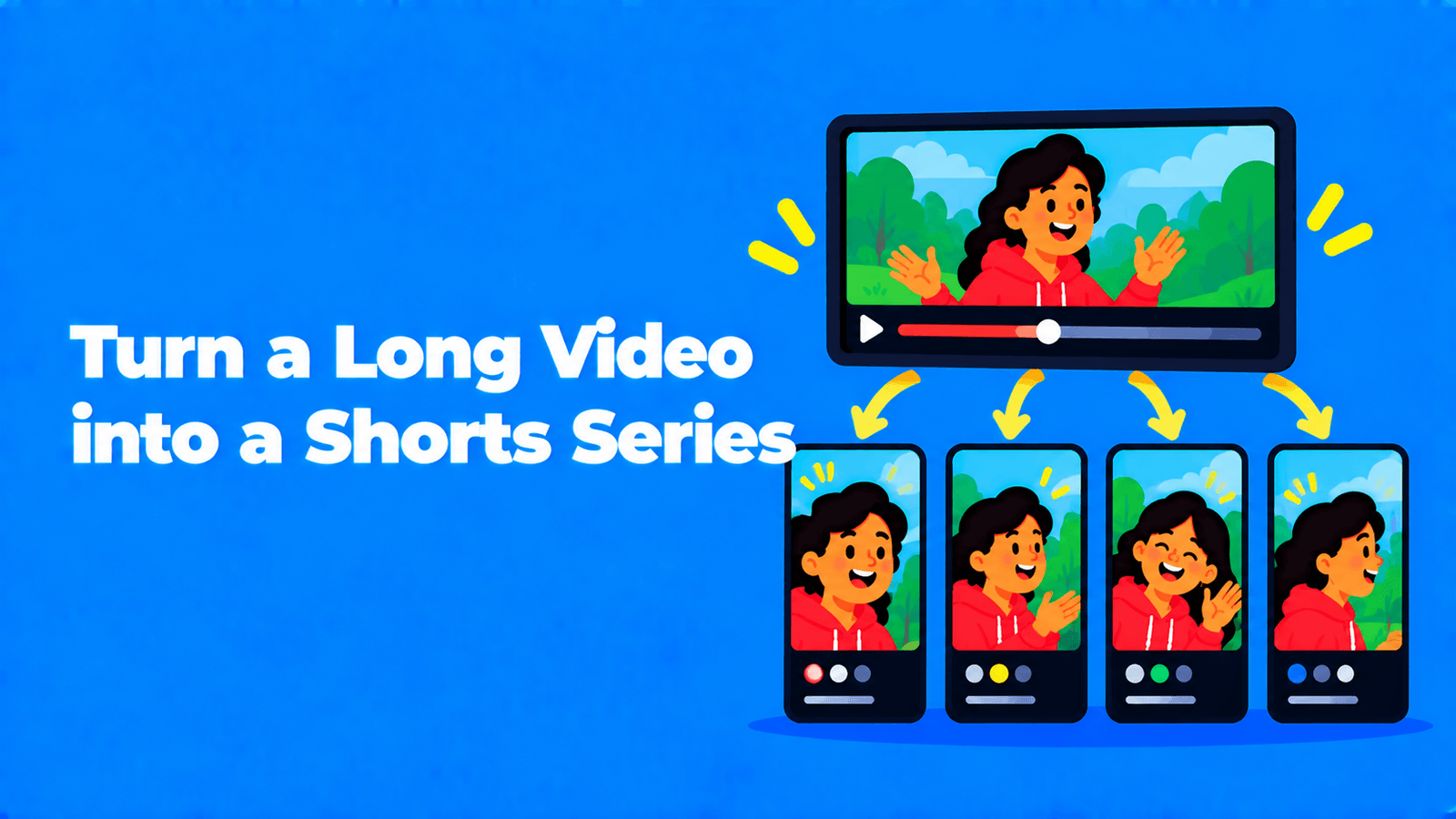
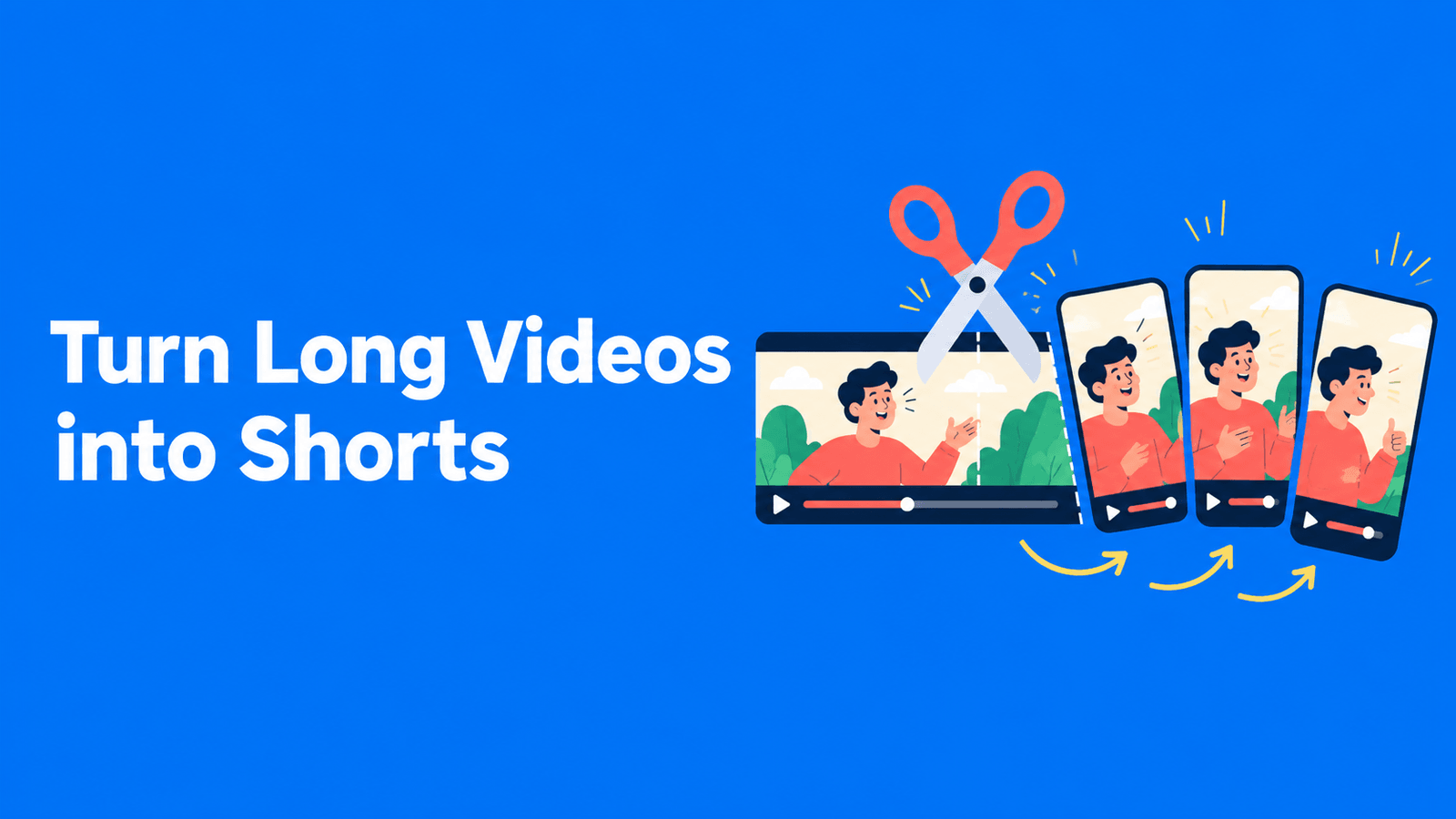
A YouTube Shorts series groups your Shorts into a show with seasons and episodes. Each episode can have its own custom thumbnail, and viewers get a "watch series" button that opens a feed where the episodes play in order. YouTube launched it on September 23, 2026, and said it was "rolling out to creators, across web, mobile, and TV" (YouTube Blog). You set one up in YouTube Studio on desktop. Create a show, or add show features to a playlist that contains only Shorts, then add the episodes. Each one has to be vertical or square and no longer than 180 seconds (YouTube Help). One long video can easily supply a season: split it into self-contained episodes, cut each one as a Short and publish them in order.
What YouTube launched
Shorts series builds on Creator Shows, YouTube's format for organizing videos into shows. According to YouTube's announcement, it lets creators "structure their Shorts into seasons and episodes, while new features like custom thumbnails and sequential playback make it seamless for viewers to discover new Shorts and keep watching" (YouTube Blog).
TeamYouTube's post for creators adds the details that matter for setup. You organize "your videos into shows and upload custom thumbnails in YouTube Studio on desktop", and viewers "watch all episodes sequentially across mobile, desktop, and TV". The feature is "Rolling out globally now" (TeamYouTube, YouTube Help Community). TechCrunch reported that the rollout is to creators in the YouTube Partner Program (TechCrunch). YouTube's help page doesn't list an eligibility requirement. If you don't see the option in Studio yet, the rollout may not have reached your channel.
The reason for the launch is microdramas. YouTube says microdramas "surpassed 6.5 billion views" on YouTube in the first half of 2026, with watch time "growing by over 50% year-over-year". Views of microdrama content on TV rose by more than 90% year over year (YouTube Blog). Series aren't only for fiction, though. Any content that runs in parts works, including tutorials, interview highlights and multi-part stories.
How viewers see a series
From YouTube's help page on shows (YouTube Help):
- In the Shorts feed: a viewer who comes across an episode sees a watch series button. It opens a series feed, where they can swipe vertically or use the arrows to go to the previous or next episode.
- On your channel: the series appears as one thumbnail, so it doesn't fill your Shorts grid.
- Shows tab: a Shorts series appears with a Shorts icon in the Shows tab on web and mobile.
- On TV: a Shorts series appears in the Playlists shelf.
- Discovery: shows may appear in search and under "Recommended shows" and "Continue watching."
The rules for a Shorts series
| Rule | Detail |
|---|---|
| Content | The playlist must contain only Shorts. You can't mix long videos into a Shorts series. |
| Format | Portrait or square |
| Length | Up to 180 seconds per episode, the same 3-minute limit as any Short (YouTube Help) |
| Seasons | You must set a season number when you add videos to a show |
| Episode numbers | Assigned automatically by publish date, or by your manual playlist order if you set one |
| Show type | Serial (episodes in order, listed oldest to newest) or non-serial (any order, newest first) |
| Thumbnails | A custom thumbnail for each Short in the series |
| Show artwork | A 16:9 banner (with your title or logo) and a 16:9 backdrop (without it). Minimum 1080p recommended, 4K encouraged, JPG or PNG, up to 10 MB |
Source: YouTube Help.
For a story that runs in order, choose serial. Non-serial is selected automatically when you convert a playlist into a show, so check the setting if you start from a playlist.
How to set up a Shorts series in YouTube Studio
These steps come from YouTube's help page (YouTube Help). YouTube doesn't document a separate "Shorts series" button. You create a show, and a show whose playlist contains only Shorts becomes a Shorts series.
To start a new show:
- Sign in to YouTube Studio on a computer.
- In the top-right corner, click Create, then New show.
- Set your show's details and click Done. Choose serial if the episodes are meant to be watched in order.
- Go to Content, then Shows, and click Add content to add your Shorts. Set the season number.
To turn an existing playlist of Shorts into a series:
- In YouTube Studio, go to Content, then Playlists.
- Hover over the playlist, click Options, then Add show features.
- All videos in the playlist go into Season 1. If you set the playlist order by hand, episodes follow that order. Otherwise they're numbered oldest to newest by publish date.
To fix the episode order: go to Content, then Shows, hover over the show and click Episodes. Hover over a season or episode number and click the down arrow to edit it. Changing one number renumbers the other episodes automatically.
To feature the series on your channel page: go to Customization, then Home tab, click Add section, choose Single playlist, select the show's playlist and click Publish.
How to turn one long video into a Shorts series
A 30- to 60-minute interview, tutorial or podcast episode usually has enough self-contained moments for a short season. Here's how to plan it.
1. Map the episodes from the transcript
Read the transcript and mark every point where a new idea, story or question starts. Each of these beats is a possible episode. Aim for 5 to 10 episodes that each make sense without the others, but are better watched in order. A transcript is much faster to scan than footage. If you don't have one, our guide to getting the transcript of a YouTube video covers the options.
2. Give every episode a job
- Episode 1 has to hook a stranger. Open with the most surprising point from the whole video, not the introduction.
- Middle episodes each deliver one idea completely.
- Every episode except the last should end on the next question, so the watch series button has a reason to be tapped.
3. Cut each episode to 3 minutes or less
Episodes can run up to 180 seconds, but shorter is usually easier to finish. Cut, reframe to 9:16 and caption each one.
With Exemplary AI, you can paste the YouTube link into AI Clips (the source has to be at least 10 minutes long). It suggests self-contained moments, reframes them to 9:16 and adds captions you can edit. Choose the "60-90s" clip duration to stay safely under the limit. "90-3min" is a target, not a hard cap, so clips on that setting can come back a little over 3:00. Trim anything over 180 seconds before you upload it. For a series, it's often better to pick the moments yourself in episode order: select a passage in the transcript and click Create Clip.
4. Make the thumbnails look like a set
Shorts series lets you give each episode its own custom thumbnail, so use it. Keep the same layout, show title and an episode number on every one, and change only the image. That's what makes episodes recognizable in a feed.
5. Publish in order, then build the show
Episode numbers follow publish date unless you set a manual order. The simplest approach is to publish episode 1 first and the rest in sequence, on a schedule you can keep. Then create the show, choose serial, add the Shorts under a season number, and upload the show artwork. Our guide to how many Shorts to post a day covers pacing.
6. Judge it by engaged views and completion
Shorts views count every time a Short starts or replays. "Engaged views" in YouTube Analytics counts the people who kept watching (YouTube Help). For a series, the useful signal is whether viewers go from episode 1 to episode 2. Compare engaged views across episodes, and see views vs engaged views for the difference.
Series vs a playlist
A regular playlist of Shorts still works. A series adds the watch series button in the Shorts feed, a dedicated series feed with numbered seasons and episodes, and a place in the Shows tab and on TV. If your Shorts are standalone tips, a playlist is fine. If they tell one story or teach one skill in steps, make a series.
For the basics of cutting Shorts from long videos, including YouTube Studio's own free method, see how to make YouTube Shorts from long videos.
FAQ
Who can create a YouTube Shorts series?
YouTube says Shorts series is rolling out globally to creators. TechCrunch reported the rollout is to creators in the YouTube Partner Program. YouTube's help page doesn't list an eligibility requirement, so check YouTube Studio on desktop for Create, then New show.
Can a Shorts series include long videos?
No. To package Shorts as an episodic series, the playlist must contain only Shorts. Each one has to be portrait or square and up to 180 seconds.
Can I change the episode order after publishing?
Yes. In YouTube Studio, go to Content, then Shows, then Episodes, and edit the season or episode number. The other episodes renumber automatically.
Do Shorts series earn differently from regular Shorts?
YouTube's announcement doesn't mention separate monetization for series. Episodes are still Shorts, and YouTube hasn't announced separate rules for them. See our guide to Shorts monetization requirements.
How long can each episode be?
Up to 180 seconds (3 minutes), the same as any Short.