Burn Subtitles into Video
Upload a video, correct the subtitles Exemplary AI writes from its speech, pick a caption style, and export an MP4 with the subtitles burned into the picture.
Free to start — no credit card required.
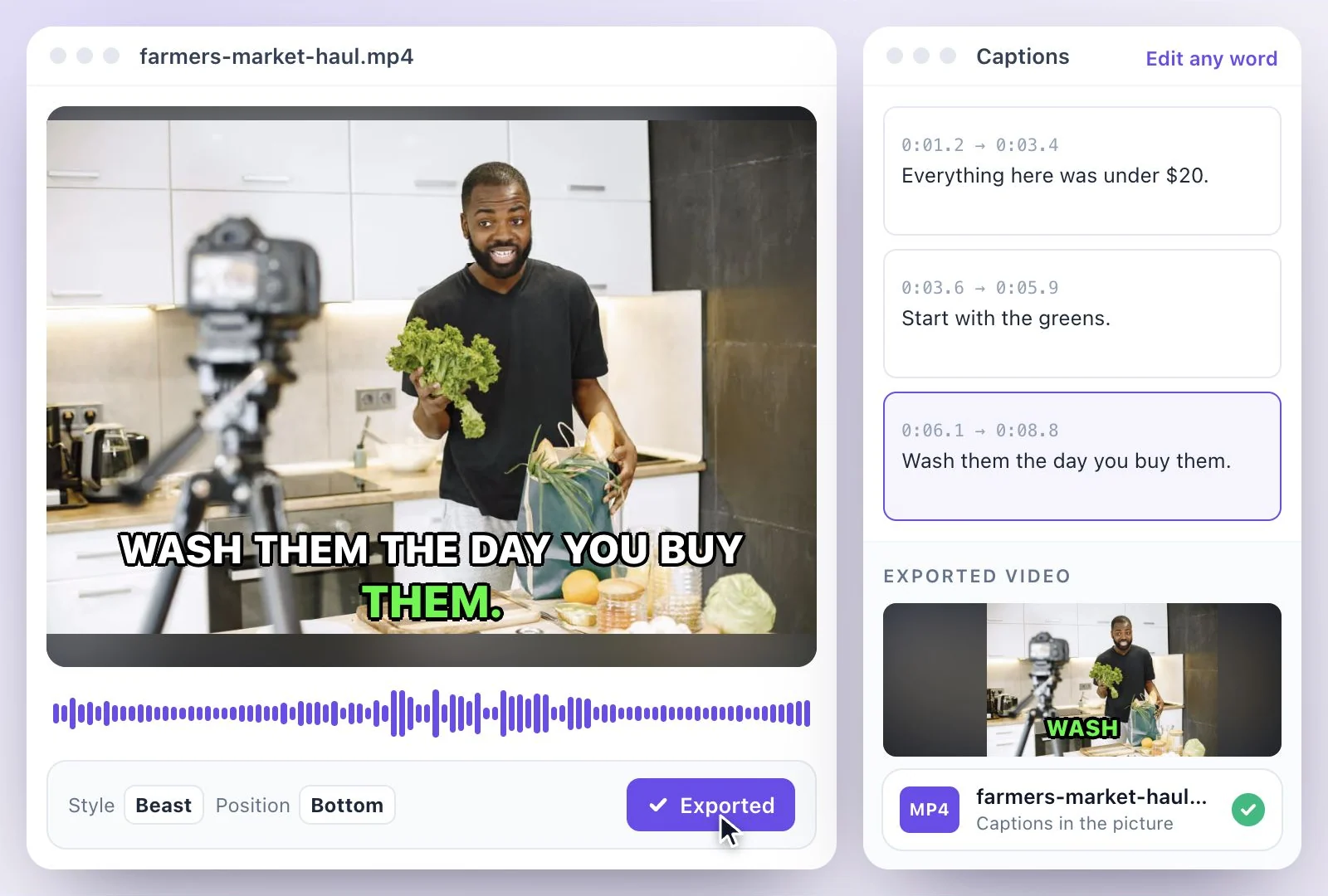
To burn subtitles into a video with Exemplary AI, upload the video, let it transcribe the speech, correct any wrong words, pick a caption style and position, and export an MP4 (H.264) file with the subtitles drawn into the picture.
Burned-in (open) subtitles can't be turned off and look the same in every app, which suits TikTok, Reels and Shorts clips that people often watch with the sound off. Free plan: 500 one-time credits; files up to 500 MB and 30 min long; 720p video exports with a watermark.
Burned-in subtitles at a glance
Facts checked .
- Input
- MP4, MOV or WEBM video, or a YouTube, TikTok, Instagram, Facebook, Vimeo or X link
- Subtitles from
- The speech, transcribed in 99 languages; edit any word before you export
- Caption styles
- 26 caption styles
- Position
- Top, center or bottom of the frame
- Output
- MP4 (H.264) with the subtitles burned in; the transcript they come from downloads as SRT, VTT or TXT files
- Free plan
- 500 one-time credits; files up to 500 MB and 30 min long; 720p video exports with a watermark
How to burn subtitles into a video
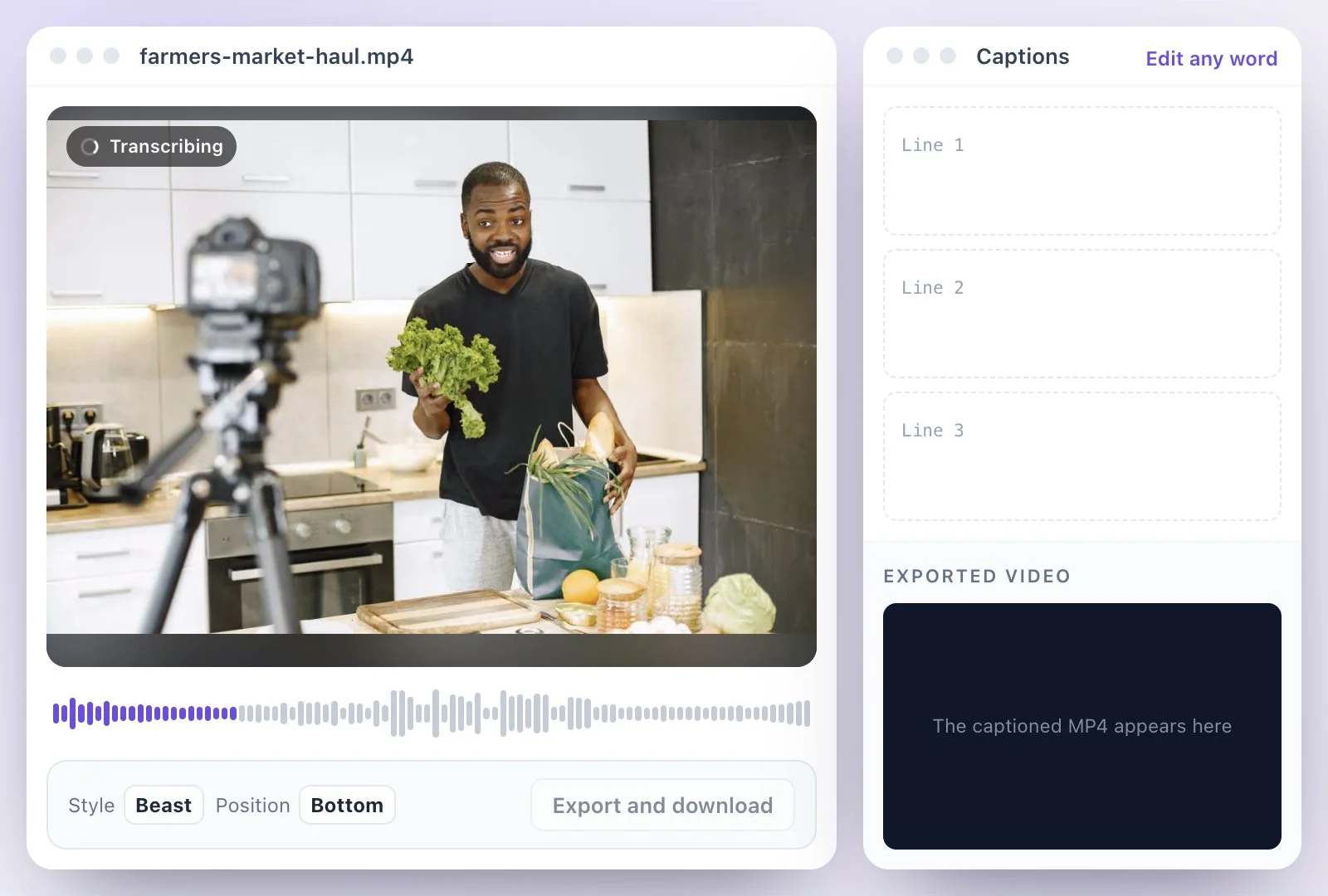
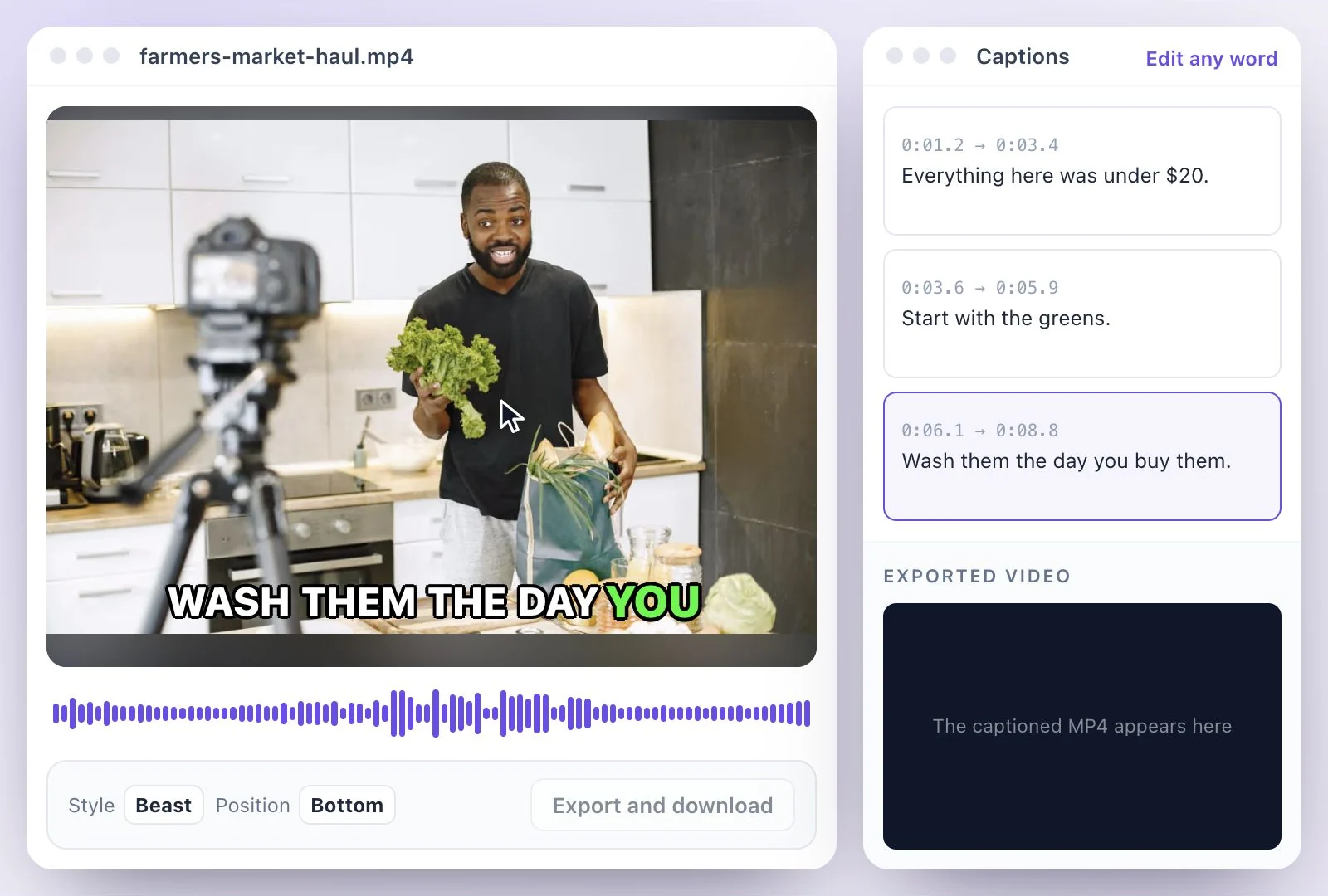
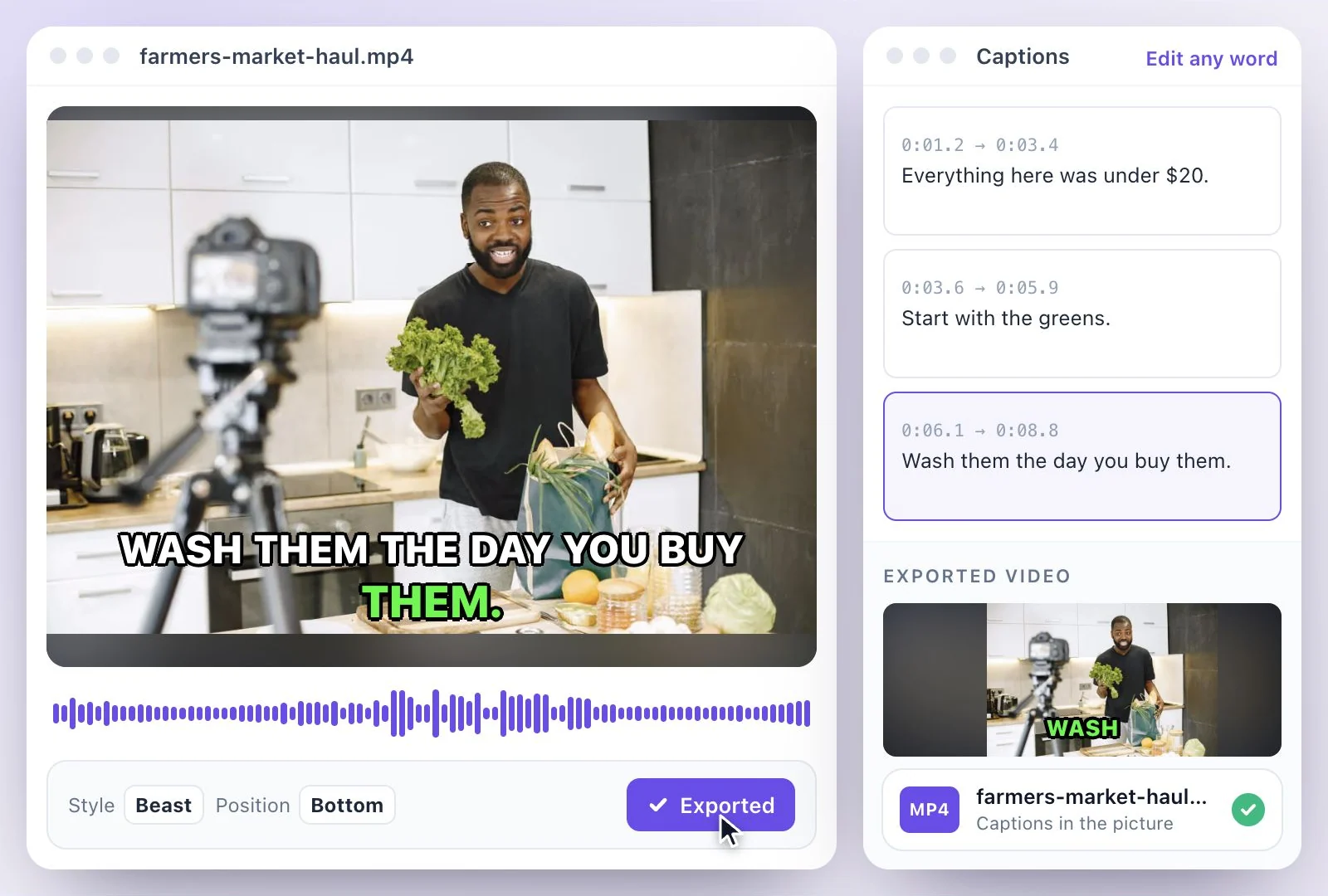
Burned-in (open) vs SRT/VTT (closed) captions
Burned-in subtitles, also called open captions or hardcoded subtitles, are drawn into the video's pixels. Nobody can turn them off, they look the same in every app, and styled or animated captions keep their look. The trade-off: one language per video file, and changing a word means exporting again.
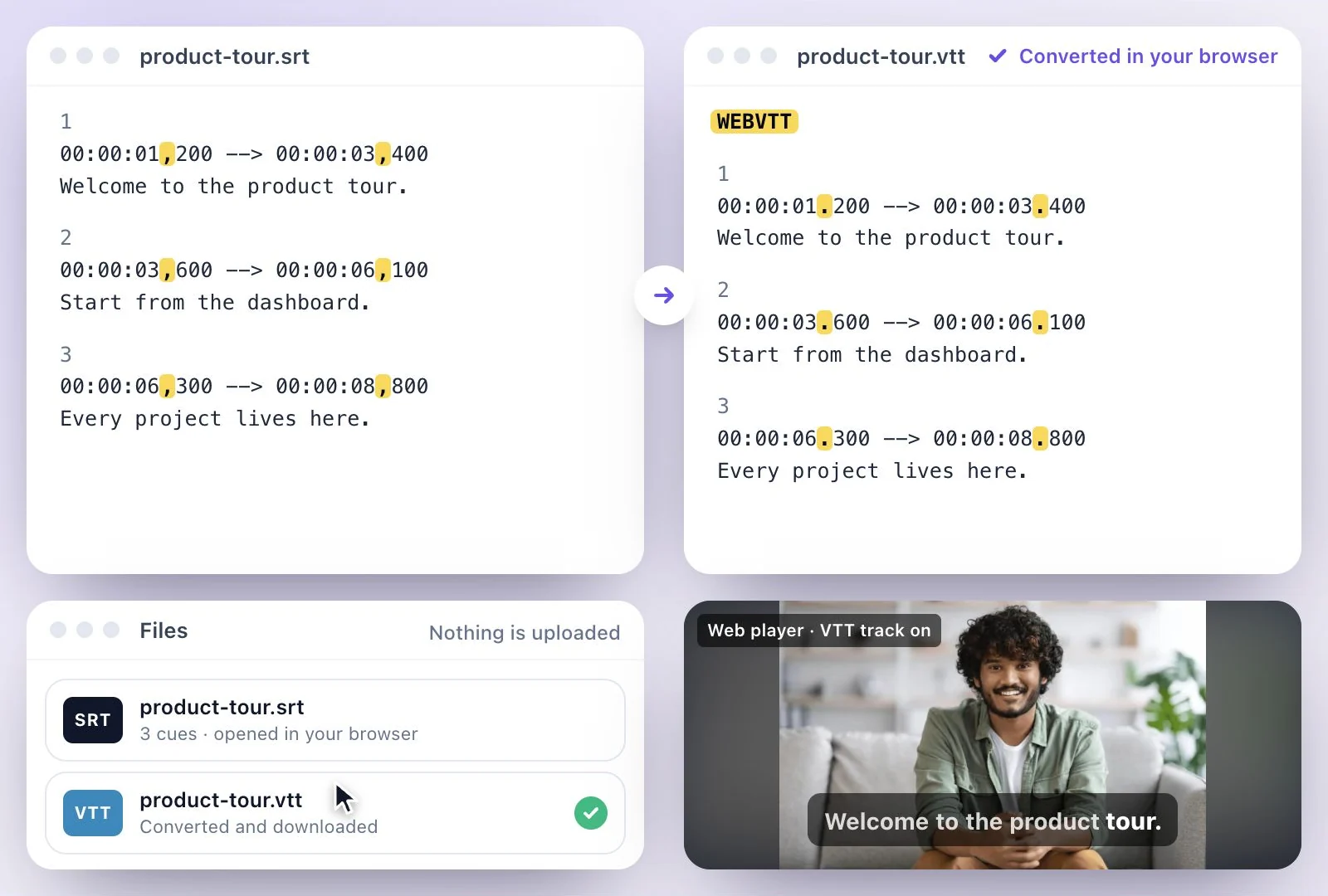
A subtitle file (SRT or VTT) is a closed caption track. The platform shows it over the video, viewers can switch it on or off or pick another language, and you can fix a typo by uploading a new file without touching the video.
Burn them in for TikTok, Instagram Reels, YouTube Shorts, ads and anything people watch without sound. For YouTube long-form videos, courses and videos in several languages, upload an SRT file as well. Exemplary AI gives you both from one transcript: the burned-in MP4, and an SRT, VTT or TXT download. Our guide to burning subtitles into a video also covers free desktop tools, and open vs closed captions goes deeper on the choice.
Want the subtitle file without burning it in? See add subtitles to video. To compare looks before you export, browse the caption styles.
Why Burn In Subtitles with Exemplary AI?
From the spoken words to an MP4 with the subtitles in the picture, in one browser tab.
Subtitles written for you
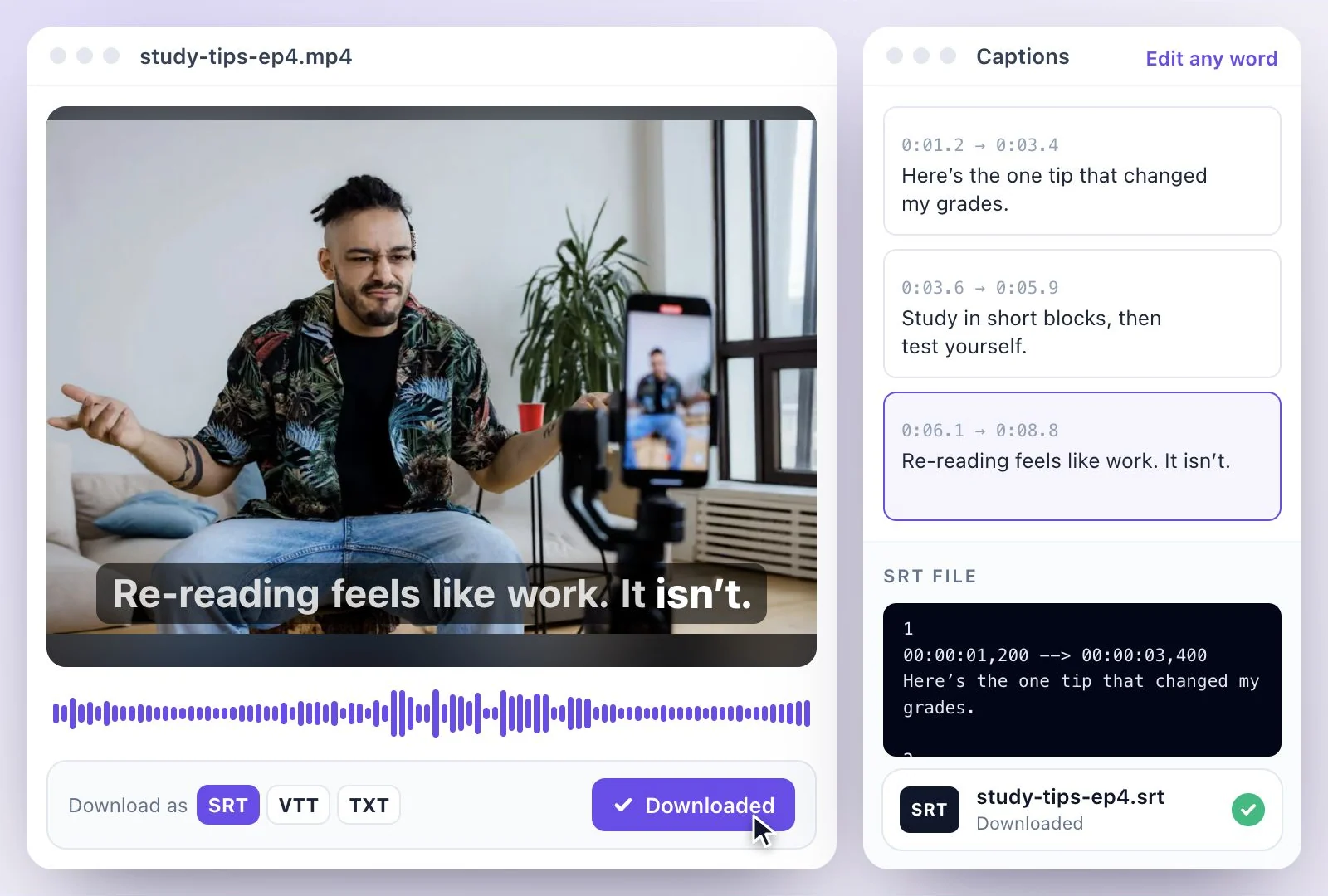
The speech is transcribed in any of 99 languages and timed to the words, so you start from a draft instead of typing every line.
Fix the words before they are permanent
Burned-in text can't be edited once the video is exported, so correct names, jargon and anything misheard first.
Styled, not just white text
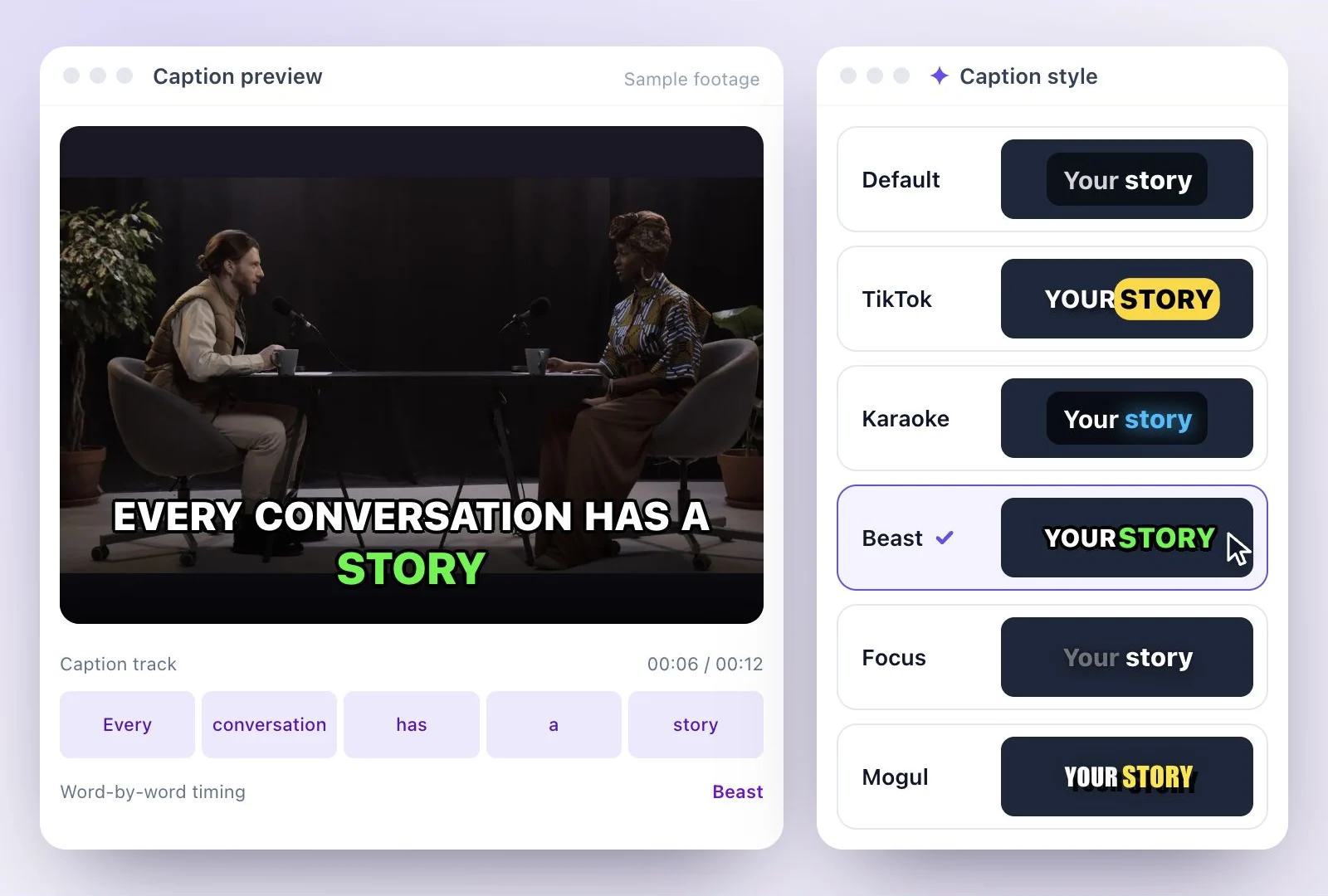
Choose from 26 caption styles, from clean boxed text to bold word-by-word looks, and set them at the top, center or bottom so they stay clear of faces and on-screen text.
Burned in, and as a file
Export the MP4 (H.264) with the subtitles burned in, and download the transcript as SRT, VTT or TXT for YouTube or a video editor.
Common questions
How do I burn subtitles into a video?
Can I burn an SRT file into an MP4?
What is the difference between open and closed captions?
Should I hardcode subtitles on YouTube videos?
Can I remove burned-in subtitles later?
Can I permanently add subtitles to a video for free?
Discover more Subtitles & Captions
- Auto subtitle generator
- Video caption generator
- Subtitle translator
- Subtitle editor
- Animated subtitles
- SRT generator
- SRT to VTT converter
- Caption styles
- Add subtitles in DaVinci Resolve
- Add subtitles in Premiere Pro
- Add subtitles in Final Cut Pro
- Add subtitles in Canva
- Captions vs subtitles
- TXT to SRT converter
- SRT to TXT converter
- Add subtitles to Video
- Add subtitles to TikTok Video
- Add subtitles to Instagram Reels
- Tamil Subtitle Generator
- Hindi Subtitle Generator
- Arabic Subtitle Generator
- German Subtitle Generator
- Chinese Subtitle Generator
- Indonesian Subtitle Generator
- Persian Subtitle Generator
- Hebrew Subtitle Generator
- Thai Subtitle Generator
- Greek Subtitle Generator
- Malay Subtitle Generator
- Bengali Subtitle Generator
- Tagalog Subtitle Generator
- Urdu Subtitle Generator
- Zulu Subtitle Generator
- Albanian Subtitle Generator
- Uzbek Subtitle Generator
- Mongolian Subtitle Generator
- Nepali Subtitle Generator
- Sinhala Subtitle Generator
- Pashto Subtitle Generator
- Amharic Subtitle Generator
- Tigrinya Subtitle Generator
- Somali Subtitle Generator
- Yoruba Subtitle Generator
- Hausa Subtitle Generator
- Igbo Subtitle Generator
- Samoan Subtitle Generator
Give your words a place on screen
Upload a video to review its transcript, adjust the captions, and export the finished result.