Horizontal to Vertical Video Converter
Turn a 16:9 video into 9:16 for TikTok, Reels and Shorts, with the speaker kept in frame instead of cut off at the edge.
Free to start — no credit card required.
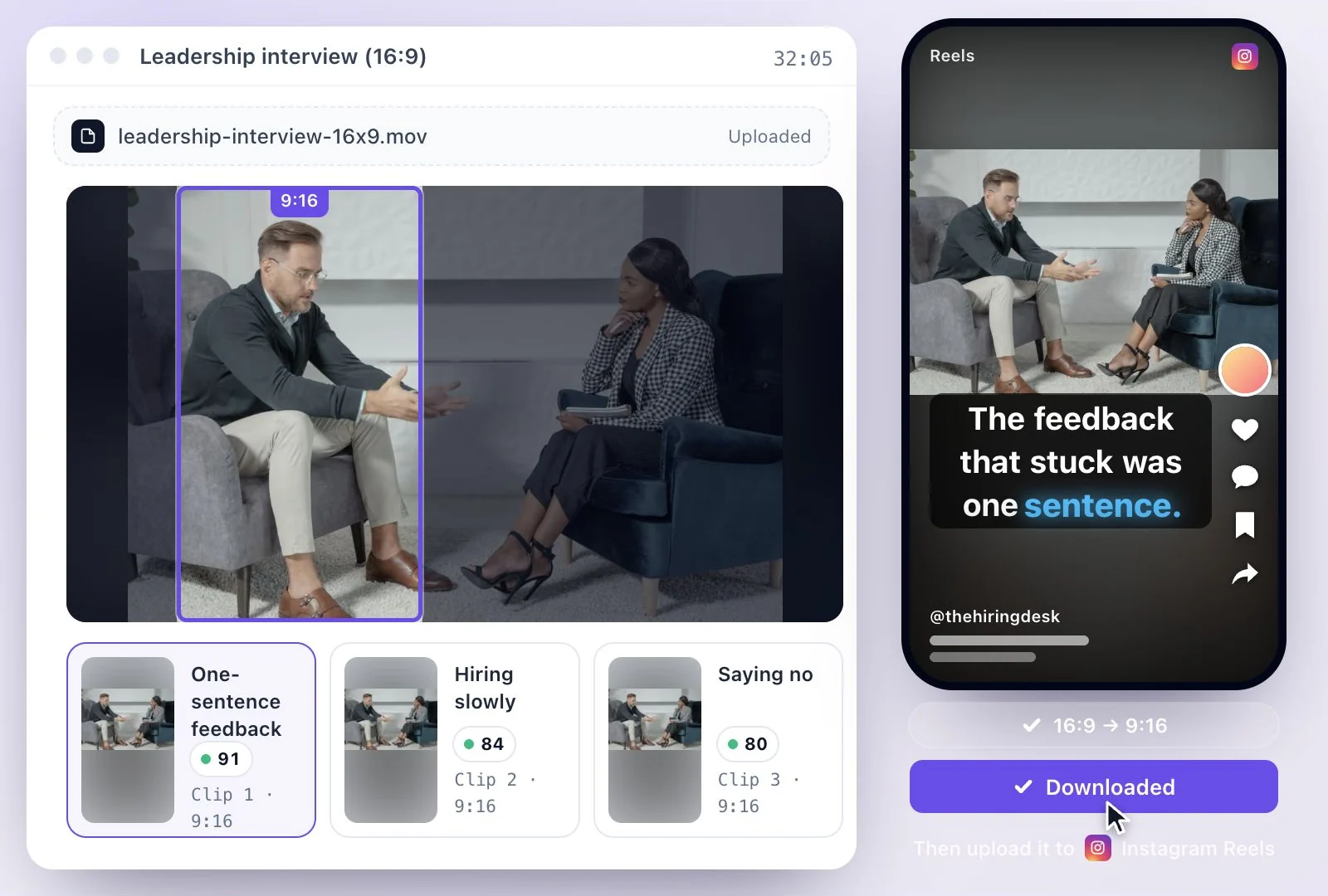
Horizontal to vertical video conversion here is not a fixed center crop: when a 16:9 video becomes 9:16, the frame follows whoever is talking, and when two people are on camera it can split into a pane for each.
If the whole picture matters more than filling a phone screen, the Original shape keeps it as it is. Free plan: 500 one-time credits; files up to 500 MB and 30 min long; 720p video exports with a watermark.
Horizontal to vertical at a glance
Facts checked .
- Shapes
- 9:16, 16:9, 1:1, 4:5 or Original; Original keeps the source's own shape
- Framing
- Auto unless you pick another in the Generate shorts dialog. Auto splits the frame when two people are on camera and keeps one pane when they are not, Split gives two people a pane each, and Speaker keeps one pane on whoever is talking
- Clips you cut
- Any part of the transcript: select it and click "Create clip"
- Clips AI picks
- Each with a virality score. Targets of 15, 30, 45, 60, 90 or 120 seconds; 30 seconds unless you pick another
- Export
- MP4 (H.264)
How to convert horizontal video to vertical
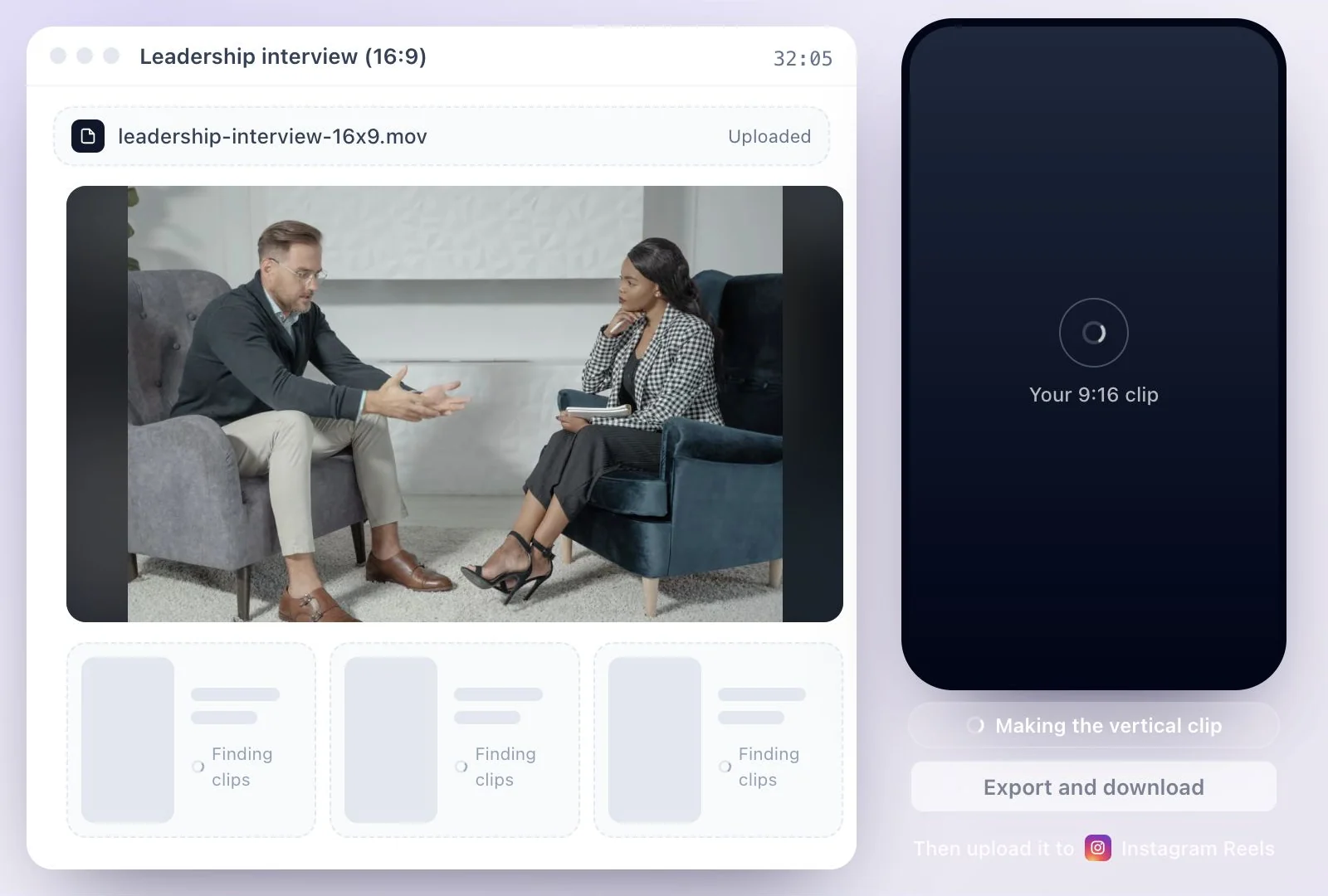
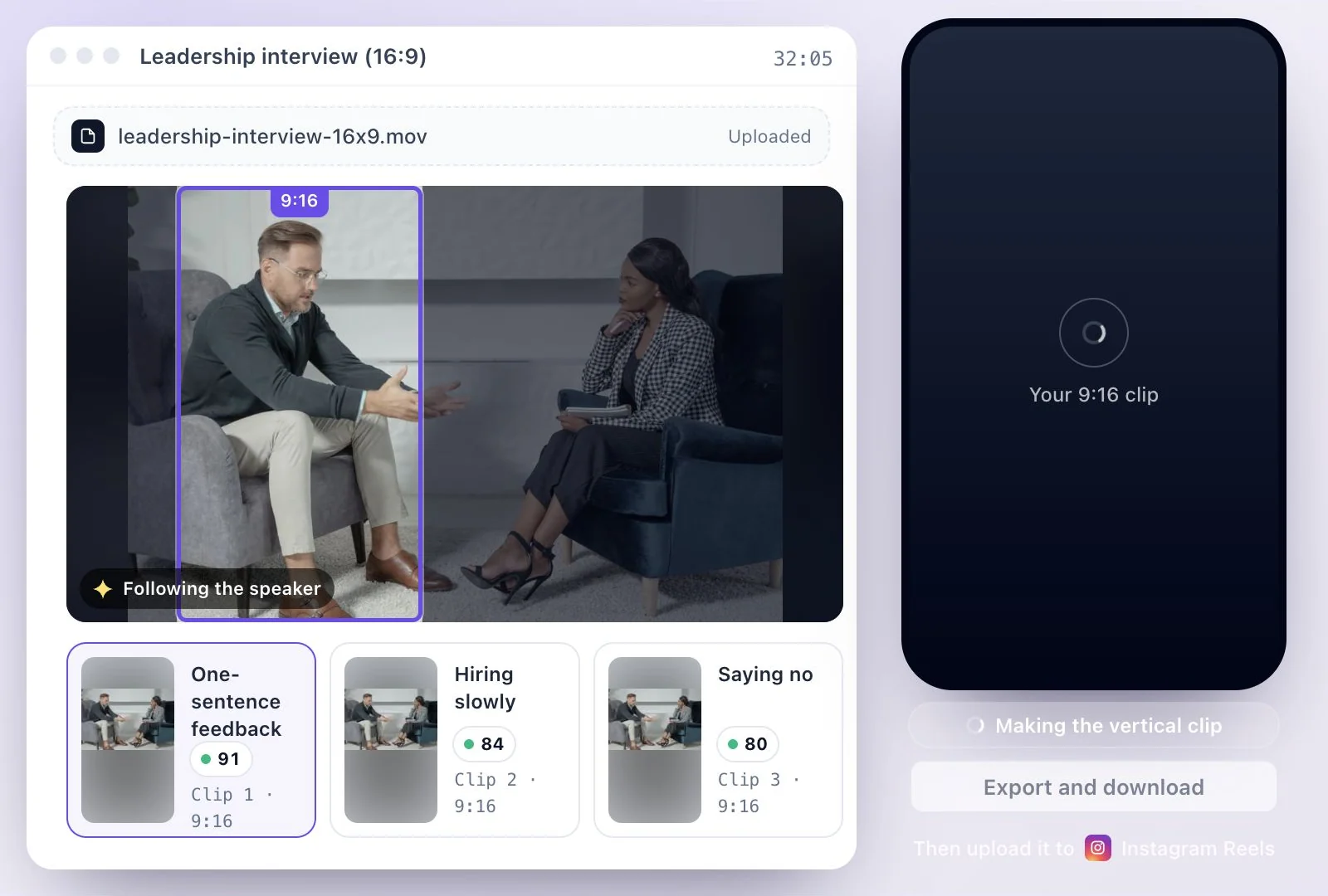
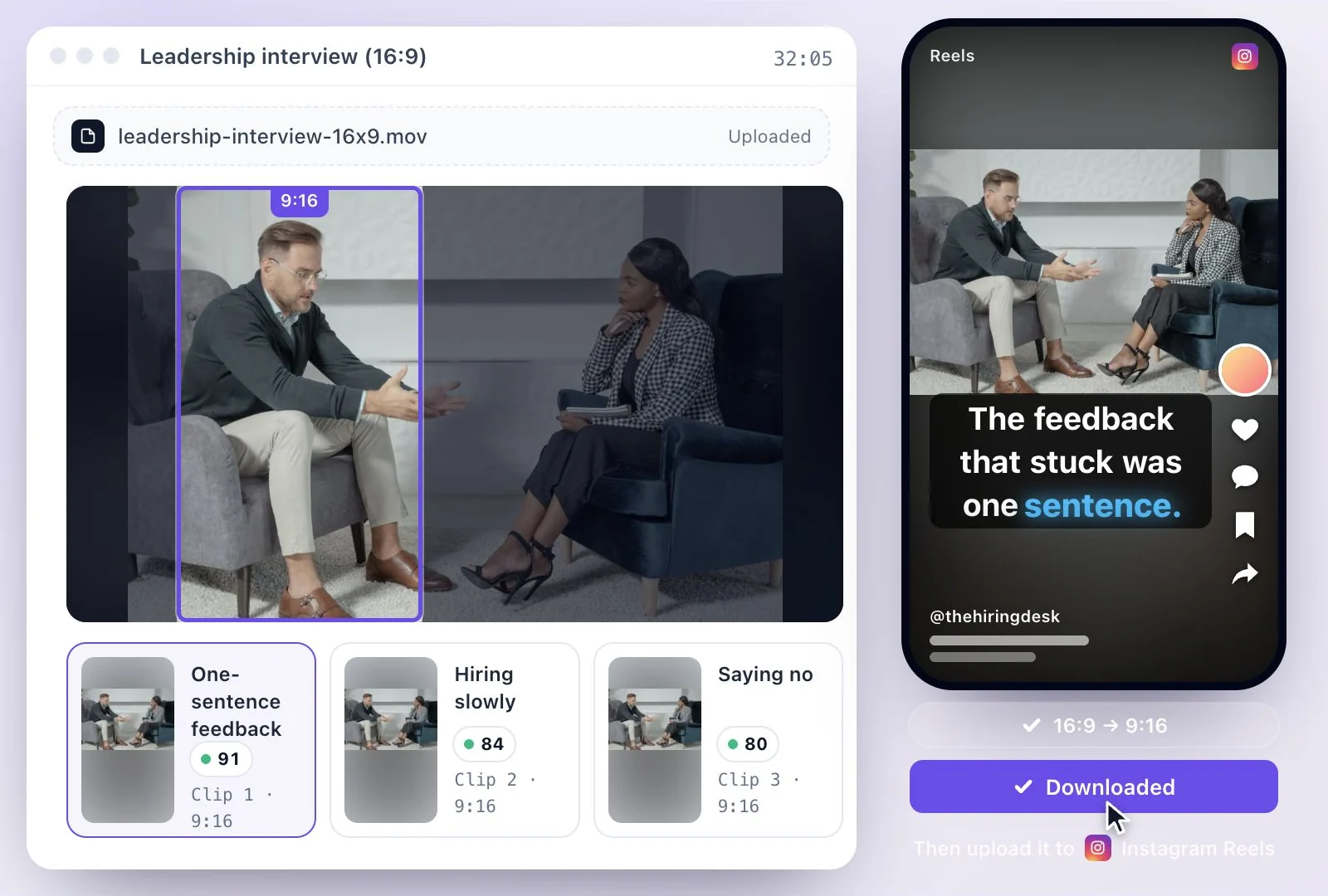
Auto, Split or Speaker: which framing to use
Speaker keeps one pane on whoever is talking, so the frame moves as the conversation passes between people; use it for talking-head videos, keynotes and interviews where one person speaks at a time. Split stacks two panes in one vertical frame, one per person, for podcasts and two-person interviews; it will not split a shot with only one person in it. Auto decides for you: two panes when two people are on camera, one when they are not. For slides, screen recordings and wide shots where the edges matter, a vertical crop cuts too much, so keep the Original shape instead.
For a step-by-step walkthrough, including how to do it in other editors, read how to convert horizontal video to vertical. To change a video's frame without cutting clips, see resize videos and crop video.
Why Not Just Crop the Middle?
A center crop cuts off anyone standing to one side. A crop that follows the speaker keeps the subject in view, and the Original shape keeps the whole frame when that matters more.
Framing that follows the speaker
The 9:16 window is a tracked crop that moves to whoever is talking as the conversation passes between people.
The whole frame when you need it
The Original shape skips the crop and keeps the entire picture, which suits slides, screen recordings and wide shots.
Two people in one vertical frame
Split stacks two speakers so an interview reads well on a phone.
Feed shapes too
Pick 4:5 or 1:1 for a feed post, or keep 16:9 for YouTube.
Common questions
How do I make a horizontal video vertical without cutting off the speaker?
Can I keep the whole picture instead of cropping it?
Is there a length limit for horizontal to vertical video?
What aspect ratio do TikTok, Reels and Shorts use?
Will converting 16:9 to 9:16 lower the video quality?
Can I make one vertical video for TikTok, Reels and Shorts at once?
Does speaker framing work on screen recordings and slides?
Discover more Clips & Shorts
- Video trimmer
- YouTube Shorts Maker
- AI podcast clips generator
- Instagram reel maker
- Resize videos
- Auto video editor
- Crop video
- Add image to video
- Add text to video
- Remove filler words
- Add emoji to subtitle
- Silence remover
- Add watermark to video
- Add b-rolls
- Word highlight in subtitle
- AI video editor
- Long video to short video
- Twitch clip maker
- YouTube to TikTok
- Sermon clips
- Screen and webcam recorder
- Online screen recorder
- Kick clip maker
- Viral clip finder
- YouTube Shorts size
- TikTok video size
- Instagram Reels size
- LinkedIn video specs
Make something worth watching
Start with a recording, choose the moments to keep, and finish your clip with captions.