Screen and Webcam Recorder
Record your screen with your camera in a small bubble, right in the browser. When you stop, the take is transcribed and ready to become clips, captions and written content.
Free to start — no credit card required.
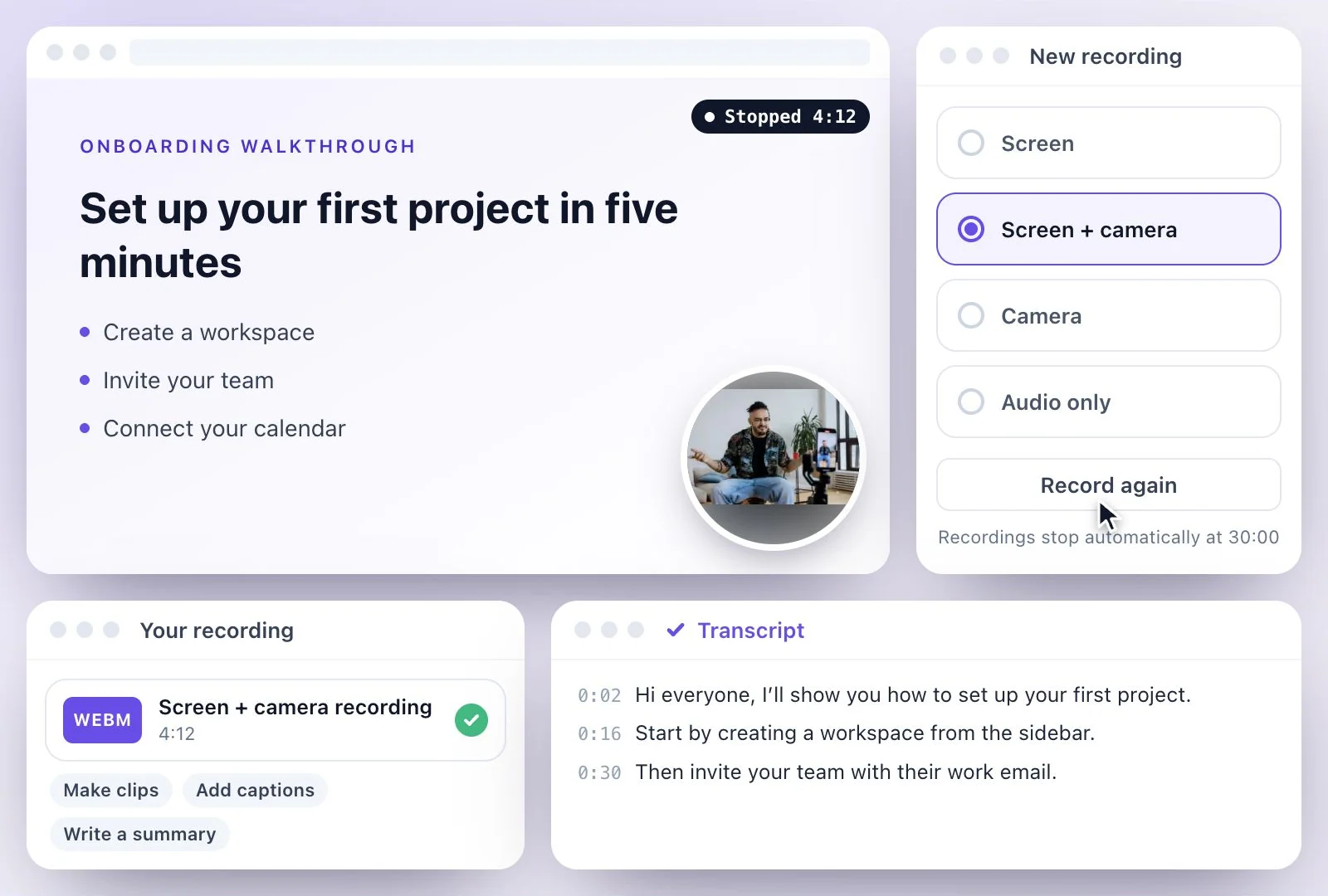
Exemplary AI's screen and webcam recorder runs in your browser with nothing to install: share a tab, a window or your whole screen, your camera appears in a small bubble, and your microphone is mixed in.
Each take stops automatically at 30 minutes. When you stop, it uploads and is transcribed, ready to become clips, captions or written content. Free plan: 500 one-time credits; files up to 500 MB and 30 min long; 720p video exports with a watermark.
Recorder at a glance
Facts checked .
- Modes
- Screen, Screen + camera, Camera and Audio only
- Camera bubble
- Circle or rounded, in any corner, small, medium or large, mirrored or not
- Whole screen or one window
- Share the whole screen and the bubble is part of the picture; share a window or tab and the camera is saved as its own track, placed for you in the editor
- Length
- Up to 30 minutes per take, then it stops automatically
- Install
- None; it runs in the browser. If a browser blocks camera, mic or screen access, you can upload a file instead
- After you stop
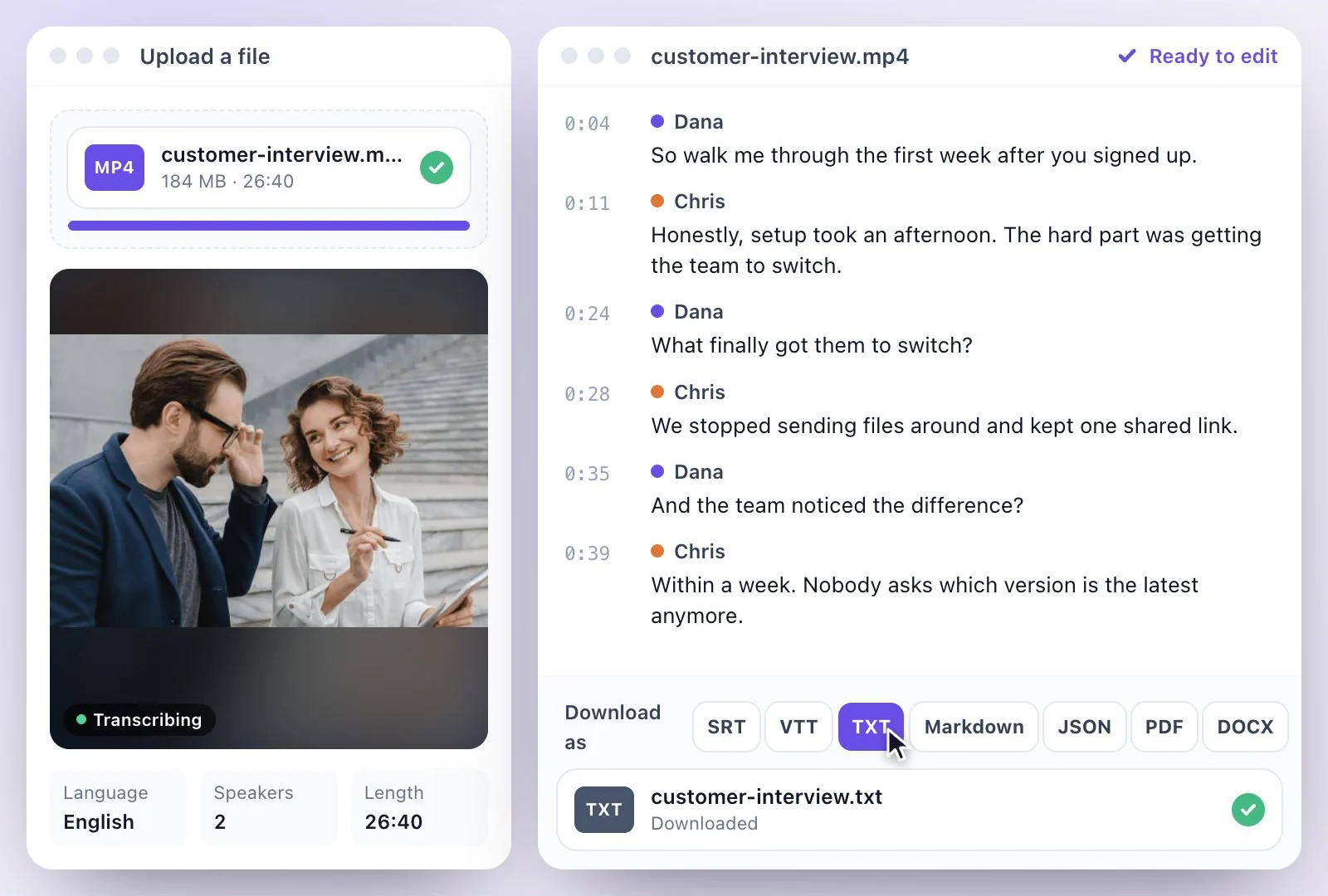
- The take is transcribed, then ready for clips, captions and written content
- Free plan file limits
- 500 one-time credits; files up to 500 MB and 30 min long
How to record your screen and webcam
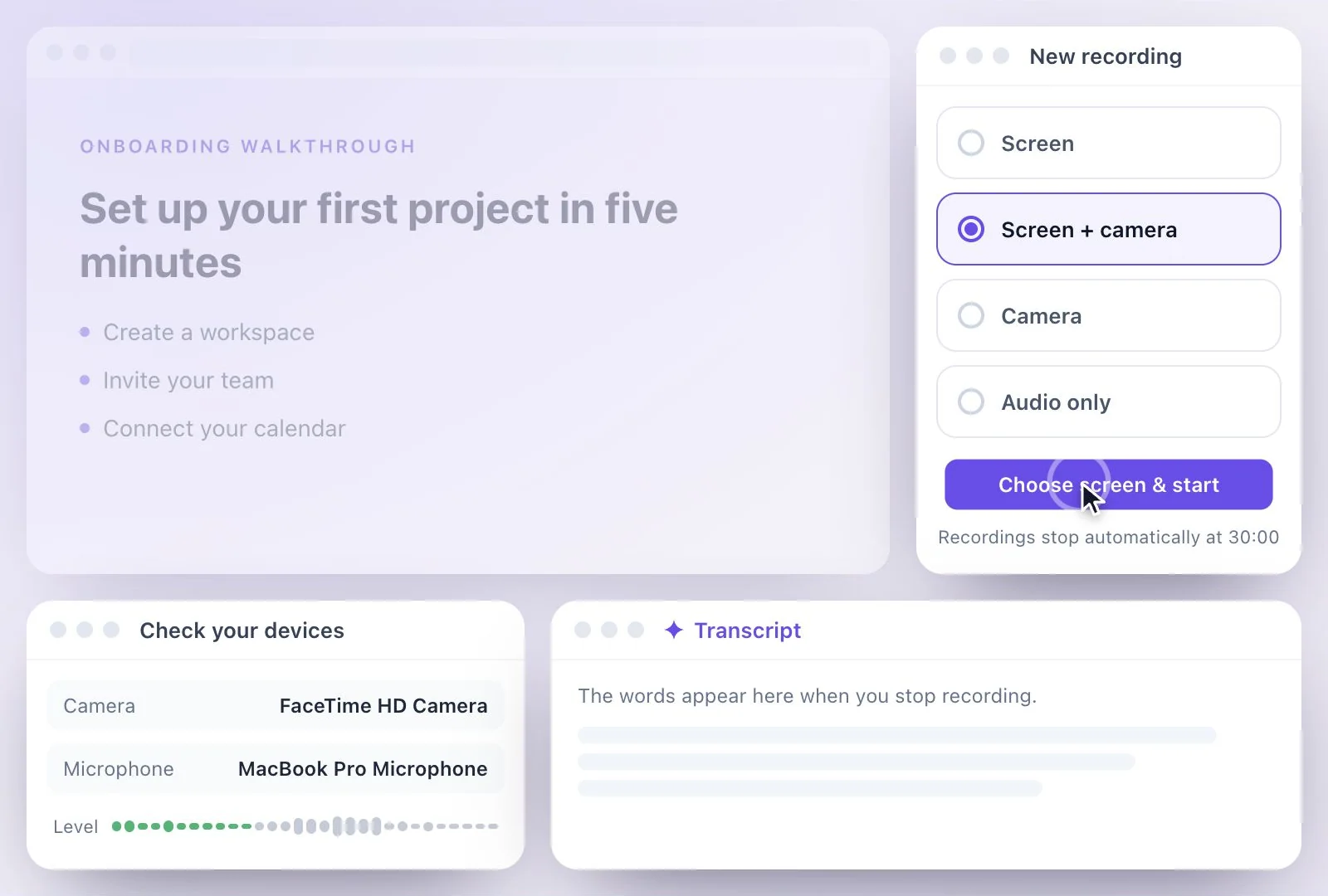
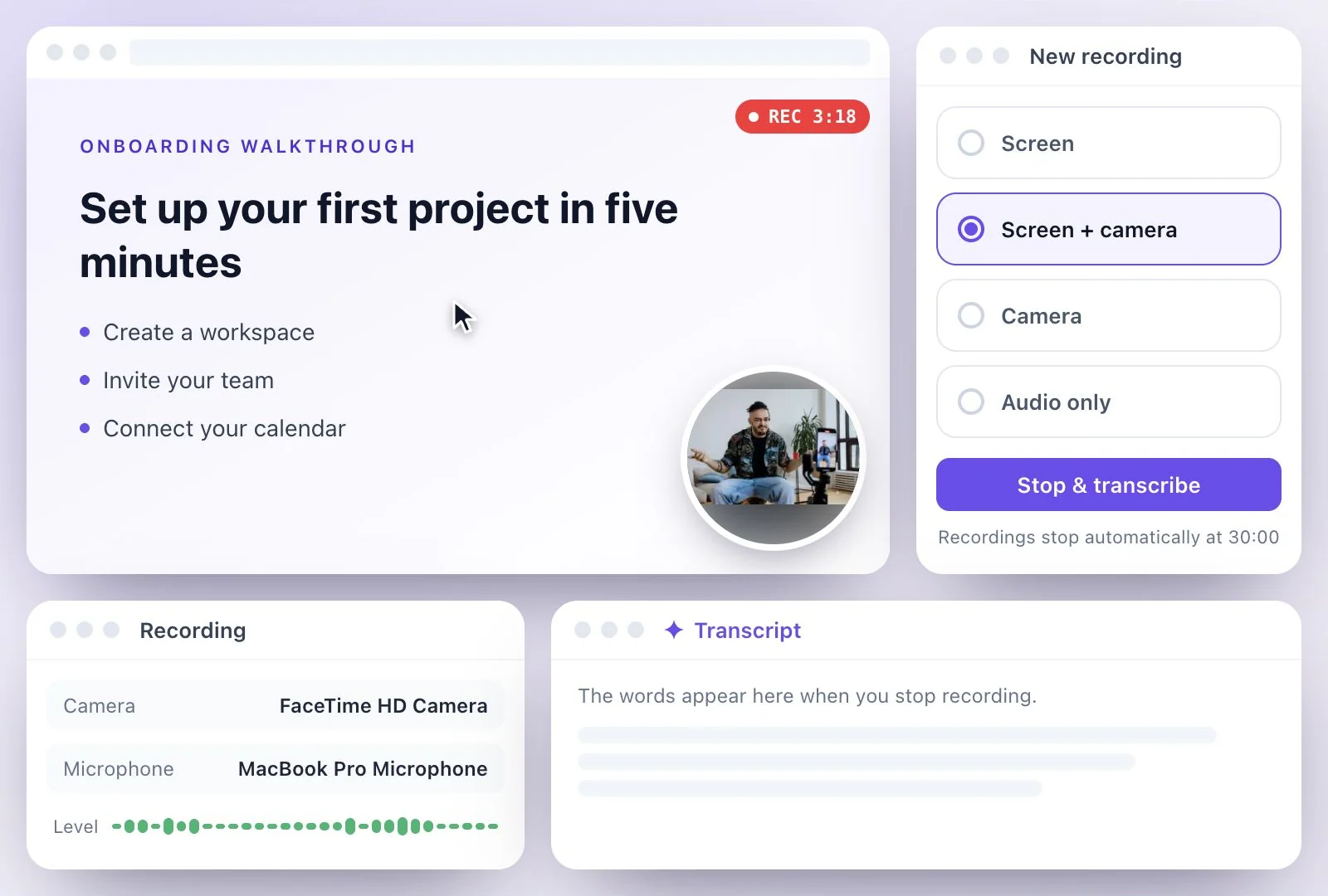
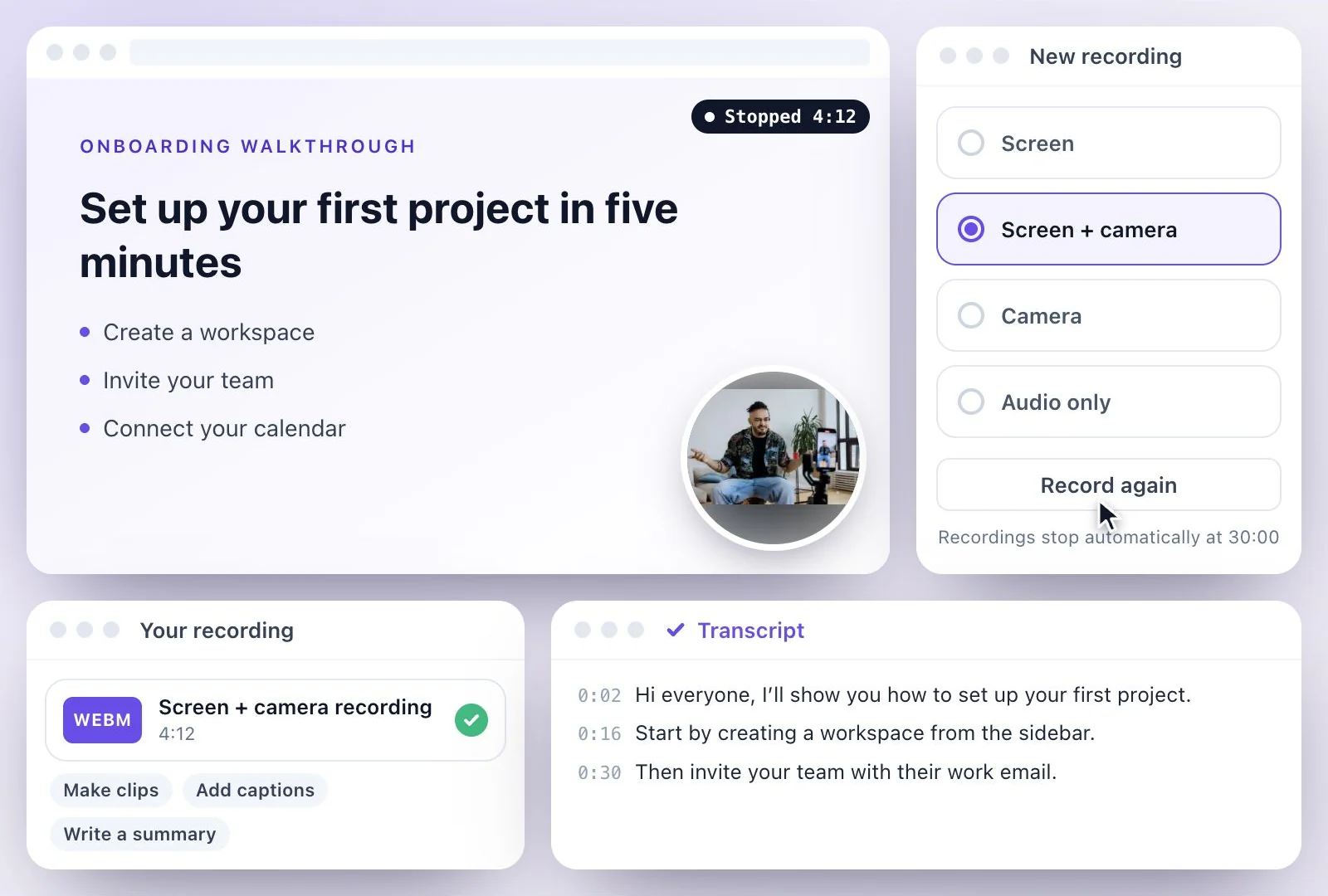
What happens after you stop
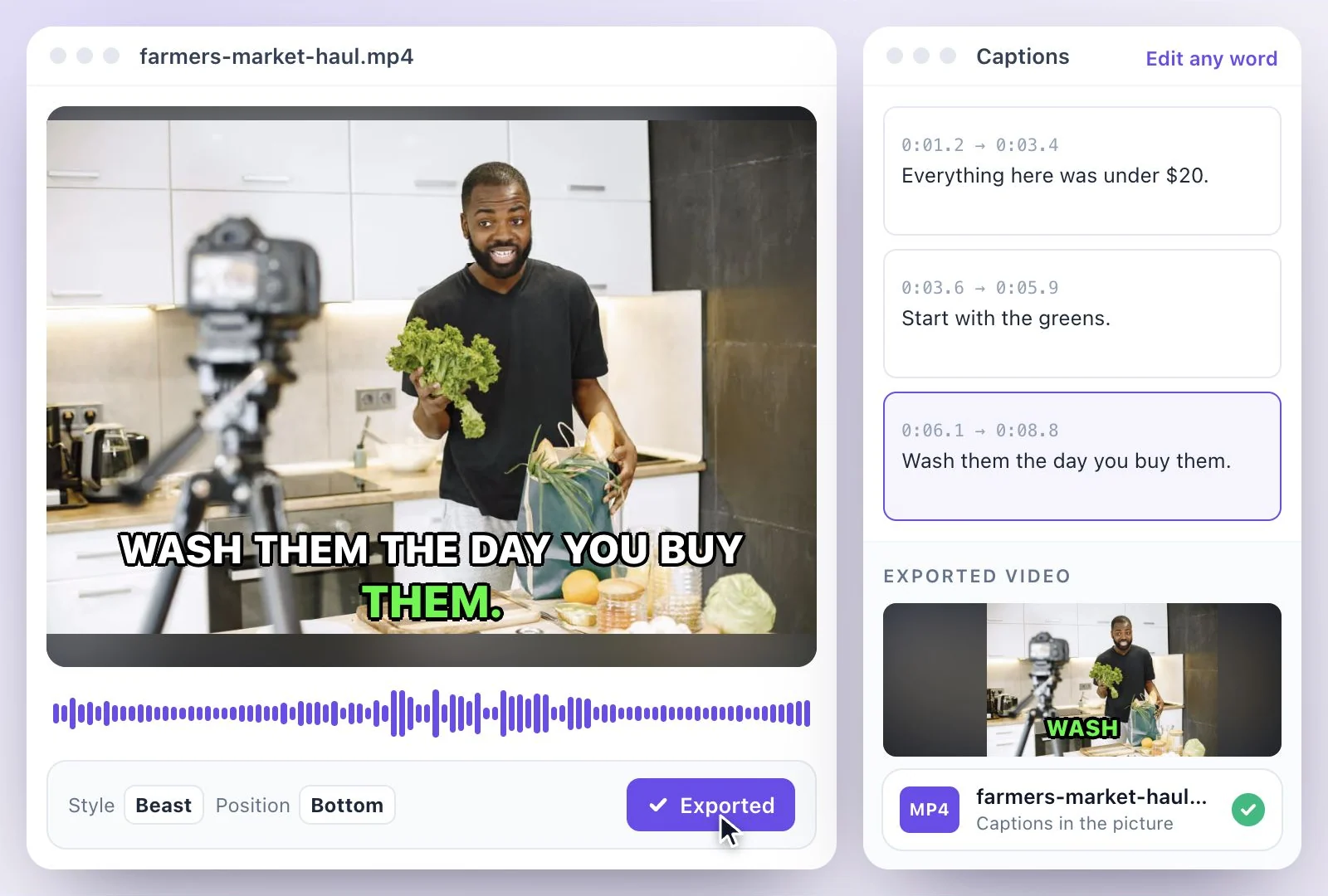
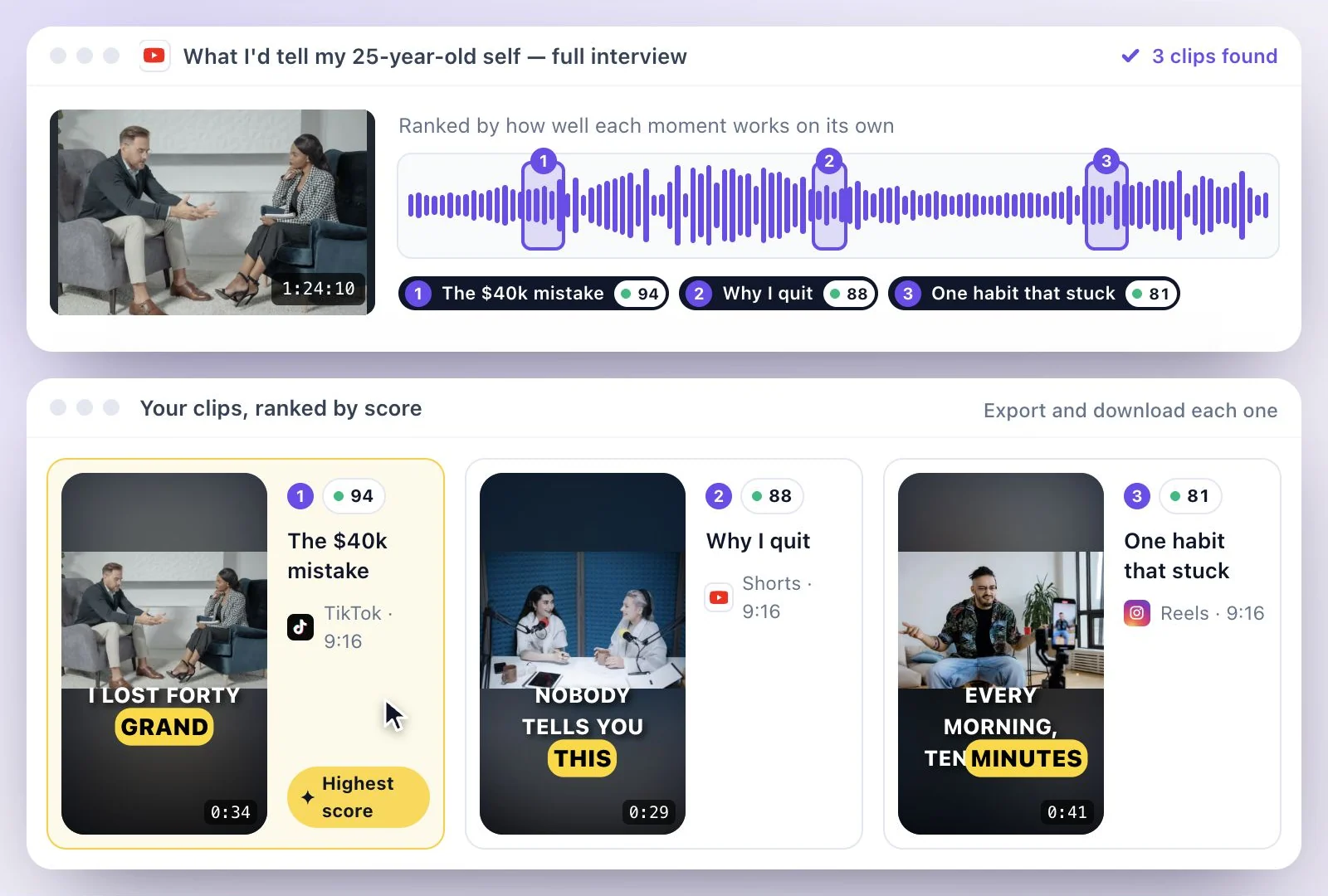
A finished take lands in your workspace like any upload, with a transcript. Cut clips from it with AI Clips (or select text and click "Create clip" to cut one yourself), add subtitles, or write from it: a summary, chapters, show notes, key takeaways, a blog post, a newsletter, posts for X and LinkedIn, or a YouTube description, in a professional, casual, technical or conversational tone.
Comparing desktop recorders as well? Our roundup of Mac screen recorders covers free and paid options, from QuickTime to OBS Studio. Recording only your screen, for a tutorial or a bug report? The online screen recorder page covers screen-only takes and capturing tab audio.
More Than a Screen Recorder
Record, then keep working from the same take: the words are transcribed, so the recording turns into clips and written content without another upload.
Your face and your screen together
Screen + camera mode shows you in a bubble over your screen, for tutorials, demos and walkthroughs.
Nothing to install
The recorder runs in a browser tab; there is no app or extension to download.
Transcribed when you stop
Each take uploads and is transcribed, so you can search it and work from its words.
From one take to clips and posts
Turn a recording into captioned clips, or into a summary, show notes, a blog post or a newsletter.
Common questions
Can I record my screen and webcam at the same time?
Is this a free online screen recorder with webcam?
Do I need to install the screen and webcam recorder?
How long can one recording be?
Is the webcam bubble part of the recorded video?
Can I record only my webcam, or only my voice?
What can I make from a screen recording with face cam?
Discover more Clips & Shorts
- Video trimmer
- YouTube Shorts Maker
- AI podcast clips generator
- Instagram reel maker
- Resize videos
- Auto video editor
- Crop video
- Add image to video
- Add text to video
- Remove filler words
- Add emoji to subtitle
- Silence remover
- Add watermark to video
- Add b-rolls
- Word highlight in subtitle
- AI video editor
- Long video to short video
- Twitch clip maker
- YouTube to TikTok
- Sermon clips
- Horizontal to vertical video
- Online screen recorder
- Kick clip maker
- Viral clip finder
- YouTube Shorts size
- TikTok video size
- Instagram Reels size
- LinkedIn video specs
Make your next recording useful
Record your idea, then use its transcript to create captions, notes, or clips.