Twitch Stream Recaps: how clips become stream highlights
How Twitch Stream Recaps turn your top clips into a 48-hour highlight reel in Stories, how to post one, and what the planned Recaps Feed adds.

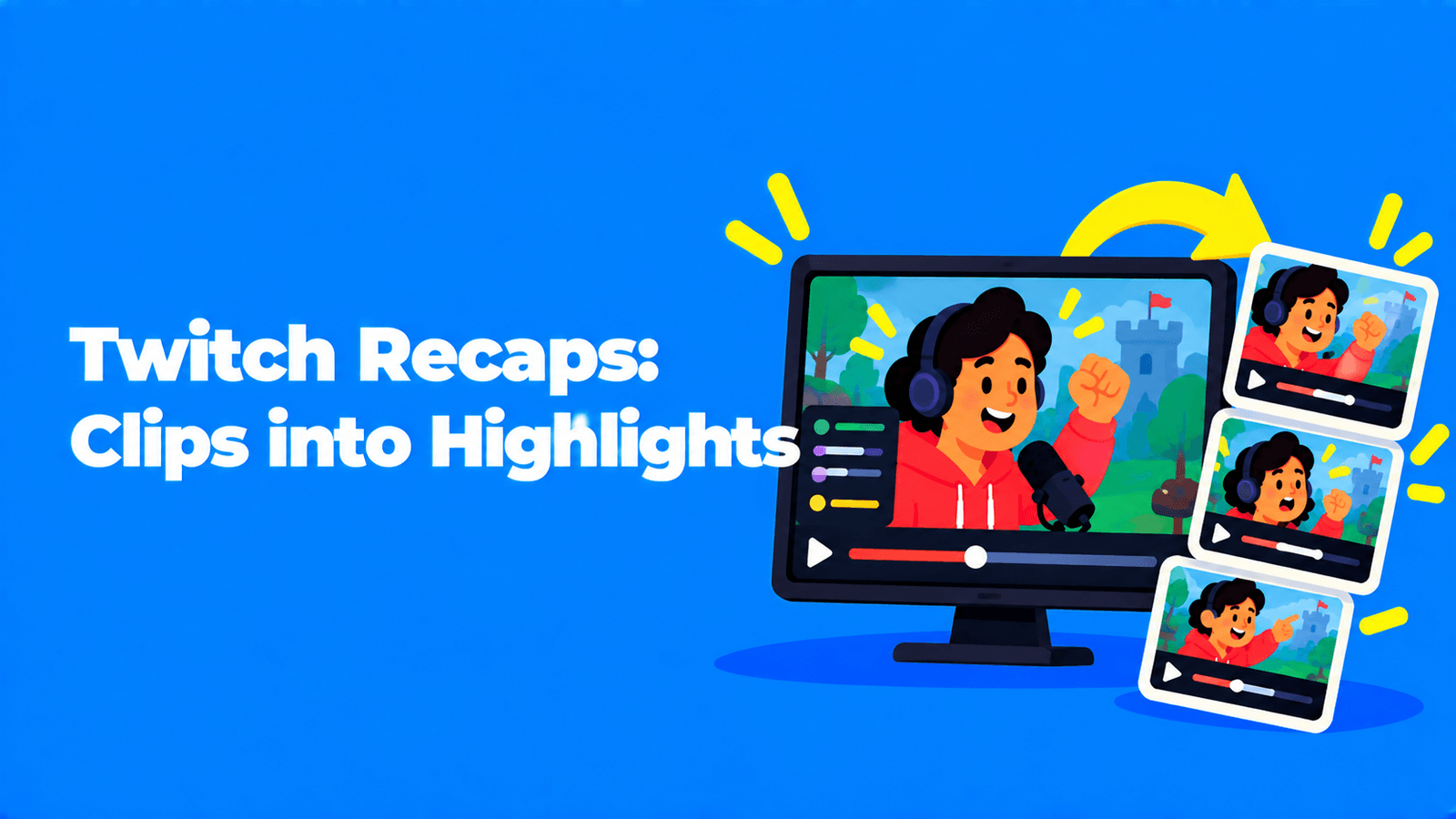
A Twitch Stream Recap is a set of top Clips from your latest stream that you post to your Story once you go offline. Twitch picks candidate clips "based on quality indicators," you choose which ones to include, and your followers see them at the front of the Stories shelf and as cards in the Live feed of the Twitch mobile app. Recaps expire after 48 hours (Twitch Help). Twitch is also working on something bigger. At Tokyo Game Show in September 2026, CEO Dan Clancy described a planned "Recaps Feed" that would combine five to eight of your clips into one highlight reel on a dedicated feed. Twitch hasn't given a launch date (Tubefilter). Here's how Recaps work today, how to post one, and how to get better clips into it.
Where Stream Recaps came from
Twitch announced the idea at TwitchCon Rotterdam on May 30, 2026. "Starting in June," it wrote, the stream summary would show "a sorted list of the best clips from your stream," so you could share them to Stories "to create a highlight reel or recap of your stream." Twitch also said it would add clips from followed streamers to viewers' Live feed (Twitch Blog).
The reason is simple: most of your community misses most of your stream. In the Tokyo Game Show interview, Clancy put it this way: "at any given moment of a stream, probably only 10 percent of your community is there" (quoted by Tubefilter).
What viewers see
Per Twitch's help page, checked September 30, 2026:
- Stories. Top clips from followed channels' recent streams appear at the front of the Stories shelf on the mobile home screen. Channels a viewer is most dedicated to come first. Viewers tap through each channel's clips in chronological order.
- Live feed. Recap clips appear as cards in the Live tab. Depending on how many followed channels have posted, a viewer sees one to four channels featured.
- Mobile only, for now. Viewers can't see Recaps on the web yet. Streamers can post them from both mobile and web.
- 48 hours. Recaps expire after 48 hours in both places.
- Still rolling out. Twitch says some features "are still being tested with a limited audience, and availability is expanding over time."
How to post a Stream Recap
From your Stream Summary (web or mobile)
- End your stream and wait about 15 minutes for your Stream Summary to generate.
- Open it at Creator Dashboard > Stream Summary.
- Find Top Clips from this Stream.
- Tap a clip to preview it. You can change its layout, time frame and title before posting.
- Press Add to Story on each clip you want. One clip is the minimum.
From the mobile app
- After your stream, open the Twitch app.
- Tap the + button in the bottom navigation.
- Tap Post Recap from Last Stream, then pick your clips.
After posting, you can delete a clip from your Recap. That removes it from your Story and from your viewers' Live feed.
Who can post: Recaps are posted to Stories, and only eligible Affiliates and Partners can create stories. Twitch's Stories page describes the launch rule as at least one stream of 45 minutes or longer in the last 30 days (Twitch Help).
No clips, no Recap. If nobody clipped your stream, the Top Clips panel doesn't appear. The Stream Summary page says it shows up to five of your most-viewed clips from that stream (Twitch Help).
How to get better clips into your Recap
A Recap can only be as good as the clips your stream produced. When Twitch announced these features, it said only 50% of streamers had a clip to share after a given stream. For streamers using Auto Clips, that figure was up to 85% (Twitch Blog). These tools help, per Twitch's clips guide:
- Say "Twitch, Clip That." Twitch creates a clip of the moment while you're live, and you can review it in your Clips Manager afterward.
- Auto Clips. Twitch announced Auto Clips at TwitchCon as a beta that "automatically generates captioned clips from the best moments from your stream," using chat activity, vocal inflection and on-screen events. If you have access, these clips come with captions by default.
- Captions on every clip. You can turn captions on, or edit their text, for clips of your channel within 30 days of creating them. After that they're locked.
- Portrait versions are automatic. Every clip gets a portrait version cropped to keep your cam and gameplay in frame. You can accept, adjust or dismiss the crop, or pick any shape from 16:9 to 9:16.
- Clips are short. A single clip is up to 60 seconds long, so plan to show a moment, not a whole segment.
A practical habit: ask your mods and regulars to clip big moments during the stream. More clips give Twitch's ranking more to choose from, and give you more to pick from when you post.
The planned Recaps Feed
What Clancy described at Tokyo Game Show 2026 (held September 17 to 21) goes a step further than today's Recaps:
- You'd choose five to eight clips at the end of a stream.
- Twitch would join them into one sequential summary, a highlight reel.
- The reels would get their own dedicated feed.
Clancy also tied it to sponsorships. During a sponsored segment, he said, "it might only be 15 percent of their community that was there." His pitch for clips: "Create a clip from different pieces, redistribute it on Twitch, and you get greater reach, and that will help them make more money." As of September 30, 2026, Twitch hasn't said when the Recaps Feed will launch, and its help pages don't mention it yet. Treat these details as plans.
Recaps vs Highlights vs your own highlight reel
| Stream Recap | Highlight | Clips shared off Twitch | Your own edited reel | |
|---|---|---|---|---|
| Made from | Top Clips of your last stream | Segments of a past broadcast (VOD) | A single clip, up to 60 s | Your downloaded VOD |
| Where it shows | Stories and Live feed, mobile | Your channel's videos | YouTube, TikTok, Instagram, Snapchat | Anywhere you upload |
| How long it lasts | 48 hours | Stored until you delete it | Depends on the platform | Depends on the platform |
| Effort | A few taps | Trim in the Highlighter | Post from Clips Manager | Full edit |
Highlights are Twitch's older highlight-reel tool. You cut segments of a past broadcast in the Highlighter, and they stay on your channel for new visitors. Highlights and uploads share a 100-hour storage limit (Twitch Help).
Sharing clips off Twitch is built in. From the Clips Manager you can post clips of your channel directly to YouTube, TikTok, Instagram and Snapchat, or download landscape and portrait versions (Twitch Help). For the full workflow, see how to clip Twitch streams for TikTok.
Your own reel is the choice when you want something longer than 60 seconds, or a weekly best-of that doesn't expire. Download the broadcast from the Video Producer before Twitch deletes it. Past broadcasts are kept for 7 days by default, 14 days for Affiliates and 60 days for Partners, Prime and Turbo users (Twitch Help). Then edit it into a reel; our highlight reel guide covers structure and pacing. Exemplary AI (our product) can take an uploaded VOD, find candidate moments with AI Clips, reframe them to vertical and add captions. Review each clip before you post it.
FAQ
What is a Twitch Stream Recap?
It's a selection of top Clips from your most recent stream, posted to your Story. Followers see it in Stories and in the Live feed on the Twitch mobile app for 48 hours.
How do I post a Recap on Twitch?
About 15 minutes after your stream ends, open Creator Dashboard > Stream Summary, find Top Clips from this Stream, and press Add to Story on the clips you want. On mobile, you can also tap + and then Post Recap from Last Stream.
Can viewers watch Recaps on desktop?
Not yet. As of September 30, 2026, Twitch's help page says viewers see Recaps in the mobile app only. Streamers can post them from web or mobile.
What is the Twitch Recaps Feed?
It's a planned feature that CEO Dan Clancy described in September 2026. You'd pick five to eight clips, and Twitch would combine them into a highlight reel on a dedicated feed. Twitch hasn't announced a launch date.
Is a Stream Recap the same as Twitch Recap?
No. Twitch Recap is Twitch's annual year-in-review of your activity. A Stream Recap is the post-stream clip selection described here.