How to Clip a YouTube Video (Phone and PC)
Use the Clip button for a 5-60 second link, Studio to turn your own video into a Short, or download and edit it to post elsewhere. Phone and PC steps.

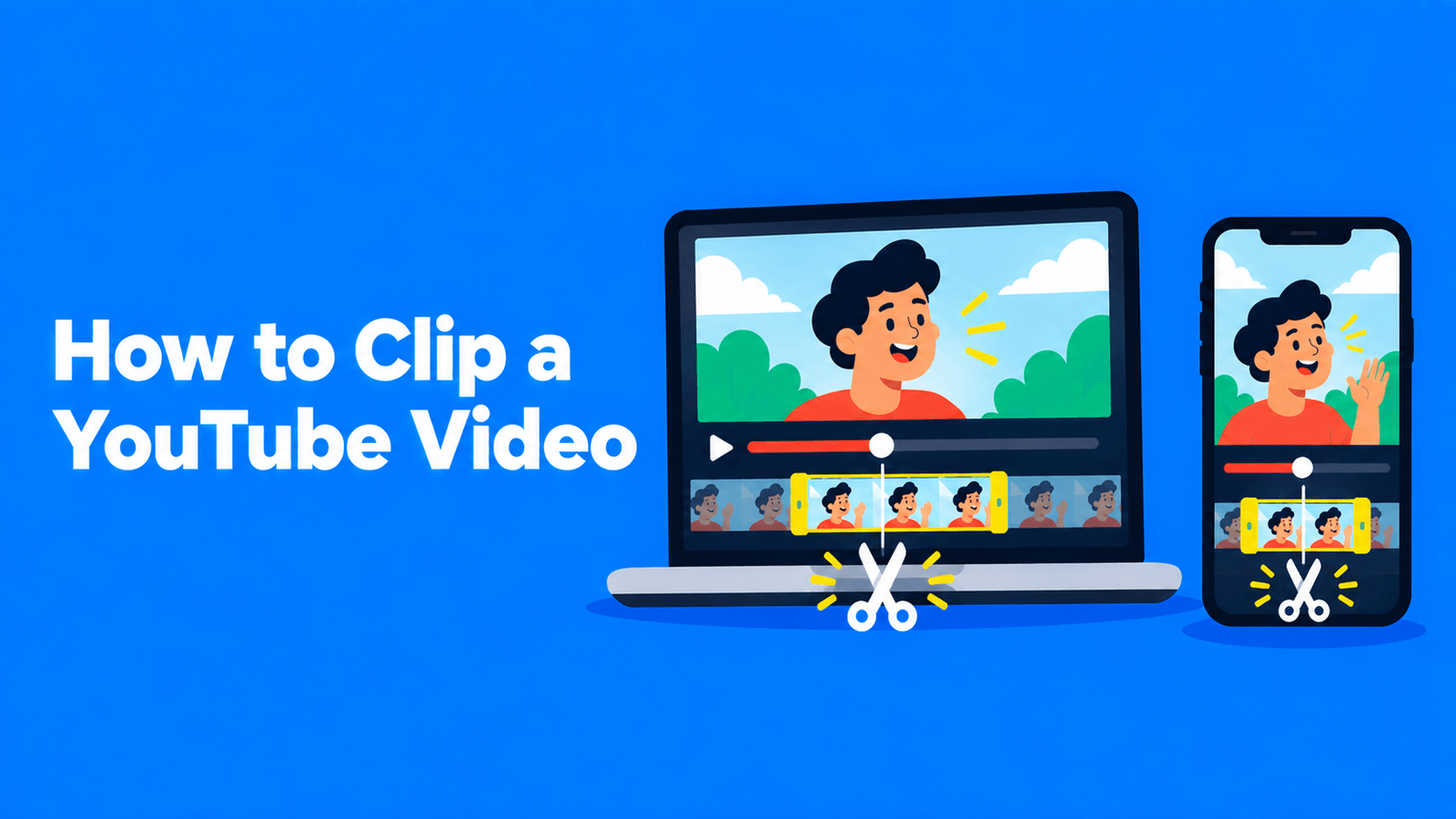
To clip a YouTube video, use the Clip button under the player. On a computer, open the video, select More (the three dots), then Clip; on the YouTube app, swipe the row of buttons under the video and tap Clip. Drag the slider to pick 5 to 60 seconds, add a title, and select Share clip to copy the link or post it (YouTube Help). That gives you a shareable link, not a new video file. If you want to turn part of your own video into a Short, or make a separate file to post on TikTok or Reels, you need one of the other methods below.
Steps checked against YouTube's help pages on September 30, 2026.
Which kind of clip do you need?
"Clip a YouTube video" can mean three different things:
| What you want | Method | Works on |
|---|---|---|
| Share a 5 to 60 second moment of any video with a link | YouTube's Clip button | Any video where clipping is turned on |
| Turn part of your own long video into a Short on your channel | YouTube Studio's Clips and Shorts tool, or Remix > Edit into a Short in the app | Your own videos |
| Get a separate video file to edit, caption or post on another platform | Download your own video from YouTube Studio, then cut it in an editor or an AI clipping tool | Your own videos, or videos you have permission to use |
Method 1: Use YouTube's Clip button
On a computer
- Sign in to YouTube and open the video.
- Below the player, select More (…), then Clip.
- Add a title. It can be up to 140 characters.
- Drag the slider to choose the part you want. Clips run from 5 to 60 seconds.
- Select Share clip, then embed it, share it to a social network, email it or copy the link.
On iPhone or Android
- Open the YouTube app and go to the video.
- Below the Subscribe button, slide the row of options to the right and tap Clip.
- Drag the slider to select 5 to 60 seconds.
- Tap Share clip, then share it to a social network, copy the link or send it by email.
What a clip actually is
A YouTube clip isn't a new upload. YouTube says clips "are played on a loop from the original video's watch page" (YouTube Help). A few things follow from that:
- Clips are public to anyone who can watch the original video.
- They disappear with the original. If the video is deleted, set to private or removed for breaking the Community Guidelines, its clips are removed too. Clips of unlisted videos stay available.
- You can find your clips in the app under the You tab, then Your clips, and delete any of them there.
Why there's no Clip button
Clipping is on by default, but creators can turn it off in YouTube Studio under Settings > Channel > Advanced settings by unchecking "Allow viewers to clip my content". You also can't clip a live stream that has no DVR, or a part of a live stream that's older than its DVR window (YouTube Help).
Method 2: Turn part of your own video into a Short
If the video is yours, YouTube has two built-in ways to cut it into a Short.
In YouTube Studio (computer)
- In YouTube Studio, go to Content > Videos and select the long video.
- Select Clips and Shorts in the left menu.
- Click Create clip or Short and choose Short.
- Pick the segment, either by selecting it in the transcript with timestamps or from AI-suggested segments.
- Preview it. YouTube adds automatic captions to the preview.
- Click Create draft and finish publishing.
The same tool can also make a Video clip (a shorter horizontal video), with an optional intro or outro (YouTube Help).
What to know:
- AI suggestions are limited. YouTube lists them for Brazil, Canada, France, Germany, India, Mexico, South Korea, Spain, the UK and the US, in English, French, German, Hindi, Korean, Portuguese and Spanish. Everyone else picks segments by hand.
- The Short links back. YouTube adds the source video as the Short's related video, unless the Short is private, unlisted or made for kids.
- No penalty for reusing your own footage. YouTube says you "won't be penalized for using your content in a video clip or Short."
In the YouTube app
On the watch page of one of your public videos, tap Remix, then Edit into a Short. You can select up to 60 seconds, then tap Next to add text and effects. Private and unlisted videos, and videos with third-party copyright claims, can't be used, and only you can edit your long video into a Short this way (YouTube Help).
For more on this, including Shorts longer than 60 seconds, see how to make YouTube Shorts from long videos.
Method 3: Make a separate video file
Methods 1 and 2 keep everything on YouTube. To post a clip on TikTok, Instagram or LinkedIn, you need an actual video file.
First, check you're allowed to
YouTube's Terms of Service say you may not "access, reproduce, download, distribute… or otherwise use any part of the Service or any Content" except where the service expressly allows it, or with prior written permission from YouTube and, where relevant, the rights holders (YouTube Terms of Service). In practice: clip your own videos, or get permission from the creator before you cut and repost theirs.
Download your own video
- Sign in to YouTube Studio and select Content.
- Next to the video, select Menu, then Download.
YouTube gives you an MP4 in 720p or 360p, depending on the video size. You can't download a video that's been removed, has a copyright or Community Guidelines strike, or uses a preapproved audio track, and each video can be downloaded five times in 24 hours (YouTube Help). If you still have the original file from your editor, use that instead, since YouTube's download tops out at 720p.
Cut it in an editor
Any editor that can trim works. For TikTok, Reels and Shorts:
- Set the project to 9:16 (1080 × 1920).
- Trim to the moment you want. Start on the line that hooks the viewer, not on "So, anyway…".
- Reposition the frame so the speaker stays in shot. See how to convert horizontal video to vertical.
- Add captions, then export.
Or let an AI clipping tool find the moments
If you want several clips from one long video, an AI clipping tool can transcribe it and suggest the moments for you. Disclosure: Exemplary AI is our product. In AI Clips you paste a YouTube link or upload the file, and the AI suggests clips with captions, which you can reframe to 9:16, 1:1 or 16:9 and export as MP4. The source video must be at least 10 minutes long for AI suggestions; for anything shorter, select a passage in the transcript and click Create Clip to cut it by hand. Clips can run up to 10 minutes. The Free plan exports at 720p with a watermark.
The same permission rule applies: only paste links to videos you own or have the rights to use. For a TikTok-specific walkthrough, see how to clip YouTube videos for TikTok.
FAQ
How long can a YouTube clip be?
Between 5 and 60 seconds. You set the length with the slider when you create the clip (YouTube Help).
Can I download a YouTube clip?
A clip isn't a separate file. It plays on a loop from the original video's watch page, and YouTube's sharing options are embed, social networks, email and copy link. To get a file of your own video, download it from YouTube Studio.
Why can't I see the Clip button?
Either the creator has turned clipping off for their channel, or you're watching a live stream without DVR, or a section of a stream that's outside the DVR window.
Can I clip someone else's video and post it on TikTok?
Only with permission. Sharing a YouTube clip link is fine, because the clip plays on YouTube. Downloading someone else's video and reposting it isn't allowed under YouTube's Terms of Service without permission from YouTube and the rights holders.
Does clipping my own video into Shorts hurt the original?
YouTube says you won't be penalized for using your own content in a clip or Short, and Shorts made with the Studio tool link back to the source video (YouTube Help).