How to Add Captions to Instagram Reels
Turn on Instagram's auto captions, use the Captions sticker, caption in Edits or burn in your own. Steps checked against Instagram's help pages.

There are three built-in ways to add captions to an Instagram Reel. You can turn on Instagram's automatic closed captions before you share, add the Captions sticker so an editable transcript appears on the video, or caption the video in Instagram's Edits app. For automatic captions, start a Reel, tap Next twice, tap More options and switch on Enable closed captions (Instagram Help). If you want word-by-word animated captions that look the same for every viewer, burn them into the video with an editor before you upload.
Menu names below were checked against Instagram's help pages on September 30, 2026. Instagram tests changes by country and account, so your screens may differ slightly.
Which caption option should you use?
| Option | What viewers see | Can you fix wrong words? | Best for |
|---|---|---|---|
| Automatic closed captions | Speech written out at the bottom of the screen; each viewer can switch captions on or off | Instagram's help pages don't describe a way to edit them | Quick accessibility on any Reel |
| Captions sticker | A transcript on the video that you can restyle | Yes, tap a word to edit it | Styled captions made inside Instagram |
| Captions in Edits | Captions added in Instagram's separate editing app | Yes, you can edit the transcript | More styling options, still free |
| Burned-in captions from another editor | Captions baked into the video pixels | Yes, before export | Branded or word-by-word animated styles |
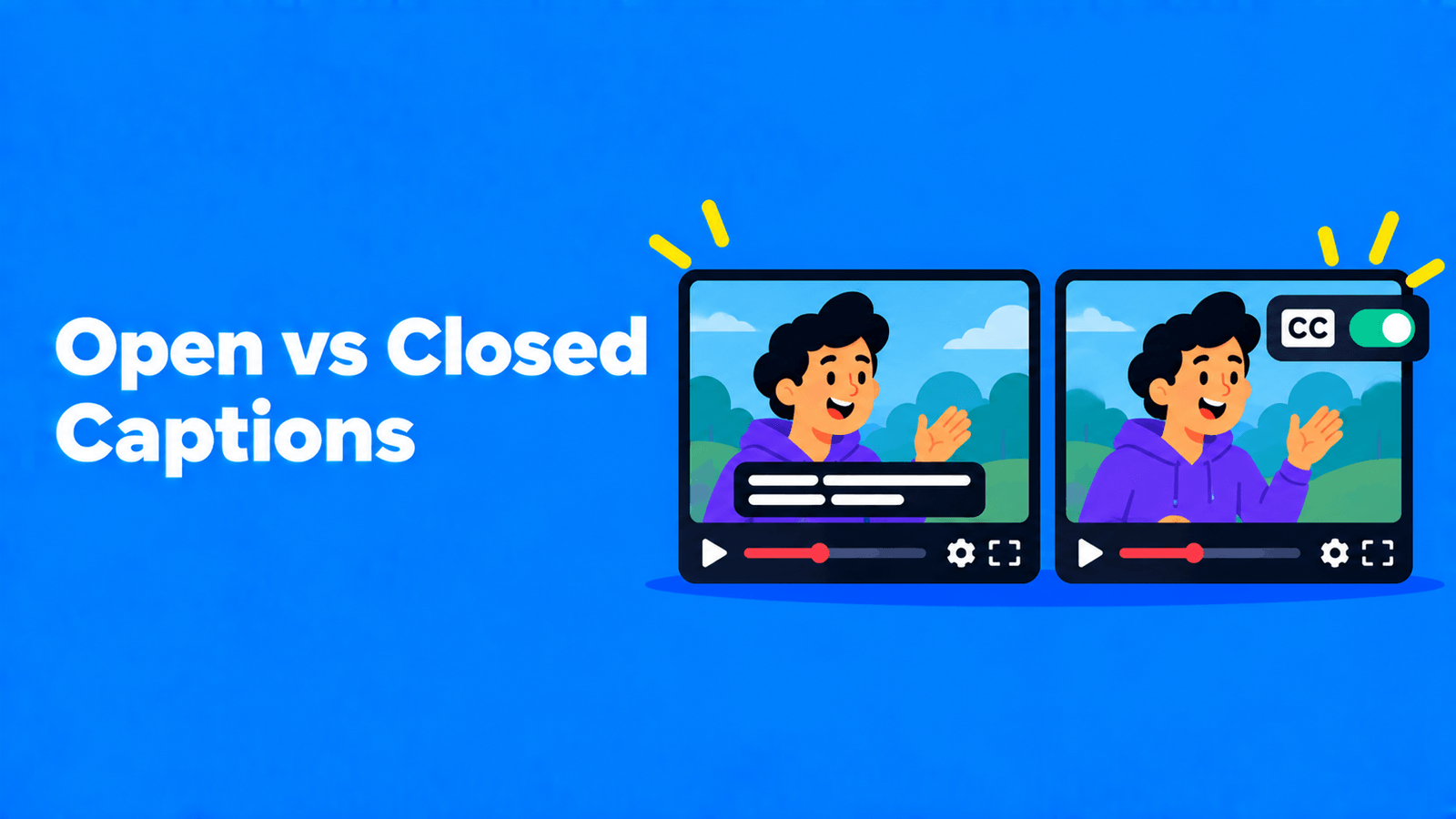
Closed captions are the ones viewers can switch on or off. Burned-in (open) captions are always visible. Our post on open vs closed captions explains the difference in more detail.
Option 1: Turn on Instagram's automatic closed captions
Instagram uses speech recognition to write out the speech in a Reel as text at the bottom of the screen (Instagram Help).
On a new Reel
- Tap Create at the top, or swipe right anywhere in Feed.
- At the bottom, tap Reel.
- Select a video from your camera roll, then tap Next.
- Tap Next again.
- At the bottom, tap More options.
- Turn on the toggle next to Enable closed captions. To let Instagram translate the captions for viewers, also turn on Translate closed captions.
On some versions of the app these toggles sit under an Accessibility and translation heading inside More options (Instagram Help).
On a Reel you've already posted
- Go to your profile and open the Reel.
- Tap Options (the three dots), then Edit. On some versions you tap Manage first, then Edit.
- Tap More options on iPhone, or Advanced settings on Android.
- Turn Enable closed captions on or off.
Instagram says closed captions on Reels you've already posted default to your caption settings, and that if captions are available for your posts, "they'll automatically show unless you turn them off" (Instagram Help, Instagram Help).
Limits to know about:
- Instagram says captions on Reels and videos "may not be available to everyone" (Instagram Help). If you don't see the toggle, update the app and check again.
- The closed-caption steps Instagram documents don't include a way to correct words. If a name or term keeps coming out wrong, use the Captions sticker or burn in your own captions instead.
Option 2: Add the Captions sticker
The Captions sticker puts an automatic transcript on the video, and you control how it looks. Instagram describes it like this: it "automatically transcribes your video's audio," you can change the colour and font, and you can "tap the transcript twice, then tap a word to edit it" (Instagram Help).
- Record a Reel or add a clip from your camera roll.
- Tap Stickers at the top.
- Choose Captions. Instagram transcribes the audio.
- Tap the transcript, then tap the colour picker at the top to change the colour. Use the options at the bottom to change the font.
- To fix a mistake, tap the transcript twice, then tap the word you want to edit.
- Finish the Reel and share it as usual.
Things to watch:
- Not every sticker is available to everyone or for Reels, and Instagram's stickers page notes that the feature may be unavailable in Japan and in European countries (Instagram Help).
- Instagram saves stickers on Reels as a separate component so it can offer features like translation (Instagram Help). Viewers may see your sticker text translated. They can switch that off from the Reel's Options menu under Translations by turning off Translate text on reels (Instagram Help).
Option 3: Caption the video in Edits
Edits is Instagram's standalone video editor. It launched on April 22, 2025, and you sign in with your Instagram account (Meta). Instagram's own tutorial calls its caption tool "free, unlimited, and fully customizable" (Instagram for Creators).
- Open your video in an Edits project. Instagram's tutorial suggests adding captions once the rest of the edit is done.
- Tap Captions in the toolbar. Edits listens to the video and generates captions.
- Edit the transcript to fix any words.
- Pick one of the pre-made styles, or set your own font and colour.
- Share straight to Instagram, or export the video. Meta says Edits exports carry "no added watermarks" (Meta).
For a side-by-side look at Edits and other editors, see Instagram Edits vs CapCut vs AI clip makers.
Option 4: Burn in captions with another editor
Burned-in captions are part of the video itself, so they look the same on every phone, in every country, and when the Reel is downloaded or reposted. This is also how you make word-by-word captions with highlighted keywords. Our guide to Alex Hormozi-style captions shows how to make them.
We didn't find any option in Instagram's help center for uploading your own subtitle file, such as an SRT, to a Reel. If you already have subtitles, burn them into the video before you post; see how to burn subtitles into a video.
If you're cutting Reels from a longer video, Exemplary AI (our product) can do the clipping and the captions together. AI Clips turns a video of 10 minutes or more into vertical clips with animated captions. You pick one of five caption animations (Karaoke, Pop word, Box spotlight, Highlight word or Bazooka), correct any word, set your fonts and colours, and export an MP4 to upload to Instagram yourself. Exports on the free plan carry a watermark, and Instagram's creator FAQ says a "3rd party watermark on your reel may be impacting its reach" (Instagram for Creators). Keep that in mind if reach matters for a post; see pricing for plans without a watermark.
One tip: if you burn in captions, turn off Enable closed captions for that Reel. Otherwise viewers who have captions switched on may see Instagram's automatic captions at the bottom of the screen as well as yours.
How viewers turn captions on or off
Viewers control closed captions themselves. According to Instagram's help center:
- From a Reel: tap Options (the three dots), tap Closed captions, then choose Always show closed captions or Never show closed captions.
- From settings: go to your profile, tap Menu, and under Your app and media tap Accessibility and translations, then Captions and translations, and choose the same options.
Captions show even when the phone's volume is on, the default caption language follows the device's language settings, and captions on video ads in Feed can't be adjusted (Instagram Help). This setting only affects closed captions. Stickers and burned-in captions stay visible.
Tips for captions people can read
- Keep lines short. Two short lines are easier to follow than one long one.
- Stay clear of the buttons. Instagram's Reel controls, such as Options and Sharing options, sit in the bottom right of the video (Instagram Help), so keep burned-in text away from the bottom and right-hand edges.
- Check contrast. Use a text outline or background box when the footage is busy.
- Proofread names and numbers. Speech recognition often gets these wrong, and they're usually the words that matter most.
- Match the length to the audience. Captioned or not, only Reels of 3 minutes or less are recommended to people who don't follow you; see the Instagram Reels length limit.
FAQ
How do I turn on auto captions for Instagram Reels?
When you share a Reel, tap More options and turn on Enable closed captions. For a Reel you've already posted, open it, tap Options, then Edit, then More options (iPhone) or Advanced settings (Android) (Instagram Help).
Why don't I have the captions option on Instagram?
Instagram says captions on Reels and videos may not be available to everyone, and some stickers aren't available in every country or for Reels. Update the app first. If it's still missing, caption the video in Edits or another editor and upload it with the captions burned in.
Can I edit Instagram's automatic captions?
Instagram's help pages don't describe a way to edit automatic closed captions. The Captions sticker does let you edit words: tap the transcript twice, then tap the word (Instagram Help).
Can I upload an SRT file to an Instagram Reel?
We found no way to do this in Instagram's help center. Burn the subtitles into the video before you upload it.
Do captions help a Reel get more views?
Instagram doesn't list captions as a ranking signal. Its creator FAQ emphasises engagement, video quality and an engaging first three seconds (Instagram for Creators). Captions don't change that ranking directly, but they let people who watch with the sound off follow the video.
Can Instagram translate my captions?
Yes, where it's available. Turn on Translate closed captions when you share. Viewers can turn translations off in their Reels Options menu or in Language and translations settings (Instagram Help).