How to Burn Subtitles Into a Video (Hardcode SRT)
Burn subtitles into a video with HandBrake, one FFmpeg command, a video editor or an online tool. Steps, limits, and when soft subtitles are the better choice.

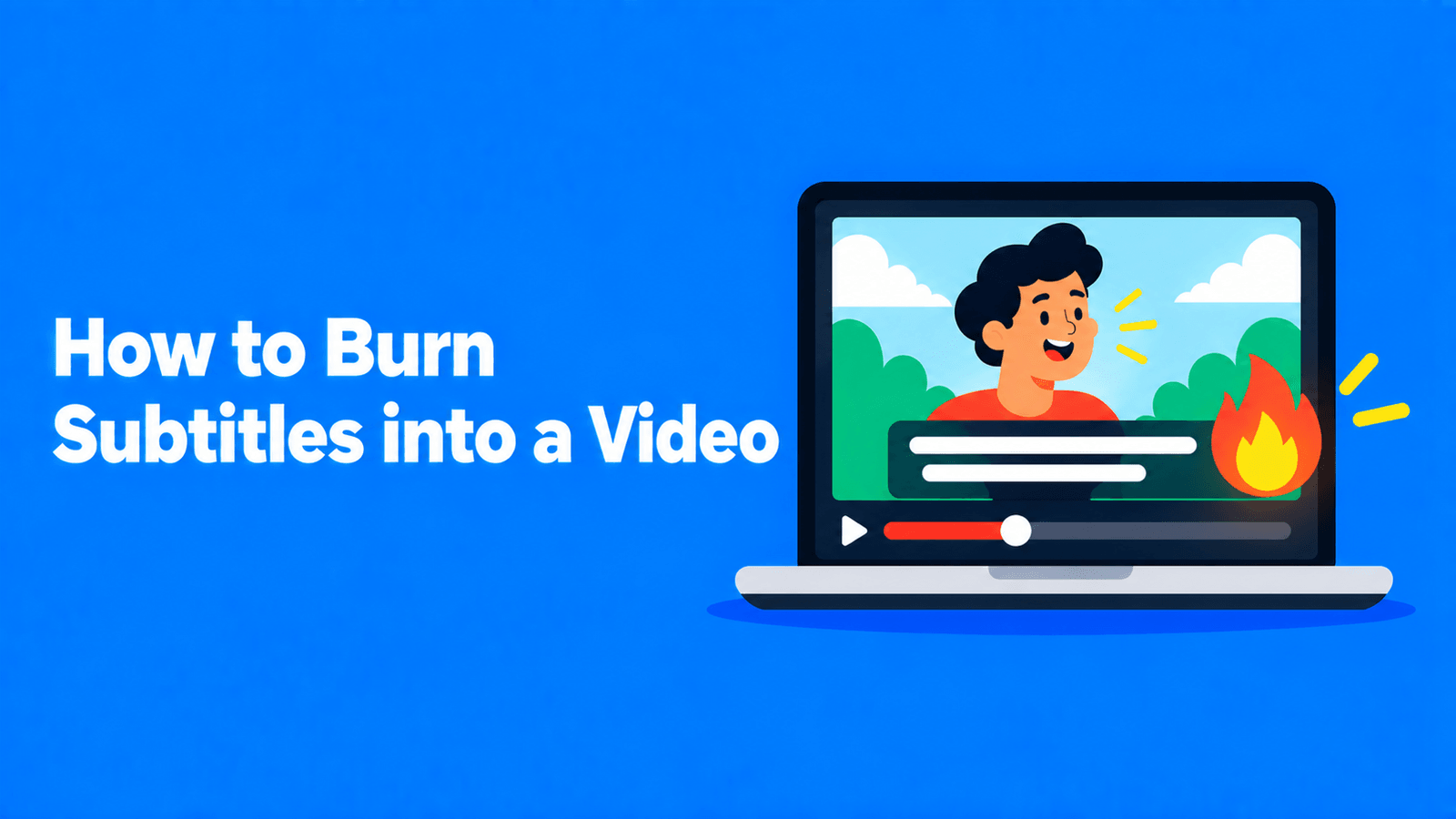
To burn subtitles into a video, you re-encode the video with the subtitle text drawn onto the picture, so it can't be turned off. The simplest free way on a computer is HandBrake: open the video, import your .srt file on the Subtitles tab, tick Burn In, and start the encode. On the command line, FFmpeg does the same with one command: ffmpeg -i input.mp4 -vf subtitles=captions.srt -c:a copy output.mp4. If you don't have a subtitle file yet, a video editor such as CapCut or an online tool can generate the captions and burn them in on export. Each method is below, with when you should, and shouldn't, burn subtitles in.
Checked against the HandBrake and FFmpeg documentation and CapCut's help pages on September 30, 2026.
Burned-in vs separate subtitles
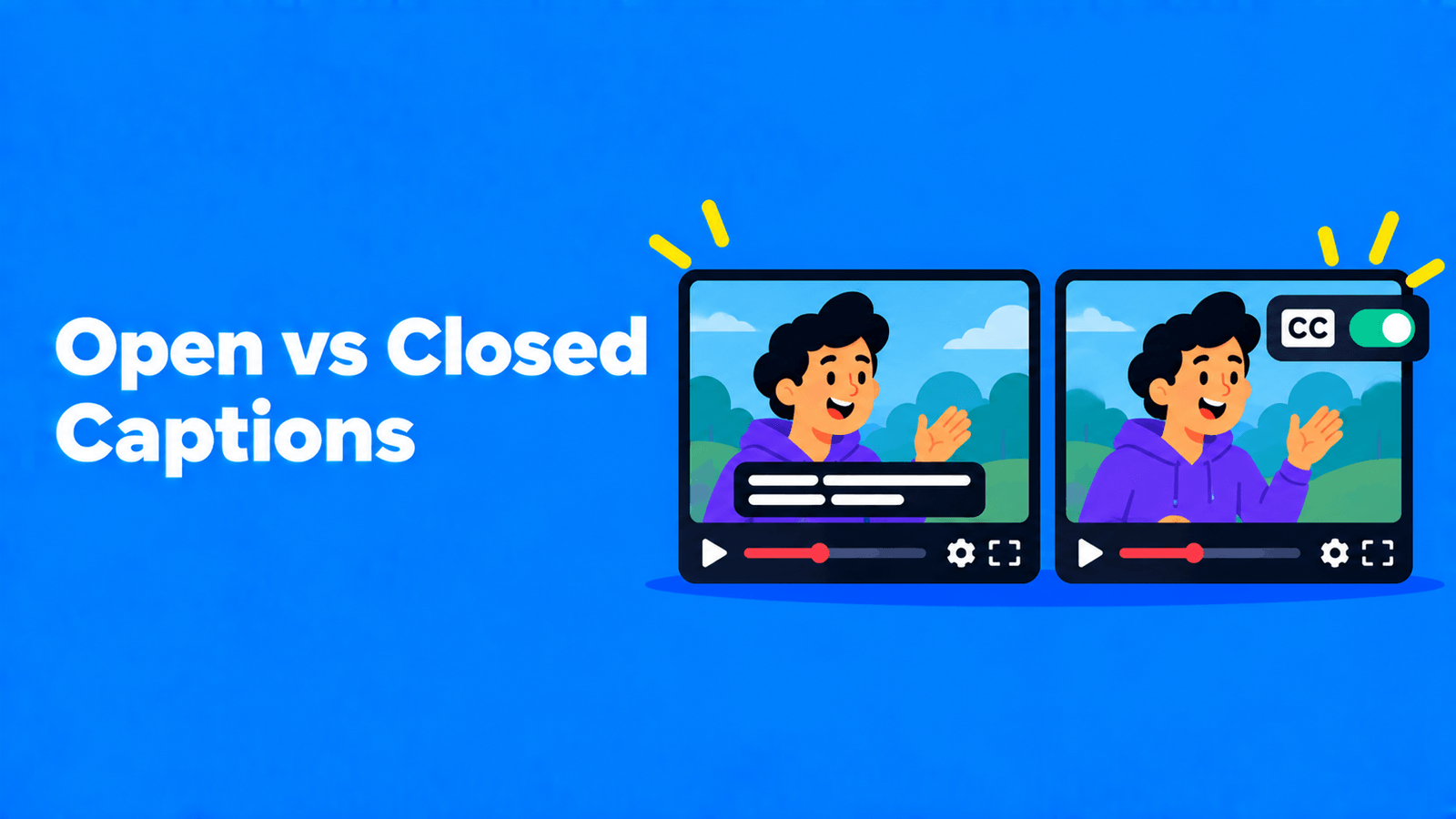
HandBrake's documentation puts the difference simply. A hard burn means "the subtitles are written on top of the image permanently. They cannot be turned on or off." Soft subtitles are separate tracks that viewers can switch on and off in a player that supports them (HandBrake documentation).
| Burned in (open captions) | Separate file or track (closed captions) | |
|---|---|---|
| Viewer can turn them off | No | Yes |
| Look the same everywhere | Yes, including styled or animated captions | Depends on the player |
| Multiple languages | One per video file | Several tracks or files |
| Editable after export | No, you re-export | Yes, edit the file |
| Best for | TikTok, Reels, Shorts, LinkedIn, ads, clips people watch muted | YouTube long-form, courses, anything needing several languages |
For YouTube long-form videos, uploading an SRT file is usually better: viewers can turn captions off or pick a language. See open vs closed captions for more on the choice.
Method 1: HandBrake (free, Windows, Mac and Linux)
HandBrake is a free, open-source video converter for Windows, Mac and Linux (HandBrake). It can burn one subtitle track into a video.
- Open HandBrake and load your video.
- Choose a preset and output format (MP4 or MKV).
- Go to the Subtitles tab and import your
.srtfile. - Check the character encoding ("Char Code") is right for your file, usually UTF-8. HandBrake warns that the wrong code can leave you with no subtitle track in the output.
- Tick Burn In for that track.
- Start the encode.
A few limits from the HandBrake documentation: you can only burn one subtitle track into a file; SRT files can be imported from the Subtitles tab and shifted with an offset in milliseconds if they're out of sync; and ASS/SSA subtitles keep all their styling (fonts, colors and so on) when burned in (HandBrake documentation). That last point matters if you want styled captions: make an ASS file, and HandBrake will draw it exactly.
Method 2: FFmpeg (free, command line)
FFmpeg's subtitles filter draws a subtitle file onto the video:
1ffmpeg -i input.mp4 -vf subtitles=captions.srt -c:a copy output.mp4The -c:a copy keeps the audio as it is; only the video is re-encoded, because the text has to be drawn into every frame.
To change the look, use force_style with ASS style settings. FFmpeg's documentation gives this example for 80% transparent blue DejaVu Serif:
1ffmpeg -i input.mp4 -vf "subtitles=captions.srt:force_style='Fontname=DejaVu Serif,PrimaryColour=&HCCFF0000'" -c:a copy output.mp4Other useful options from the docs: charenc sets the subtitle file's character encoding if it isn't UTF-8, and fontsdir points to a folder of extra fonts (FFmpeg filters documentation).
If the command fails with a filter error, your FFmpeg build may not include the filter. FFmpeg's docs say it requires a build configured with --enable-libass, so check your build's configuration or install one that includes libass.
Want soft subtitles instead? To add the SRT as a track that viewers can switch on and off in an MP4, without re-encoding the video:
1ffmpeg -i input.mp4 -i captions.srt -c copy -c:s mov_text output.mp4Method 3: A video editor (CapCut and similar)
In an editor, captions are text layers on the timeline, so they're burned in when you export. That's the easiest route if you don't have a subtitle file yet, because the editor can generate one.
In CapCut, generate captions with Auto captions. Depending on your version and device it's under Text or Captions; choose the language and CapCut transcribes the speech onto the timeline. Correct any mistakes with Edit captions, style them, then export the video (CapCut Help). Items marked with a Pro icon need a subscription to export, so remove any Pro caption templates if you want to export for free (CapCut Help). Full steps are in how to add subtitles in CapCut.
Method 4: An online subtitle tool
Online tools transcribe the video, let you edit and style the captions, and export an MP4 with them burned in. They save you from making an SRT file first.
Disclosure: Exemplary AI is our product. With Add Subtitles to Video you upload the video (or paste a YouTube, TikTok, Vimeo or X link) and it transcribes it in any of 99 languages. You fix the text and timing in the subtitle editor, style the captions, and download an MP4 with the subtitles burned in. You can also download the subtitles alone as SRT, VTT or TXT. One limit to know: the Free plan exports at 720p with a watermark.
Before you burn: a checklist
Burning in is permanent, so fix everything first.
- Proofread the text, especially names, numbers and brand terms.
- Check the timing by playing the subtitle file with the video in a player that can load subtitles.
- Pick a readable style: a plain sans-serif font, large enough for a phone screen, with an outline or background box for contrast.
- Keep captions clear of the app's overlays. Short-video apps lay their own text and buttons over the video, so keep captions away from the very bottom edge and preview the post before you publish.
- Keep lines short. One or two short lines per caption are easier to read on a phone. How to make an SRT file has line-length and reading-speed guidelines.
- Keep a copy without subtitles in case you need to fix something or make another language version.
FAQ
What does it mean to burn subtitles into a video?
The subtitles are drawn into the video's frames, so they're part of the picture. They show in every player and can't be turned off.
Can I remove burned-in subtitles?
Not cleanly. They're part of the image, not a separate track. Go back to the original file without subtitles and re-export.
Does burning in subtitles reduce quality?
The video has to be re-encoded, because the text is drawn into each frame. Use a high quality setting for the export and the difference is usually small; the audio can be copied unchanged.
Can I burn in subtitles in more than one language?
HandBrake burns in only one subtitle track per file, so make one video per language, or keep the languages as separate soft tracks or files.
Should I burn subtitles into YouTube videos?
For Shorts, burned-in captions are common, because they show whether or not the viewer has turned captions on. For long-form YouTube videos, uploading an SRT file is usually better: viewers can turn captions on or off, YouTube can offer several languages, and you can fix mistakes without re-uploading the video.