YouTube Auto Dubbing vs Subtitles (and How to Turn It Off)
YouTube auto dubbing is on for all creators in 27 languages. When to dub, when to use translated subtitles, and how to turn dubbing off or review it.

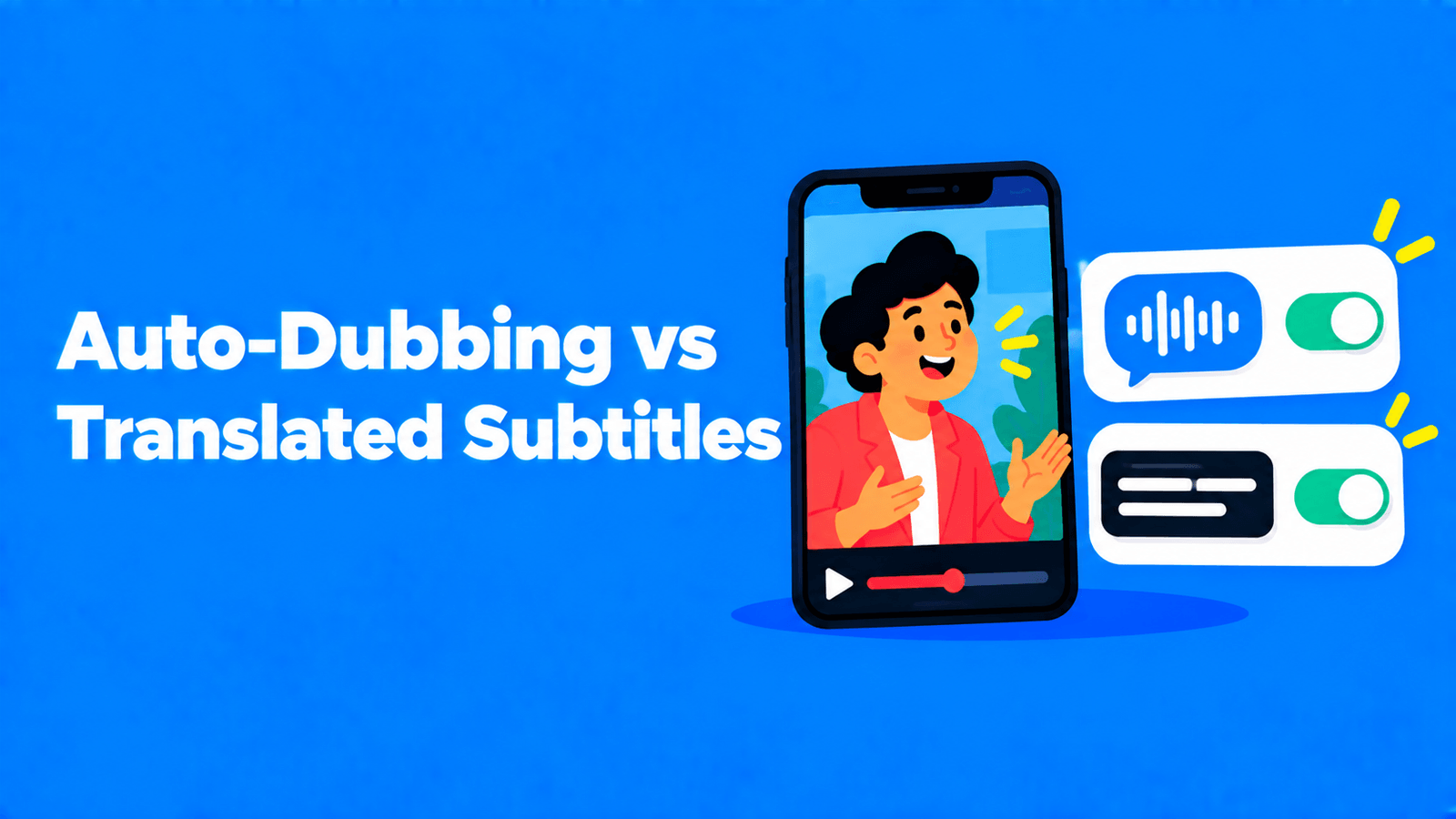
YouTube's auto dubbing replaces your voice with an AI voice in the viewer's language. Translated subtitles keep your voice and add text in their language. Since February 4, 2026, auto dubbing is available to all creators in 27 languages (YouTube Official Blog), and it's on by default for eligible videos. Use dubbing when your videos are information-first and your viewers would rather listen. Use subtitles when your voice, humour or exact wording matters, or when you want full control of the translation. Many channels use both. To turn dubbing off, open the YouTube Studio app, tap your profile picture, then Settings, and under Content tap Automatic dubbing (YouTube Help).
What changed with auto dubbing in 2026
YouTube's February 4, 2026 announcement expanded auto dubbing from selected channels to everyone:
- Available to all creators, in 27 languages.
- Expressive Speech for all channels in 8 languages: English, French, German, Hindi, Indonesian, Italian, Portuguese and Spanish. It aims to keep the tone and energy of the original voice.
- A Lip Sync pilot that adjusts the speaker's lip movements to match the translated audio.
- A Preferred Language setting for viewers who want to watch in the original language.
- Automatic smart filtering, which recognises videos that shouldn't be dubbed.
YouTube also said that in December 2025 it averaged more than 6 million daily viewers who watched at least 10 minutes of auto-dubbed content (YouTube Official Blog).
Auto dubbing vs translated subtitles
| Auto dubbing | Translated subtitles | |
|---|---|---|
| What viewers get | An AI voice track in their language | Your original audio plus text in their language |
| Your voice | Replaced (Expressive Speech tries to match tone in 8 languages) | Kept |
| Effort | Automatic for eligible videos | You add or upload each language |
| Control over wording | Preview, publish, unpublish or delete each dub | You write or edit every line |
| Works for | Videos up to 120 minutes with enough clear speech | Any video with speech |
| Best for | Tutorials, explainers, news and education | Personality-driven content, comedy, interviews and precise terms |
Dubs won't be created for a video that's longer than 120 minutes, is mostly music or has little speech, is in an unsupported language, has speech that's too fast, or contains copyrighted content (YouTube Help).
When to use which
Choose auto dubbing when:
- The information matters more than the delivery: how-tos, product explainers, lectures.
- Your analytics show real viewers in countries that speak a supported language.
- You don't have time to manage subtitles in many languages.
Choose translated subtitles when:
- Your voice is the product: commentary, comedy, interviews, podcasts.
- You use names, jargon or brand terms that a machine voice may mispronounce or mistranslate.
- You want the same translation on YouTube and elsewhere, for example as an SRT file you also use on your website.
Use both when you want reach and accuracy. A viewer who prefers your real voice can switch back to the original audio and turn on subtitles.
How to turn off auto dubbing (creators)
For the whole channel:
- Open the YouTube Studio app.
- Tap your profile picture.
- Tap Settings.
- Under Content, tap Automatic dubbing.
- Turn automatic dubbing off.
To review dubs before they go live, choose Publish manually in the same setting.
To remove a dub from one video, go to YouTube Studio on a computer: open Content, select the video, click Languages, hover over the language, open the menu in the Audio column and select Unpublish or Delete. YouTube says managing dubs, including previewing, publishing and deleting, is only available in YouTube Studio on a computer (YouTube Help).
How viewers switch back to the original audio
YouTube says viewers can set their preferred languages for audio, titles and descriptions, or switch between the original and dubbed audio tracks on any video (YouTube Help). On a video with more than one audio track, viewers can switch languages in the video player settings (YouTube Help), so the original audio is always one tap away. The Preferred Language setting announced in February 2026 is for viewers who always want the original.
How to add translated subtitles on YouTube
- Sign in to YouTube Studio and select Subtitles from the left menu.
- Select the video.
- Click Add language and choose the language.
- Under Subtitles, click Add.
- Choose Upload file (with or without timing), Auto-sync or Type manually (YouTube Help).
Uploading a timed file is the fastest route if you already have one. Our guides on SRT vs VTT and how to make an SRT file cover the formats.
To get translated SRT files without typing them, Exemplary AI (our product) transcribes the video, translates the subtitles, and lets you edit them before you download SRT or VTT. See the subtitle translator.
Check auto dubs before they go live
Auto dubbing is convenient, but it's still machine translation read by a synthetic voice. Review it the way you'd review automatic captions, which YouTube itself says "might misrepresent the spoken content due to mispronunciations, accents, dialects, or background noise" (YouTube Help). To stay in control:
- Turn on Publish manually so dubs wait for your review.
- Spot-check each language at the start, the middle and any section with names or numbers.
- Unpublish a dub that gets a term wrong, and add translated subtitles for that language instead.
- Check YouTube Analytics for views from the countries you're dubbing for, to see whether the dubs are finding an audience.
For translating other people's videos as a viewer, see how to translate a YouTube video to English.
Update, September 2026
At Made on YouTube on September 23, 2026, YouTube said it plans to pilot real-time auto dubbing for livestreams in English and Spanish early next year (Social Media Today).
FAQ
Is YouTube auto dubbing on by default?
Yes, for eligible creators. YouTube's help page says the feature "is enabled by default for eligible creators." You can turn it off or switch to publishing dubs manually.
How many languages does YouTube auto dubbing support?
27 languages as of YouTube's February 2026 update. Expressive Speech, which keeps more of your tone, covers 8 of them. Which pairs are available depends on the language you speak in the video.
Does auto dubbing replace subtitles?
No. Dubs change the audio track; subtitles are a separate text track. You can offer both on the same video.
Can viewers turn off auto dubbing?
Yes. They can switch to the original audio track on any video, and they can set preferred languages so videos play in the original language.
Does auto dubbing cost anything?
YouTube doesn't list a fee for auto dubbing in its announcement or help page. It's a built-in YouTube Studio feature for eligible creators.