How to Translate a YouTube Video to English
Watch any YouTube video in English: auto-translate captions, English audio tracks, Chrome Live Translate, or an English subtitle file from the link.

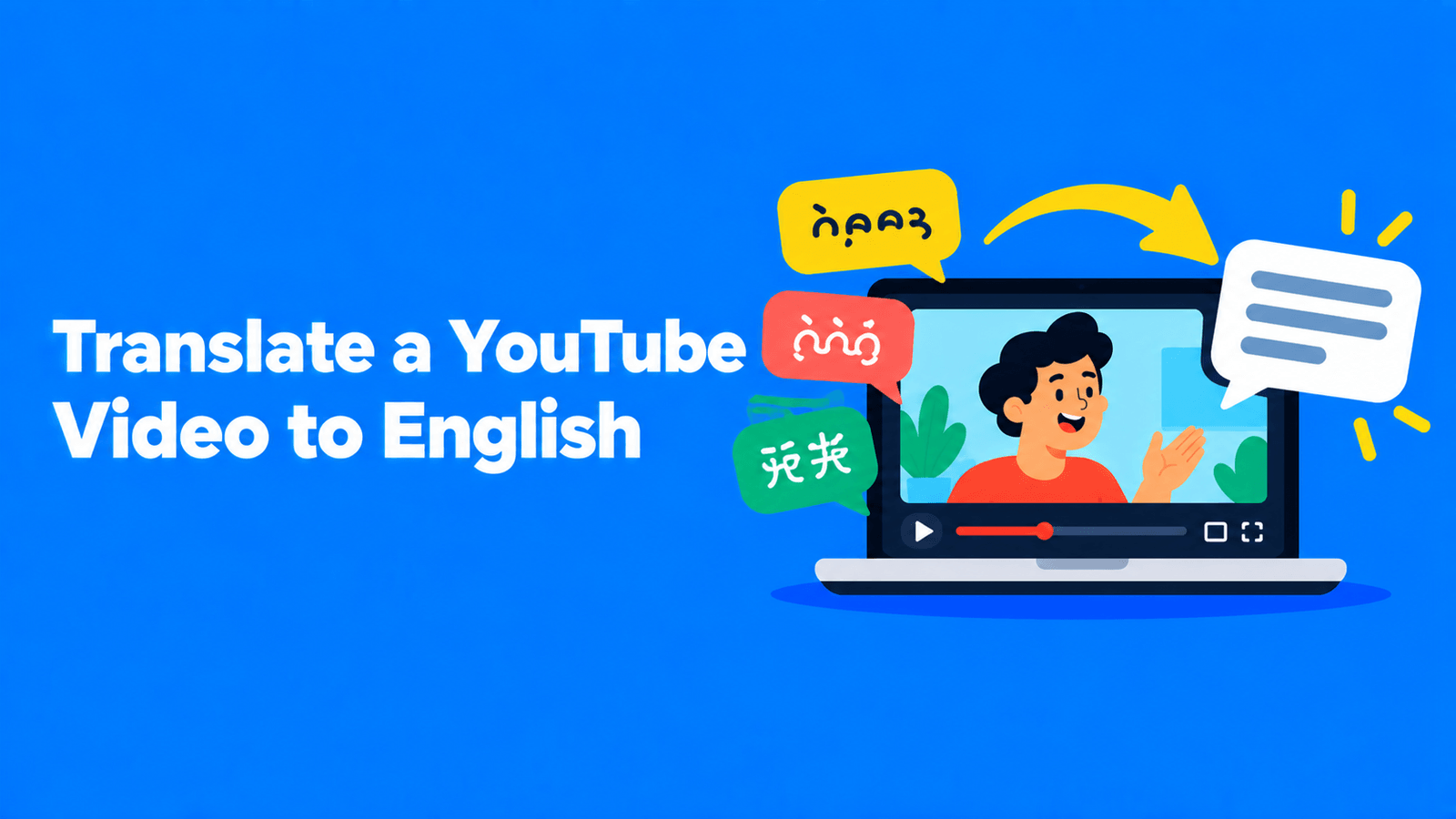
To translate a YouTube video to English while you watch, turn on captions and pick Auto-translate > English in the player. YouTube's help documents this in the Android and iPhone apps: open the caption language list, and "If the language you want isn't available", choose Auto-translate and select a language (YouTube Help). It only works when the video has captions to translate. If the creator has published an English audio track or English subtitles, pick those instead. If there are no captions at all, Chrome's Live Caption and Live Translate can caption and translate the audio in your browser. And if you need an English file, such as subtitles to reuse or a transcript to quote, use a tool that transcribes the video from its link and translates the result.
Steps below were checked against YouTube Help and Google Chrome Help in September 2026. Menus change, so follow the linked pages if yours looks different.
Which method fits what you need
| You want to... | Use | What you get |
|---|---|---|
| Understand a video right now | Auto-translate captions in the YouTube player | English captions on screen, nothing to download |
| Hear it in English | The English audio track, if the video has one | Dubbed English audio |
| Watch a video that has no captions | Chrome Live Caption + Live Translate | Live English captions in your browser |
| Quote, share or reuse the English text | A transcription tool that takes the link | An English transcript or SRT/VTT subtitle file |
| Make your own video watchable in English | YouTube Studio's Subtitles page | English subtitles, title and description on your video |
Method 1: Auto-translate the captions in the YouTube player
This is the fastest route for viewers, and it's free. YouTube translates the video's existing captions, whether the creator uploaded them or YouTube generated them automatically.
On iPhone, iPad or Android
- Open the video and tap the player once to show the controls.
- Tap Closed captions to turn captions on.
- At the top right of the player, tap More, then Captions.
- If English is in the list, select it. That track was added to the video, and it's often better than an on-the-fly machine translation.
- If English isn't listed, tap Auto-translate and choose English.
These are the steps YouTube gives for the iPhone and iPad app and the Android app.
On a computer
Click the CC button at the bottom right of the player to turn captions on. Caption options sit under Settings > Subtitles/CC (YouTube Help). Choose English there if it's listed. YouTube's desktop help page only covers turning captions on and styling them. It doesn't document auto-translate, so if English isn't in that menu, look for an Auto-translate entry in the same menu, or use the app.
Read the whole translation as text
Captions scroll by fast. To read at your own pace, open the video description and click Show transcript. The transcript follows the video, and clicking a line jumps to that moment (YouTube Help). It's available for any video with captions. YouTube's help doesn't say whether the transcript panel follows your auto-translate choice, so if it shows the original language, use the captions or Method 4.
When auto-translate isn't available
Auto-translate needs a caption track to start from. Many videos get one from YouTube's automatic captions, which cover dozens of languages, including Arabic, Chinese, Hindi, Japanese, Korean, Spanish, Tamil and Vietnamese (YouTube Help). YouTube lists reasons automatic captions may not appear: the language isn't supported, the video is very long, the sound quality is poor, there's a long silence at the start, or several people talk over each other or switch languages.
YouTube also warns that automatic captions "might misrepresent the spoken content" because of accents, dialects or background noise. A translation of a wrong caption is still wrong, so treat auto-translated captions as a way to follow along, not as an exact record.
Method 2: Switch to an English audio track
Some videos now come with dubbed audio. YouTube's automatic dubbing "generates translated audio tracks in different languages", and videos with those tracks are marked "auto-dubbed" in the description (YouTube Help). YouTube's list of source languages that can be dubbed into English includes Spanish, Hindi, Japanese, Korean, Portuguese and many more. Creators can also upload their own dubbed tracks with multi-language audio (YouTube Help).
As a viewer, you don't have to do anything special. YouTube says audio tracks default to your preferred language, and you can switch between languages in the video player settings. If a video has no English track, you'll see only the original audio. For how dubbing and subtitles compare, see our post on YouTube auto-dubbing vs subtitles.
Method 3: Chrome Live Caption and Live Translate (no captions at all)
If a video has no captions, YouTube has nothing to translate. Google Chrome can fill the gap on Windows, Mac, Linux and Chromebooks. Live Caption generates captions for audio playing in the browser, and Live Translate can translate them (Chrome Help).
- In Chrome, open More > Settings > Accessibility.
- Turn on Live Caption, then Live Translate.
- Next to Translate to, choose English.
Live Caption supports a shorter list of spoken languages than YouTube's automatic captions: English, Danish, Dutch, French, German, Hindi, Indonesian, Italian, Japanese, Korean, Norwegian, Polish, Portuguese, Spanish, Simplified and Traditional Chinese, Swedish, Thai and Turkish. On privacy, Chrome's help says audio and captions are processed on your device, and that you "can send captions to Google to automatically translate them".
Method 4: Get an English transcript or subtitle file from the link
Watching in English doesn't give you anything to keep. If you need to quote a video in an article, study it, or put English subtitles on a copy you have the rights to, you want an English file. The usual workflow in any transcription tool:
- Paste the YouTube link (or upload the file).
- Set the spoken language so the transcript starts from the right language. Don't transcribe straight into English.
- Review the transcript in the original language if you can, or at least check names and numbers.
- Translate the transcript or subtitles into English.
- Download a transcript for reading, or an SRT or VTT file for captions. Our guide to SRT vs VTT explains which format to pick.
In Exemplary AI (our product), you can paste a YouTube link or upload the file, transcribe it in any of 99 languages, and translate the subtitles into English or any of 116 languages (video translator). You can edit any line in the subtitle editor, then download SRT, VTT or TXT. The translation is machine translation, so review it before you publish it. If you only need the original-language text, our guide on getting a YouTube video transcript covers the free options first.
If you want a summary rather than a full translation, see how to summarize a YouTube video with ChatGPT.
Method 5: For creators, add English to your own video
If your videos are in another language and you want English-speaking viewers, add English yourself instead of relying on viewers' auto-translate.
English subtitles. In YouTube Studio, select Subtitles from the left menu, then pick the video. Click Add language, choose English, and under Subtitles click Add. You can upload a file, auto-sync a transcript to the video, or type the captions manually (YouTube Help). YouTube accepts SubRip (.srt) and WebVTT (.vtt) files, among others, and recommends basic formats like SRT if you're new to caption files (YouTube Help).
English title and description. On the same Subtitles page, choose Add language again. Under Title and description, click Add, enter the English versions and select Publish (YouTube Help).
English audio. YouTube says automatic dubbing is "enabled by default for eligible creators", and you can turn it on or off and choose to review dubs before they're published (YouTube Help). If your channel has access to Advanced features, you can also upload your own English audio track (YouTube Help).
A human check pays off here: the English subtitles you publish are what English-speaking viewers will read. For more on building subtitle files, see our YouTube subtitles guide.
Before you rely on a machine translation
- Check names, numbers and jargon. These are the words speech recognition and translation get wrong most often, and the errors carry through.
- Watch for idioms and humour. A literal translation can be accurate word for word and still miss the point.
- Don't republish someone else's video with your translation without permission. Copyright owners "decide who else can" use and distribute their content, and YouTube lists getting permission as one of the ways to use someone else's material (YouTube Help). Translating a video for your own understanding is a different matter from uploading it.
FAQ
Can YouTube translate a video to English automatically?
Yes, for captions. Turn captions on, open the caption language list and choose Auto-translate > English. The video needs a caption track, either uploaded by the creator or generated by YouTube. Some videos also have an English dubbed audio track.
Why don't I see Auto-translate?
Usually because the video has no captions. That happens when the language isn't supported by automatic captions, the audio is poor, the video is very long, or people talk over each other. Try Chrome's Live Caption with Live Translate, or transcribe the video from its link.
Can I download the English translation?
Not from the YouTube player. It shows the translated captions but has no download button for them. Use a transcription tool that imports the link, translates the transcript, and exports SRT, VTT or text.
How accurate is YouTube's auto-translate?
YouTube doesn't publish an accuracy figure. It says automatic captions may misrepresent speech because of accents, dialects or background noise, and it recommends reviewing them. Treat auto-translation as a way to follow a video, and check anything you plan to quote.
Can I hear a YouTube video in English instead of reading captions?
Only if it has an English audio track, either from YouTube's automatic dubbing or uploaded by the creator. You can switch tracks in the player settings. Otherwise, captions are the option.