How to Add Captions to YouTube Shorts
Four ways to caption a Short: the app's Captions tool, Studio's Clips and Shorts, a closed-caption track in YouTube Studio, or captions burned in.

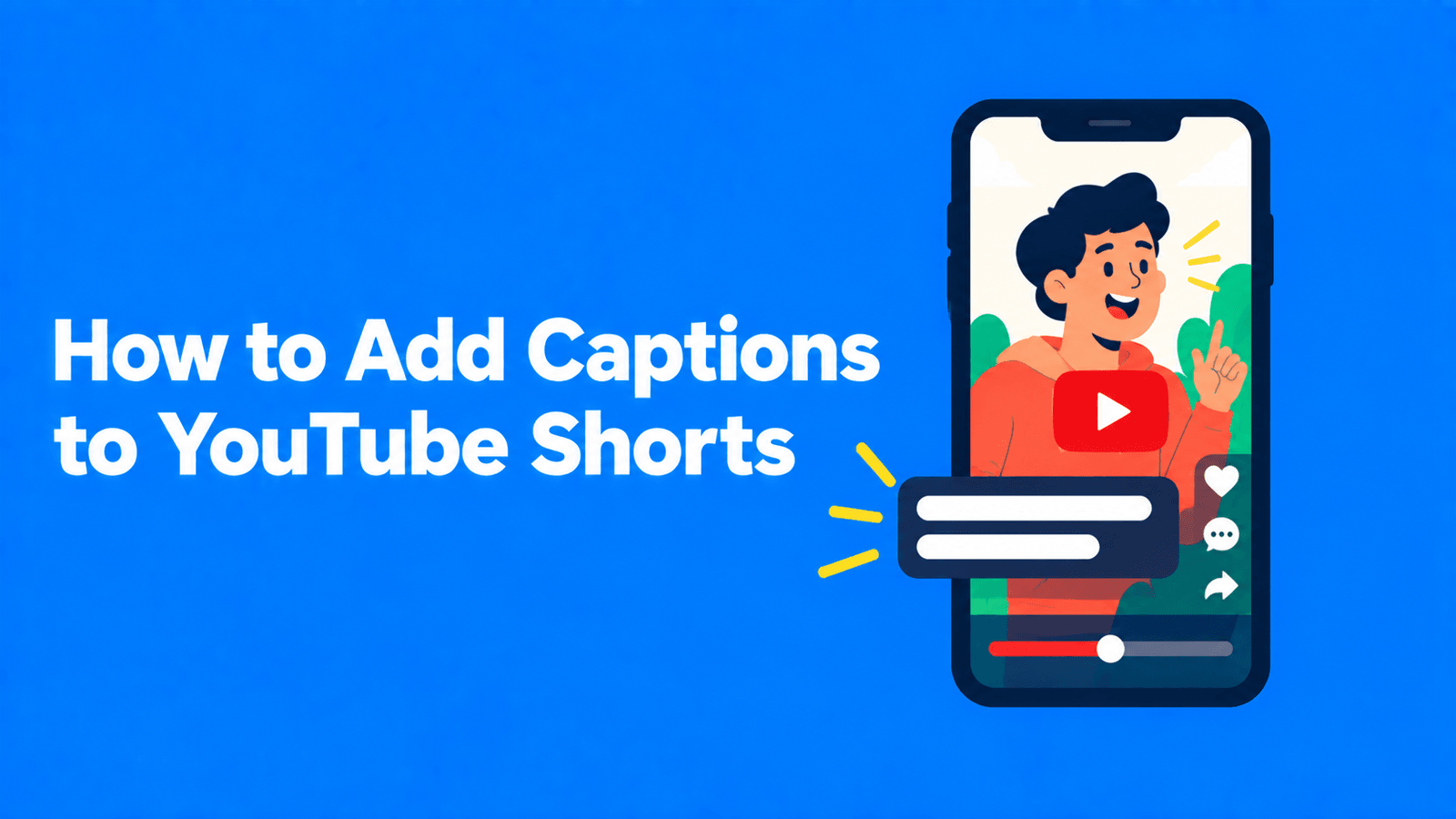
There are four ways to add captions to a YouTube Short:
- In the YouTube app: tap Captions in the Shorts editor to add automatic captions you can restyle and correct. YouTube says this is only available in certain languages and on certain mobile devices.
- In YouTube Studio's Clips and Shorts tool: when you cut a Short from one of your long videos, YouTube adds captions automatically where available.
- As a closed-caption track: use Subtitles in YouTube Studio to review YouTube's automatic captions, upload a subtitle file or type your own. Viewers turn this track on and off.
- Burned in before you upload: add styled captions in a video editor or captioning tool, so they're part of the picture.
The first three are free and built into YouTube. The fourth gives you the most control over style. Steps for each are below. They're taken from YouTube's help pages as of September 30, 2026.
On-screen captions vs closed captions
It helps to know which kind you're making.
| On-screen (burned-in) captions | Closed captions (CC track) | |
|---|---|---|
| What it is | Text that's part of the video image | A separate text track YouTube plays over the video |
| Who sees it | Everyone, always | Viewers who turn captions on |
| Style | Whatever you design | The viewer's caption settings |
| Fix a typo after posting | Re-edit and re-upload | Edit in YouTube Studio at any time |
| Made with | Shorts editor Captions, Clips and Shorts, any editor | YouTube Studio > Subtitles |
On-screen captions show in the feed without the viewer doing anything, which is why many short-form creators use them. A closed-caption track has other advantages: viewers can change its size and style, and on a computer they can pick another language or use Auto-translate (YouTube Help). For the full difference, see open vs closed captions.
Method 1: The Captions tool in the Shorts editor (YouTube app)
YouTube's help page for iPhone and iPad describes a Captions tool in the Shorts editor. It adds automatic captions that you can restyle and correct (YouTube Help).
- Open the YouTube app, tap Create and select Short (YouTube Help).
- Record your Short, or import a video from your gallery.
- Tap the check mark (or Done) to open the editor.
- Tap Captions. YouTube generates captions from the speech in your video.
- Change the font and text colour, and correct any words it got wrong.
- Tap Next, add your title and settings, then tap Upload Short.
If you don't see Captions: YouTube notes that "captions are only available in certain languages and mobile devices", and the Android version of the same help page doesn't list the tool. The fallback on both platforms is Text, which places text over your video and lets you change its colour, style and alignment. Then use the Timeline (tap Edit, or swipe up) to set when each piece of text starts and stops (YouTube Help). It's manual, so it suits short videos with a few lines.
Placement: as you drag text in the editor, YouTube shows visual guides marking where the like button, comments and description may cover your video. Animated white lines appear if you drag text into a "non-safe" area near the edge of the screen.
Method 2: Autocaptions in YouTube Studio's Clips and Shorts tool
If you're cutting a Short from a long video that's already on your channel, YouTube Studio can caption it for you (YouTube Help).
- In YouTube Studio, select Content > Videos and click the long video.
- In the left-hand menu, select Clips and Shorts.
- Click Create clip or Short and choose Short.
- Select the part you want by highlighting text in the transcript, entering timestamps in the timeline editor, or picking an AI suggestion where available.
- Select Preview Short. Where available, YouTube adds autocaptions to the Short automatically.
- Click Captions at the bottom left of the preview to change the colour, font, styling and position, or to turn the captions off.
- Click Create Draft and finish the upload dialog.
YouTube says the transcript in the clips tool is used to create the captions, so check names, brands and numbers in the preview. The Short is also linked to the original video as its related video, unless it's private, unlisted or made for kids. For the rest of this workflow, see how to make YouTube Shorts from long videos.
Method 3: A closed-caption track in YouTube Studio
Shorts get YouTube's automatic captions in the same way as long videos. YouTube lists 67 supported languages, from Afrikaans to Zulu. Automatic captions may not be ready as soon as you upload, because processing time depends on the audio (YouTube Help). They're machine-generated, and YouTube tells creators to review them and fix anything that was transcribed wrongly.
Fix YouTube's automatic captions
- Sign in to YouTube Studio and select Subtitles in the left menu.
- Click your Short.
- For the language you want, select Edit in the "Subtitles" column. For automatic captions, choose Duplicate and edit. YouTube saves your changes as a new caption track.
- Click into any line to fix the text. Select Edit timings if you need to move a line.
- Click Publish.
These steps come from Edit or remove captions.
Add your own captions
- In YouTube Studio, select Subtitles and click your Short.
- Click Add language and choose the language.
- Under "Subtitles", click Add, then choose one of these:
- Upload file: choose With timing for a subtitle file such as .srt, or Without timing for a plain transcript.
- Auto-sync: paste or type what's said, and YouTube sets the timings.
- Type manually: play the video and type captions as you go.
- Save or publish.
You can also add subtitles while uploading (YouTube Help). YouTube accepts SubRip (.srt), SubViewer (.sbv), WebVTT (.vtt) and several other formats. It supports only basic .srt files, in plain UTF-8, with no styling (YouTube Help). If you're not sure which format to export, see SRT vs VTT.
A caption track only helps viewers who switch captions on. Viewers can make that the default under Settings > Captions > Show captions. On mobile and tablet there's also a Show when muted option (YouTube Help).
Method 4: Burn captions in before you upload
Burned-in captions are the option to use when you want a specific look, such as word-by-word highlighting, brand colours or big bold text. You also get the same captions when you post the clip to TikTok and Reels. The trade-off is that you can't edit them after posting.
- Open the video in an editor or captioning tool that works with a vertical 9:16 canvas.
- Generate captions from the speech, then proofread every line.
- Style them. Keep one or two short lines on screen, use high contrast, and emphasise key words sparingly. For a popular bold style, see how to make Alex Hormozi-style captions.
- Keep text clear of the bottom and right-hand edges, where YouTube's buttons and description sit.
- Export at 1080 x 1920. The maximum resolution for Shorts is 1080p (YouTube Help), so anything higher only makes the file bigger.
- Upload the file as a Short through the YouTube app or YouTube Studio.
Exemplary AI (our product) does steps 2 to 5 in one place. It transcribes the video and adds animated captions in one of five styles (Karaoke, Pop word, Box spotlight, Highlight word or Bazooka). You can correct any word and set fonts and colours, then export an MP4 in 9:16. The same transcript also downloads as an SRT or VTT file, so you can upload an accurate closed-caption track in Method 3 as well. The free plan adds a watermark to exports; see pricing. For other ways to burn text into a video, see how to burn subtitles into a video.
Caption checklist for Shorts
- Proofread names, numbers and jargon. Automatic captions get these wrong most often.
- Keep lines short. Viewers read captions while the next Short is one swipe away.
- Check the preview on a phone. Make sure no caption sits under the like button or the description.
- Don't double up. If you've burned captions in, viewers who also turn CC on will see two sets of text. If you add a caption track too, make sure it matches what's on screen.
- Match the language. Automatic captions are only generated in the video's default language.
FAQ
Does YouTube automatically caption Shorts?
Yes. YouTube's automatic captions cover long-form videos and Shorts in its supported languages, but they may not be ready as soon as you upload (YouTube Help). They're a closed-caption track, so viewers only see them if captions are turned on.
Why don't I see the Captions button in the Shorts editor?
YouTube says captions in the editor are only available in certain languages and on certain mobile devices, and its help page lists the tool for iPhone and iPad. Use Text and the Timeline instead, or caption the Short in YouTube Studio.
Can I upload an SRT file to a YouTube Short?
Yes. In YouTube Studio, go to Subtitles, select the Short, add a language, then choose Upload file > With timing. The .srt file must be a basic, plain UTF-8 file (YouTube Help).
Can I edit captions after I post a Short?
You can edit a closed-caption track at any time in YouTube Studio > Subtitles. Burned-in captions are part of the video, so fixing them means editing the video and uploading it again.
Are YouTube's automatic captions accurate?
YouTube says quality "may vary" and that accents, dialects, mispronunciations or background noise can cause errors, so it tells creators to review them (YouTube Help).