How to Add Subtitles to a Video on iPhone
Add subtitles on iPhone with Instagram's free Edits app or CapCut, or while posting to TikTok or Instagram. Plus what happened to Apple Clips and Live Titles.

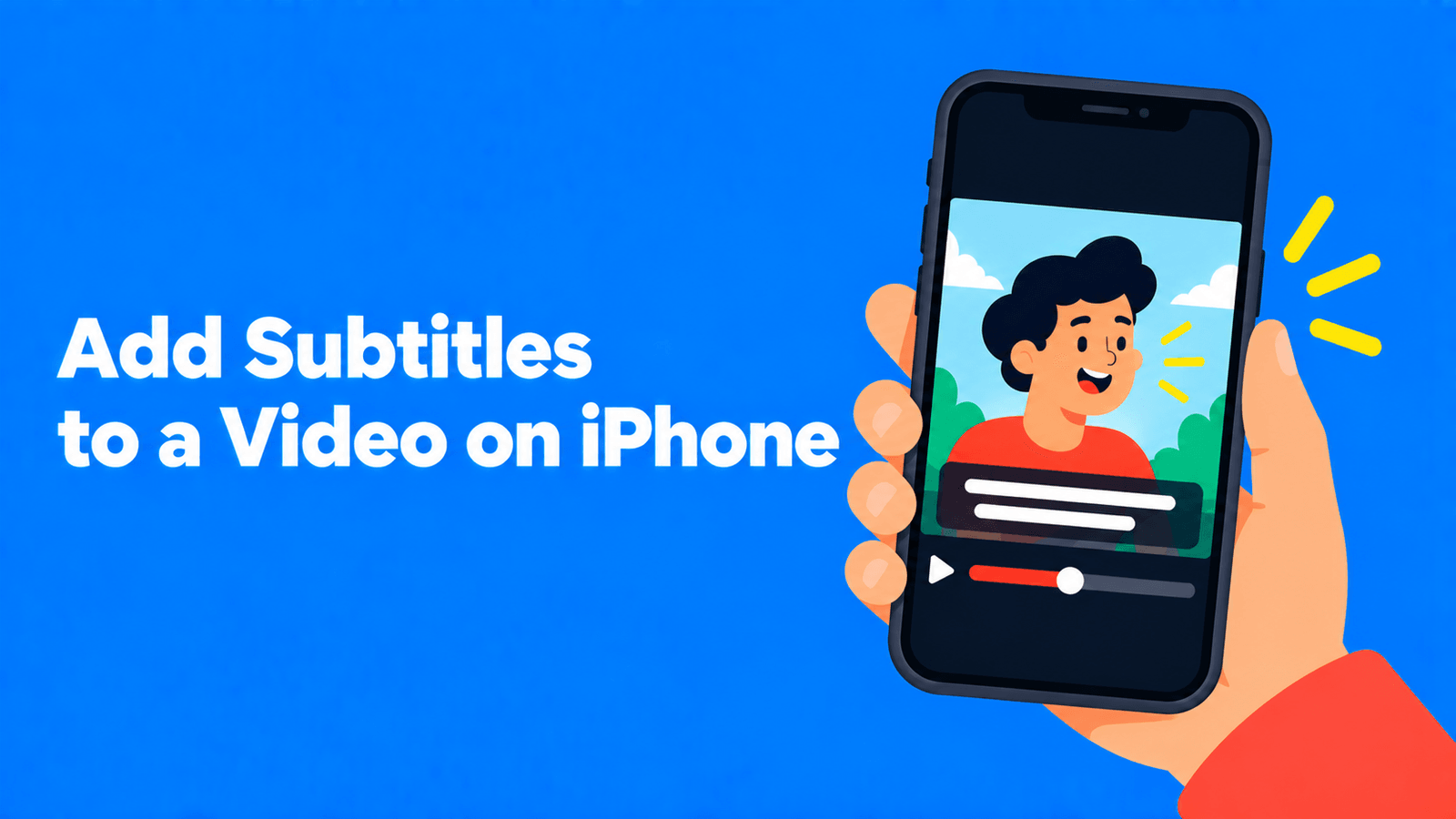
To add subtitles to a video on iPhone, use an editing app that generates captions from speech. Instagram's free Edits app is the simplest: open a project, tap Captions, choose the language and style, tap Generate captions, and download the video to your camera roll, which Instagram says is watermark-free (Instagram Help). CapCut works the same way with Auto captions. If you're about to post to TikTok or Instagram anyway, you can add captions inside those apps instead. Apple's Clips app used to be the go-to for this, but it's no longer listed on the App Store.
Checked against Instagram's and Apple's help pages and the App Store on September 30, 2026. CapCut and TikTok steps are from their help centers as published in early 2026.
Your options at a glance
| Option | Cost | Captions are generated automatically | Result |
|---|---|---|---|
| Edits (Instagram) | Free | Yes | Video saved to your camera roll with captions burned in |
| CapCut | Free, with some Pro-only styles | Yes | Video saved to your camera roll with captions burned in |
| TikTok or Instagram, while posting | Free | Yes | Captions on that post only |
| iMovie | Free | No, you type titles yourself | Video with text titles |
| A subtitle tool in your browser | Free plans available | Yes | Video with burned-in captions, or an SRT file |
Option 1: Edits, Instagram's video editor
Edits is Instagram's editing app. You sign in with your Instagram account, and you can use it to edit any video, not just ones you post to Instagram (Instagram Help).
- Install Edits from the App Store and sign in with Instagram.
- Tap New project and choose your video from the gallery.
- In the editing view, tap Captions.
- Choose the language spoken in the video and a caption style. You can also set transcription options, including punctuation, title case and whether to show curse words.
- Tap Generate captions.
- Select the captions layer to change the Style, Edit the text, adjust Opacity, switch the Bilingual language or Move the captions.
- When you're done, download the video. Instagram says the download saves it to your camera roll "watermark free", so you can post it anywhere.
Option 2: CapCut
- Start a new project in CapCut and import the video.
- Tap Captions (or Text in some versions), then Auto captions.
- Confirm the language and tap Generate.
- Tap a caption and choose Edit captions to fix any wrong words.
- Style the captions and export.
Materials marked with a Pro icon need a subscription to export, so stick to the free caption styles if you don't pay (CapCut Help). CapCut suggests splitting videos longer than 15 minutes on mobile if caption recognition stalls (CapCut Help). The full walkthrough, including fixes for wrong captions, is in how to add subtitles in CapCut.
Option 3: Add captions while you post
If the video is going to one platform, its own tools may be enough:
- TikTok: after you record or upload, tap Captions on the side panel of the preview screen, and TikTok transcribes the speech into captions you can edit and style. TikTok also generates automatic captions for uploads; you pick their language under More options > Select video language before posting (TikTok Support).
- Instagram: add the captions sticker to your reel. It automatically transcribes the audio, and you can change the color and font and edit individual words (Instagram Help).
The catch: these captions live on that one post. If you want the same captioned video on several platforms, use Edits or CapCut and download the file. Platform-specific steps are in how to add captions to TikTok and how to add captions to Instagram Reels.
Option 4: iMovie, for a few lines of text
Apple's free iMovie app lets you add titles to a movie (Apple Support). Titles are text you type yourself, so iMovie suits a heading or a few words on screen, not full subtitles for someone talking. For speech, use one of the apps that generates captions.
What about Apple Clips and Live Captions?
Clips. Apple's Clips app could add "Live Titles": captions that appear as you speak, timed to your voice (Apple Support). As of September 30, 2026, Clips no longer has a listing on the App Store in the US, UK or India, so it can't be downloaded there. If it's still on your phone, the Clips User Guide explains Live Titles.
Live Captions. In Settings > Accessibility > Live Captions, your iPhone can transcribe audio playing on the phone or conversations around you, in real time. It's for following audio, not for adding subtitles to a video file: the captions show in a window on your screen, and you can copy the text. Apple says it's available on iPhone 11 or later, not in every language or region, and that its accuracy may vary (Apple Support).
Option 5: A subtitle tool in your browser
Browser-based subtitle tools are useful when you need more than burned-in captions: an SRT file for YouTube, subtitles in another language, or a longer video. Disclosure: Exemplary AI is our product. Its auto subtitle generator runs in a web browser. You upload the video, and it transcribes it in any of 99 languages. You correct the text and timing, then download an MP4 with the subtitles burned in or the subtitles as SRT, VTT or TXT. The Free plan takes videos up to 30 minutes and exports at 720p with a watermark. For what to do with an SRT file, see how to make an SRT file.
Tips for subtitles people can read on a phone
- Proofread before you export. Auto captions often get names, brands and numbers wrong, and burned-in mistakes can't be edited later.
- Keep lines short. One or two short lines at a time.
- Use contrast. White text with a dark outline or a background box is readable on almost any footage.
- Keep captions off the very bottom edge. Social apps put their own text and buttons over the lower part of the video.
FAQ
How do I add subtitles to a video on iPhone for free?
Use Instagram's Edits app: open the video as a project, tap Captions, generate them, and download the video. CapCut's Auto captions also works for free, as long as you avoid Pro-only styles.
Does the iPhone have a built-in way to add subtitles to a video?
Apple's Clips app did, with Live Titles, but it's no longer on the App Store. iMovie can add typed titles, and Live Captions only shows captions on your screen while audio plays. For automatic subtitles in the video itself, use an app such as Edits or CapCut.
How do I add an SRT file to a video on iPhone?
If the video is going to YouTube, upload the SRT in YouTube Studio instead of adding it to the video. To burn an SRT into the video itself, it's easier on a computer; see how to burn subtitles into a video.
Can I add subtitles in another language on iPhone?
In Edits, the captions layer has a Bilingual option, which Instagram describes as changing the language of your captions (Instagram Help). For full translated subtitles, use a subtitle tool that translates, and check the result with a fluent speaker.